ME-QR / รหัส QR ของ API
ต้องการสร้างคิวอาร์โค้ดจำนวนมากใช่ไหม? ผสานรวม API สร้างคิวอาร์โค้ดของเราเข้ากับธุรกิจของคุณและทำให้กระบวนการเป็นไปโดยอัตโนมัติ Me-QR API รองรับคิวอาร์โค้ดทุกประเภท
สร้างคิวอาร์โค้ดแรกของคุณได้ในไม่กี่วินาทีด้วยการเรียกใช้ API เพียงครั้งเดียว
curl -X POST https://me-qr.com/api/v2/qr/link/create \
-H "Content-Type: application/json" \
-H "X-AUTH-TOKEN: YOUR_API_TOKEN" \
-d '{
"qrFieldsData": {
"link": "https://example.com"
},
"format": "png",
"designType": "base"
}'
import requests
url = "https://me-qr.com/api/v2/qr/link/create"
headers = {
"Content-Type": "application/json",
"X-AUTH-TOKEN": "YOUR_API_TOKEN"
}
payload = {
"qrFieldsData": {
"link": "https://example.com"
},
"format": "png",
"designType": "base"
}
response = requests.post(url, json=payload, headers=headers)
print(response.json())
const response = await fetch(
'https://me-qr.com/api/v2/qr/link/create',
{
method: 'POST',
headers: {
'Content-Type': 'application/json',
'X-AUTH-TOKEN': 'YOUR_API_TOKEN'
},
body: JSON.stringify({
qrFieldsData: { link: 'https://example.com' },
format: 'png',
designType: 'base'
})
}
);
const data = await response.json();
console.log(data);
ใช้คีย์ API เพื่อยืนยันตัวตนในการร้องขอของคุณ
ค้นหาได้ในแดชบอร์ดของคุณ:
เพิ่มคีย์ API ของคุณลงในส่วนหัวของคำขอ:
Authorization: Bearer YOUR_API_KEY
ทุกสิ่งที่คุณจำเป็นต้องรู้เกี่ยวกับการใช้งาน API ข้อจำกัด และการเข้าถึง
รวมถึงคิวอาร์โค้ดสูงสุด 10,000 รหัสต่อเดือน
$0.005 / ขอ
รองรับคำขอได้สูงสุด 100,000 รายการ
$0.0025 / ขอ
100k+ requests
ฟรี
คีย์ API 3 ชุด · ใช้งานได้ 3 วัน
พรีเมี่ยม
คีย์ API ไม่จำกัดจำนวน · ไม่มีวันหมดอายุ
ข้อจำกัดของ API: ประมาณ 1 คำขอ/วินาที · 50 คำขอ/นาที (เหมือนกันสำหรับทุกแพ็กเกจ)
โปรดติดต่อฝ่ายสนับสนุนเพื่อขอเปิดใช้งานการใช้งานเพิ่มเติม
กำหนดเนื้อหา ลักษณะ และผลลัพธ์ของรหัส QR ของคุณโดยใช้พารามิเตอร์ที่มีอยู่
| พารามิเตอร์ | พิมพ์ | ค่าเริ่มต้น | คำอธิบาย |
|---|---|---|---|
| tokenที่จำเป็น | string | — | โทเค็นการเข้าถึงฟังก์ชัน API |
| qrType | integer | 1 | ประเภท QR: 1=ลิงก์, 4=PDF, 5=อีเมล, 7=วีการ์ด… |
| qrFieldsData | object | [] | QR code content depending on the type (e.g. {"link": "https://…"}) |
| title | string | "Qr Code" | ชื่อรหัส QR ที่แสดงบนแดชบอร์ด |
| format | string | "png" | รูปแบบไฟล์เอาต์พุต: png, svg, jpg, jpeg, json |
| designType | string | "base" | ประเภทการออกแบบ QR: แบบพื้นฐานหรือแบบศิลปะ |
| qrFolderOptions | object | null | Folder placement: {"folderName": "…", "subfolderName": "…"} |
| entryId | integer | null | ใช้รหัส QR ที่มีอยู่เพื่ออัปเดตแทนการสร้างใหม่ |
กำหนดเนื้อหา ลักษณะ และผลลัพธ์ของรหัส QR ของคุณโดยใช้พารามิเตอร์ที่มีอยู่
| พารามิเตอร์ | พิมพ์ | ค่าเริ่มต้น | คำอธิบาย |
|---|---|---|---|
| qrOptions | |||
| size | integer | 300 | ขนาดของภาพ QR ที่ได้กลับมา (หน่วยเป็นพิกเซล) |
| errorCorrectionLevel | string | "Q" | การแก้ไขข้อผิดพลาด: L, M, Q, H |
| pattern | string | "square" | รูปแบบจุด: สี่เหลี่ยมจัตุรัส, จุด, กลมมน, คลาสสิก, สี่เหลี่ยมขนมเปียกปูน, ประกายระยิบระยับ… |
| patternColor | string | "#000000" | สีของรหัสคะแนน QR |
| patternBackground | string | "#ffffff" | สีพื้นหลังของรหัส QR |
| cornetsOuter | string | "square" | รูปแบบมุมด้านนอก: สี่เหลี่ยมจัตุรัส, จุด, คลาสสิก, เฟือง, โค้งมนเป็นพิเศษ… |
| cornetsOuterColor | string | "#000000" | สีของมุมด้านนอก |
| cornetsInterior | string | "square" | รูปแบบมุมด้านใน: สี่เหลี่ยมจัตุรัส, จุด, คลาสสิก, สี่เหลี่ยมขนมเปียกปูน, ดาว… |
| cornetsInteriorColor | string | "#000000" | สีของมุมด้านใน |
| logotype | string | null | โลโก้กลาง: enum ที่กำหนดไว้ล่วงหน้า, URL หรือรูปภาพ base64 |
| logotypeSize | number | 0.3 | ค่าสัมประสิทธิ์ขนาดโลโก้ 0–1 (ค่าสูงสุดที่แนะนำคือ 0.5) |
| logotypeMargin | number | 0 | ระยะขอบโลโก้ในหน่วยพิกเซล |
| logotypeHideBackground | boolean | true | ซ่อนจุดที่โลโก้บังไว้ |
| gradientPattern | object | null | การไล่ระดับสีสำหรับจุด: {ประเภท, การหมุน, สี[]} |
| gradientCornetsOuter | object | null | การไล่ระดับสีสำหรับมุมด้านนอก |
| gradientCornetsInterior | object | null | การไล่ระดับสีสำหรับมุมด้านใน |
| gradientBackground | object | null | การไล่ระดับสีสำหรับพื้นหลัง |
| qrFrame | |||
| name | string | "noFrame" | ดีไซน์กรอบ (มีให้เลือกมากกว่า 200 แบบ หรือไม่ใส่กรอบก็ได้) |
| color | string | "#000000" | สีของกรอบ |
| backgroundColor | string | "#ffffff" | สีพื้นหลังของกรอบ |
| text | string | "" | ข้อความกำกับกรอบ (ไม่เกิน 20 ตัวอักษร) |
| textSize | integer | null | ขนาดตัวอักษรในหน่วยพิกเซล (1–50) |
| textColor | string | "#9C3AAF" | สีข้อความในกรอบ |
| textFont | string | "Roboto" | แบบอักษร: Arial, Roboto, Georgia, Verdana… |
สำรวจตัวอย่างคำขอ API และรหัส QR ที่สร้างขึ้น
curl -X POST https://me-qr.com/api/v2/qr/link/create \
-H "Content-Type: application/json" \
-H "X-AUTH-TOKEN: YOUR_API_TOKEN" \
-d '{
"qrFieldsData": {
"link": "https://example.com"
},
"format": "png"
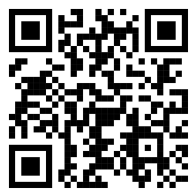
}'
curl -X POST https://me-qr.com/api/v2/qr/link/create \
-H "Content-Type: application/json" \
-H "X-AUTH-TOKEN: YOUR_API_TOKEN" \
-d '{
"qrFieldsData": {
"link": "https://example.com"
},
"format": "png",
"qrOptions": {
"patternColor": "#FFFFFF",
"patternBackground": "#173782",
"cornetsOuterColor": "#0281fb",
"cornetsInteriorColor": "#0281fb"
}
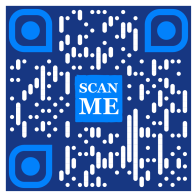
}'
curl -X POST https://me-qr.com/api/v2/qr/link/create \
-H "Content-Type: application/json" \
-H "X-AUTH-TOKEN: YOUR_API_TOKEN" \
-d '{
"qrFieldsData": {
"link": "https://example.com"
},
"format": "png",
"qrOptions": {
"logotype": "youTubeLogotype",
"logotypeSize": 0.3,
"logotypeMargin": 5,
"logotypeHideBackground": true
},
"qrFrame": {
"name": "frame1",
"color": "ff0000",
"backgroundColor": "#ffffff",
"text": "Scan me!",
"textColor": "#FFFFFF"
}
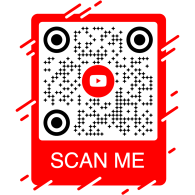
}'
API QR Code เป็นเครื่องมือทรงพลังที่ออกแบบมาสำหรับการสร้าง QR Code จำนวนมากและการผสานรวมเข้ากับกระบวนการทางธุรกิจได้อย่างราบรื่น ช่วยให้เกิดระบบอัตโนมัติผ่านเทคโนโลยี QR API นี้มีบทบาทสำคัญในการปรับปรุงการดำเนินงาน เพิ่มประสิทธิภาพ และมอบโซลูชันที่แข็งแกร่งสำหรับธุรกิจที่ต้องการรวม QR Code เข้ากับขั้นตอนการทำงานของตน
ตัวอย่างที่โดดเด่นของการทำงานของ API นั้นแสดงให้เห็นผ่านทางเอนด์พอยต์ /api/qr/create/ ซึ่งช่วยให้คุณสามารถสร้างรหัส QR ได้โดยใช้โปรแกรม:
ช่วยให้คุณสร้างคิวอาร์โค้ดโดยใช้รูปแบบต่างๆ ที่มีให้เลือกบน me-qr แต่ละคำขอจะสร้างคิวอาร์โค้ดใหม่
ไม่มีพารามิเตอร์
{
"token": "string",
"qrType": 1,
"qrFieldsData": {
"link": "https://example.com"
},
"entryId": null,
"title": "Qr Code",
"format": "png",
"designType": "base",
"qrFolderOptions": {
"folderName": null,
"subfolderName": null
},
"qrOptions": {
"size": 300,
"errorCorrectionLevel": "Q",
"pattern": "square",
"patternColor": "#000000",
"patternBackground": "#ffffff",
"cornetsOuter": "square",
"cornetsOuterColor": "#000000",
"cornetsInterior": "square",
"cornetsInteriorColor": "#000000",
"logotype": null,
"logotypeSize": 0.3,
"logotypeMargin": 0,
"logotypeHideBackground": true,
"gradientPattern": null,
"gradientCornetsOuter": null,
"gradientCornetsInterior": null,
"gradientBackground": null
},
"qrFrame": {
"name": "noFrame",
"color": "#000000",
"backgroundColor": "#ffffff",
"text": "",
"textSize": null,
"textColor": "#9C3AAF",
"textFont": "Roboto"
}
}
| รหัส | คำอธิบาย | ลิงก์ |
|---|---|---|
| default | — | ไม่มีลิงก์ |
API ของ Me-QR Generator ช่วยให้คุณควบคุมการสร้าง QR Code ได้อย่างครอบคลุม พร้อมฟีเจอร์มากมายที่จะช่วยให้คุณปรับแต่ง QR Code ให้ตรงกับความต้องการเฉพาะของคุณ:
เรียกดูรายการประเทศที่รองรับสำหรับ API สร้างคิวอาร์โค้ดแบบกำหนดเอง
เรียกดูรายชื่อประเทศที่มีให้เลือก
| ชื่อ | คำอธิบาย |
|---|---|
|
country
string
(query)
|
ค้นหาตามชื่อประเทศ |
| รหัส | คำอธิบาย | ลิงก์ |
|---|---|---|
| 200 | การตอบสนองที่ประสบความสำเร็จ application/json
[
{
"id": 0,
"name": "string"
}
]
|
ไม่มีลิงก์ |
เอนด์พอยต์นี้ช่วยให้คุณดึงรายการประเทศที่มีอยู่ได้ ทำให้สามารถปรับใช้และปรับแต่งตามความต้องการทางภูมิศาสตร์ได้
ดูรายชื่อเมืองที่รองรับเพื่อปรับแต่งรายละเอียดรหัส QR ให้เหมาะสมยิ่งขึ้น
เรียกดูรายชื่อเมืองที่มีให้เลือก
| ชื่อ | คำอธิบาย |
|---|---|
|
country
string
(query)
|
ค้นหาตามชื่อประเทศ |
| รหัส | คำอธิบาย | ลิงก์ |
|---|---|---|
| 200 | การตอบสนองที่ประสบความสำเร็จ application/json
[
{
"id": 0,
"name": "string"
}
]
|
ไม่มีลิงก์ |
คุณสามารถใช้ฟีเจอร์นี้เพื่อเลือกเมืองที่ต้องการ ซึ่งจะช่วยเพิ่มความเกี่ยวข้องของรหัส QR สำหรับแคมเปญหรือการเผยแพร่ข้อมูลเฉพาะพื้นที่ได้
ตรวจสอบรายชื่อเขตเวลาที่รองรับเพื่อนำข้อมูลที่มีความสำคัญต่อเวลาไปใส่ในรหัส QR
เรียกดูรายการเขตเวลาที่มีให้เลือก
| ชื่อ | คำอธิบาย |
|---|---|
|
timezone
string
(query)
|
ค้นหาตามชื่อเขตเวลา |
| รหัส | คำอธิบาย | ลิงก์ |
|---|---|---|
| 200 | การตอบสนองที่ประสบความสำเร็จ application/json
[
{
"id": 0,
"name": "string"
}
]
|
ไม่มีลิงก์ |
ฟังก์ชันนี้ช่วยให้คุณสามารถเชื่อมโยงเนื้อหาของคิวอาร์โค้ดกับข้อมูลที่กำหนดตามเวลา เพื่อให้มั่นใจได้ว่าข้อมูลมีความเกี่ยวข้องและทันเวลา
ดูรายการภาษาที่รองรับสำหรับการปรับแต่งข้อความและเนื้อหาของ QR Code ได้ที่นี่
เรียกดูรายการภาษาที่มีให้เลือก
| ชื่อ | คำอธิบาย |
|---|---|
|
language
string
(query)
|
ค้นหาตามชื่อภาษา |
| รหัส | คำอธิบาย | ลิงก์ |
|---|---|---|
| 200 | การตอบสนองที่ประสบความสำเร็จ application/json
[
{
"id": 0,
"name": "string"
}
]
|
ไม่มีลิงก์ |
คุณสามารถใช้คุณสมบัตินี้เพื่อรองรับความต้องการด้านภาษาที่หลากหลาย ทำให้รหัส QR เข้าถึงได้ง่ายและใช้งานง่ายยิ่งขึ้นในบริบทหลายภาษา
ความยืดหยุ่นที่ได้รับจากคุณสมบัติเหล่านี้ช่วยให้คุณสามารถสร้าง API รหัส QR แบบไดนามิกที่ปรับแต่งให้เหมาะกับภูมิภาค เมือง เขตเวลา และภาษาต่างๆ ได้อย่างเฉพาะเจาะจง ซึ่งจะช่วยเพิ่มประสิทธิภาพของกลยุทธ์การสื่อสารและการโต้ตอบด้วยรหัส QR ของคุณ
API สร้างคิวอาร์โค้ดของเรามีประเภทการสร้างคิวอาร์โค้ดที่หลากหลาย เพื่อตอบสนองความต้องการและฟังก์ชันการใช้งานที่แตกต่างกัน เรามาสำรวจประเภทเหล่านี้โดยละเอียดกัน
API โค้ด QR ฟรีพิสูจน์แล้วว่ามีคุณค่าในด้านการชำระเงินเนื่องจากมีความราบรื่นและมีประสิทธิภาพ ช่วยลดความซับซ้อนของธุรกรรม เพิ่มความปลอดภัย และเร่งการชำระเงินรายเดือนด้วยโค้ด QR ต่อไปนี้เป็นตัวอย่างโค้ดง่ายๆ ที่แสดงวิธีการใช้งาน:
API โค้ด QR ฟรีพิสูจน์แล้วว่ามีคุณค่าอย่างยิ่งในด้านการชำระเงิน โดยช่วยให้ธุรกิจและบุคคลทั่วไปสามารถทำธุรกรรมได้อย่างคล่องตัวยิ่งขึ้น ด้วยการฝัง URL การชำระเงินลงในโค้ด QR ลูกค้าสามารถสแกนโค้ดด้วยสมาร์ทโฟนและทำธุรกรรมได้อย่างราบรื่น
{
"qrFieldsData": {
"link"*: "https://example.com/pay"
}
}
| สนาม | พิมพ์ | ที่จำเป็น | คำอธิบาย |
|---|---|---|---|
| link | string($hostname) | required | URL หน้าชำระเงิน |
สร้าง API สำหรับสร้าง QR Code และปฏิวัติกระบวนการชำระเงินของคุณไปกับเรา เปลี่ยนธุรกรรมให้ราบรื่นและมีประสิทธิภาพยิ่งขึ้น
สร้าง API สำหรับสร้าง QR Code และปฏิวัติกระบวนการชำระเงินของคุณไปกับเรา ผสานรวมธุรกรรมที่ปลอดภัยและมีประสิทธิภาพเข้ากับแอปพลิเคชันของคุณได้อย่างราบรื่น
ตัวอย่างที่โดดเด่นของการใช้งาน API การชำระเงินด้วย QR Code คือ QR Code ของ PayPal ซึ่งเป็นที่รู้จักในฐานะผู้นำด้านการชำระเงินออนไลน์ การผสานรวม API ของ PayPal ช่วยให้การทำธุรกรรมมีความปลอดภัยยิ่งขึ้น นี่คือภาพประกอบพื้นฐานของการใช้งาน:
API ของ PayPal สำหรับรหัส QR ช่วยให้สามารถผสานรวมลิงก์การชำระเงินของ PayPal เข้ากับรหัส QR ได้อย่างราบรื่น ผู้ใช้สามารถสแกนรหัส QR เพื่อไปยังหน้าชำระเงินของ PayPal ได้ทันที ทำให้การทำธุรกรรมรวดเร็วและสะดวกสบายสำหรับทั้งธุรกิจและลูกค้า
{
"qrFieldsData": {
"link"*: "https://paypal.me/username"
}
}
| สนาม | พิมพ์ | ที่จำเป็น | คำอธิบาย |
|---|---|---|---|
| link | string($hostname) | required | PayPal.me หรือ URL สำหรับการชำระเงิน |
ใช้ประโยชน์จาก API ของ PayPal QR Code เพื่อลดความซับซ้อนและเร่งกระบวนการชำระเงินของคุณ พร้อมมอบประสบการณ์การชำระเงินที่ทันสมัยแก่ผู้ใช้ของคุณ
ยกระดับประสบการณ์การชำระเงินออนไลน์ของคุณด้วย API รหัส QR ของ PayPal จาก Me-QR ผสานรวมธุรกรรม PayPal ที่ปลอดภัยและมีประสิทธิภาพเข้ากับแอปพลิเคชันของคุณได้อย่างง่ายดาย
API สร้างคิวอาร์โค้ดพร้อมโลโก้โดดเด่นอย่างมากเนื่องจากได้รับความนิยม คุณสมบัตินี้ช่วยให้ผู้ใช้สามารถฝังโลโก้ของตนลงในดีไซน์คิวอาร์โค้ดได้โดยการใส่ คิวอาร์โค้ดพร้อมโลโก้ เป็นตัวเลือกที่ได้รับความนิยมสำหรับการสร้างการจดจำแบรนด์และการปรับแต่ง:
API สร้าง QR Code ของโลโก้ช่วยให้คุณสร้าง QR Code ที่เชื่อมโยงไปยัง URL ใดก็ได้ เหมาะอย่างยิ่งสำหรับหน้าเพจแบรนด์ พอร์ตโฟลิโอ หรือหน้า Landing Page ฝัง URL ปลายทางของคุณและมอบประสบการณ์การสแกนที่ดูดีและใช้งานง่ายให้กับผู้ชมของคุณ
{
"qrFieldsData": {
"link"*: "https://example.com"
}
}
| สนาม | พิมพ์ | ที่จำเป็น | คำอธิบาย |
|---|---|---|---|
| link | string($hostname) | required | URL ปลายทาง |
ใช้ API สร้างรหัส QR ของโลโก้เพื่อเชื่อมโยงไปยังปลายทางใดก็ได้ง่ายดาย ผสานการจดจำแบรนด์เข้ากับความสะดวกสบายของเทคโนโลยี QR
ประทับตราสินค้าของคุณลงในทุกการสแกนด้วย API สร้างคิวอาร์โค้ดฟรี ยกระดับการจดจำแบรนด์และปรับแต่งคิวอาร์โค้ดได้อย่างง่ายดายด้วยโลโก้ที่ฝังอยู่
รหัส QR ของ WhatsApp API มีสถานะที่โดดเด่นในบรรดา API รหัส QR ของแอปพลิเคชันส่งข้อความ การใช้ API นี้ช่วยให้การโต้ตอบราบรื่นโดยการเข้าถึง WhatsApp ได้อย่างรวดเร็ว ทำให้เป็นผู้นำในด้านฟังก์ชัน QR บนแอปพลิเคชันส่งข้อความ นี่คือตัวอย่าง:
API สร้าง QR Code ของ WhatsApp ช่วยให้คุณสร้าง QR Code ที่เปิดการสนทนาใน WhatsApp พร้อมข้อความที่กรอกไว้ล่วงหน้าได้ เพียงแค่ระบุหมายเลขโทรศัพท์และข้อความเพิ่มเติม (ถ้าต้องการ) — เหมาะอย่างยิ่งสำหรับการสนับสนุนลูกค้า แคมเปญการตลาด และการมีปฏิสัมพันธ์แบบทันที
{
"qrFieldsData": {
"phone"*: "+1234567890",
"message"*: "Hello!"
}
}
| สนาม | พิมพ์ | ที่จำเป็น | คำอธิบาย |
|---|---|---|---|
| phone | string | required | หมายเลขโทรศัพท์ผู้รับในรูปแบบสากล |
| message | string | required | ข้อความที่กรอกไว้ล่วงหน้า |
ผสานรวม API ของ WhatsApp QR Code เพื่อกระตุ้นการสนทนาโดยตรงและเพิ่มการมีส่วนร่วมด้วยการสแกนเพียงครั้งเดียว
เชื่อมต่อกับกลุ่มเป้าหมายของคุณได้อย่างราบรื่นผ่าน รหัส QR ของ WhatsApp เข้าถึงบทสนทนาได้อย่างรวดเร็วเพียงแค่สแกน ช่วยยกระดับประสบการณ์การส่งข้อความของคุณ
QR Code API เวอร์ชันฟรี มีชุดเครื่องมือสร้าง QR Code API ที่ครอบคลุม เพื่อตอบสนองความต้องการที่หลากหลาย สำรวจประเภท QR API ที่รองรับเพิ่มเติม และตัวอย่างโค้ดสำหรับแต่ละประเภทได้ที่นี่:
สร้างคิวอาร์โค้ดที่นำผู้ใช้ไปยัง URL ใดก็ได้
สร้างคิวอาร์โค้ดที่เมื่อสแกนแล้วจะนำไปยัง URL ใดก็ได้
{
"qrFieldsData": {
"link": "https://example.com"
},
"title": "Qr Code",
"format": "png",
"designType": "base",
"qrFolderOptions": {
"folderName": null,
"subfolderName": null
},
"qrOptions": {
"size": 300,
"errorCorrectionLevel": "Q",
"pattern": "square",
"patternColor": "#000000",
"patternBackground": "#ffffff",
"cornetsOuter": "square",
"cornetsOuterColor": "#000000",
"cornetsInterior": "square",
"cornetsInteriorColor": "#000000",
"logotype": null,
"logotypeSize": 0.3,
"logotypeMargin": 0,
"logotypeHideBackground": true,
"gradientPattern": null,
"gradientCornetsOuter": null,
"gradientCornetsInterior": null,
"gradientBackground": null
},
"qrFrame": {
"name": "noFrame",
"color": "#000000",
"backgroundColor": "#ffffff",
"text": "",
"textSize": null,
"textColor": "#9C3AAF",
"textFont": "Roboto"
}
}
การเปลี่ยนแปลงข้อมูลและพารามิเตอร์รูปแบบของคิวอาร์โค้ด
entryUIDpath รหัสประจำตัวหรือรหัสเข้าใช้งานเฉพาะ (รหัส QR)
{
"qrFieldsData": {
"link": "https://example.com"
},
"title": "Qr Code",
"format": "png",
"designType": "base",
"qrFolderOptions": {
"folderName": null,
"subfolderName": null
},
"qrOptions": {
"size": 300,
"errorCorrectionLevel": "Q",
"pattern": "square",
"patternColor": "#000000",
"patternBackground": "#ffffff",
"cornetsOuter": "square",
"cornetsOuterColor": "#000000",
"cornetsInterior": "square",
"cornetsInteriorColor": "#000000",
"logotype": null,
"logotypeSize": 0.3,
"logotypeMargin": 0,
"logotypeHideBackground": true,
"gradientPattern": null,
"gradientCornetsOuter": null,
"gradientCornetsInterior": null,
"gradientBackground": null
},
"qrFrame": {
"name": "noFrame",
"color": "#000000",
"backgroundColor": "#ffffff",
"text": "",
"textSize": null,
"textColor": "#9C3AAF",
"textFont": "Roboto"
}
}
ดูข้อมูลและการตั้งค่าการปรับแต่ง หรือดูภาพของรหัส QR ที่สร้างขึ้นได้โดยตรง
entryUID path รหัสประจำตัวหรือรหัสเข้าใช้งานเฉพาะ (รหัส QR)
format query รูปแบบไฟล์ภาพ ค่าที่ใช้ได้: png, svg, jpg, jpeg, json ค่าเริ่มต้น: null
{
"qrFieldsData": {
"link": "https://example.com"
},
"title": "Qr Code",
"format": "png",
"designType": "base",
"qrFolderOptions": {
"folderName": null,
"subfolderName": null
},
"qrOptions": {
"size": 300,
"errorCorrectionLevel": "Q",
"pattern": "square",
"patternColor": "#000000",
"patternBackground": "#ffffff",
"cornetsOuter": "square",
"cornetsOuterColor": "#000000",
"cornetsInterior": "square",
"cornetsInteriorColor": "#000000",
"logotype": null,
"logotypeSize": 0.3,
"logotypeMargin": 0,
"logotypeHideBackground": true,
"gradientPattern": null,
"gradientCornetsOuter": null,
"gradientCornetsInterior": null,
"gradientBackground": null
},
"qrFrame": {
"name": "noFrame",
"color": "#000000",
"backgroundColor": "#ffffff",
"text": "",
"textSize": null,
"textColor": "#9C3AAF",
"textFont": "Roboto"
}
}
เชื่อมต่อกับโปรไฟล์ Instagram โดยใช้รหัส QR
สร้างคิวอาร์โค้ดที่เชื่อมโยงโดยตรงไปยังโปรไฟล์หรือโพสต์บน Instagram
{
"qrFieldsData": {
"link": "https://www.instagram.com/username"
},
"title": "Qr Code",
"format": "png",
"designType": "base",
"qrFolderOptions": {
"folderName": null,
"subfolderName": null
},
"qrOptions": {
"size": 300,
"errorCorrectionLevel": "Q",
"pattern": "square",
"patternColor": "#000000",
"patternBackground": "#ffffff",
"cornetsOuter": "square",
"cornetsOuterColor": "#000000",
"cornetsInterior": "square",
"cornetsInteriorColor": "#000000",
"logotype": null,
"logotypeSize": 0.3,
"logotypeMargin": 0,
"logotypeHideBackground": true,
"gradientPattern": null,
"gradientCornetsOuter": null,
"gradientCornetsInterior": null,
"gradientBackground": null
},
"qrFrame": {
"name": "noFrame",
"color": "#000000",
"backgroundColor": "#ffffff",
"text": "",
"textSize": null,
"textColor": "#9C3AAF",
"textFont": "Roboto"
}
}
การเปลี่ยนแปลงข้อมูลและพารามิเตอร์รูปแบบของคิวอาร์โค้ด
entryUIDpath รหัสประจำตัวหรือรหัสเข้าใช้งานเฉพาะ (รหัส QR)
{
"qrFieldsData": {
"link": "https://www.instagram.com/username"
},
"title": "Qr Code",
"format": "png",
"designType": "base",
"qrFolderOptions": {
"folderName": null,
"subfolderName": null
},
"qrOptions": {
"size": 300,
"errorCorrectionLevel": "Q",
"pattern": "square",
"patternColor": "#000000",
"patternBackground": "#ffffff",
"cornetsOuter": "square",
"cornetsOuterColor": "#000000",
"cornetsInterior": "square",
"cornetsInteriorColor": "#000000",
"logotype": null,
"logotypeSize": 0.3,
"logotypeMargin": 0,
"logotypeHideBackground": true,
"gradientPattern": null,
"gradientCornetsOuter": null,
"gradientCornetsInterior": null,
"gradientBackground": null
},
"qrFrame": {
"name": "noFrame",
"color": "#000000",
"backgroundColor": "#ffffff",
"text": "",
"textSize": null,
"textColor": "#9C3AAF",
"textFont": "Roboto"
}
}
ดูข้อมูลและการตั้งค่าการปรับแต่ง หรือดูภาพของรหัส QR ที่สร้างขึ้นได้โดยตรง
entryUID path รหัสประจำตัวหรือรหัสเข้าใช้งานเฉพาะ (รหัส QR)
format query รูปแบบไฟล์ภาพ ค่าที่ใช้ได้: png, svg, jpg, jpeg, json ค่าเริ่มต้น: null
{
"qrFieldsData": {
"link": "https://www.instagram.com/username"
},
"title": "Qr Code",
"format": "png",
"designType": "base",
"qrFolderOptions": {
"folderName": null,
"subfolderName": null
},
"qrOptions": {
"size": 300,
"errorCorrectionLevel": "Q",
"pattern": "square",
"patternColor": "#000000",
"patternBackground": "#ffffff",
"cornetsOuter": "square",
"cornetsOuterColor": "#000000",
"cornetsInterior": "square",
"cornetsInteriorColor": "#000000",
"logotype": null,
"logotypeSize": 0.3,
"logotypeMargin": 0,
"logotypeHideBackground": true,
"gradientPattern": null,
"gradientCornetsOuter": null,
"gradientCornetsInterior": null,
"gradientBackground": null
},
"qrFrame": {
"name": "noFrame",
"color": "#000000",
"backgroundColor": "#ffffff",
"text": "",
"textSize": null,
"textColor": "#9C3AAF",
"textFont": "Roboto"
}
}
เชื่อมโยงไปยังโปรไฟล์หรือเพจ Facebook ผ่าน REST API ของโปรแกรมสร้าง QR Code
สร้างคิวอาร์โค้ดที่เชื่อมโยงไปยังเพจ กลุ่ม หรือโปรไฟล์บน Facebook
{
"qrFieldsData": {
"link": "https://www.facebook.com/pagename"
},
"title": "Qr Code",
"format": "png",
"designType": "base",
"qrFolderOptions": {
"folderName": null,
"subfolderName": null
},
"qrOptions": {
"size": 300,
"errorCorrectionLevel": "Q",
"pattern": "square",
"patternColor": "#000000",
"patternBackground": "#ffffff",
"cornetsOuter": "square",
"cornetsOuterColor": "#000000",
"cornetsInterior": "square",
"cornetsInteriorColor": "#000000",
"logotype": null,
"logotypeSize": 0.3,
"logotypeMargin": 0,
"logotypeHideBackground": true,
"gradientPattern": null,
"gradientCornetsOuter": null,
"gradientCornetsInterior": null,
"gradientBackground": null
},
"qrFrame": {
"name": "noFrame",
"color": "#000000",
"backgroundColor": "#ffffff",
"text": "",
"textSize": null,
"textColor": "#9C3AAF",
"textFont": "Roboto"
}
}
การเปลี่ยนแปลงข้อมูลและพารามิเตอร์รูปแบบของคิวอาร์โค้ด
entryUIDpath รหัสประจำตัวหรือรหัสเข้าใช้งานเฉพาะ (รหัส QR)
{
"qrFieldsData": {
"link": "https://www.facebook.com/pagename"
},
"title": "Qr Code",
"format": "png",
"designType": "base",
"qrFolderOptions": {
"folderName": null,
"subfolderName": null
},
"qrOptions": {
"size": 300,
"errorCorrectionLevel": "Q",
"pattern": "square",
"patternColor": "#000000",
"patternBackground": "#ffffff",
"cornetsOuter": "square",
"cornetsOuterColor": "#000000",
"cornetsInterior": "square",
"cornetsInteriorColor": "#000000",
"logotype": null,
"logotypeSize": 0.3,
"logotypeMargin": 0,
"logotypeHideBackground": true,
"gradientPattern": null,
"gradientCornetsOuter": null,
"gradientCornetsInterior": null,
"gradientBackground": null
},
"qrFrame": {
"name": "noFrame",
"color": "#000000",
"backgroundColor": "#ffffff",
"text": "",
"textSize": null,
"textColor": "#9C3AAF",
"textFont": "Roboto"
}
}
ดูข้อมูลและการตั้งค่าการปรับแต่ง หรือดูภาพของรหัส QR ที่สร้างขึ้นได้โดยตรง
entryUID path รหัสประจำตัวหรือรหัสเข้าใช้งานเฉพาะ (รหัส QR)
format query รูปแบบไฟล์ภาพ ค่าที่ใช้ได้: png, svg, jpg, jpeg, json ค่าเริ่มต้น: null
{
"qrFieldsData": {
"link": "https://www.facebook.com/pagename"
},
"title": "Qr Code",
"format": "png",
"designType": "base",
"qrFolderOptions": {
"folderName": null,
"subfolderName": null
},
"qrOptions": {
"size": 300,
"errorCorrectionLevel": "Q",
"pattern": "square",
"patternColor": "#000000",
"patternBackground": "#ffffff",
"cornetsOuter": "square",
"cornetsOuterColor": "#000000",
"cornetsInterior": "square",
"cornetsInteriorColor": "#000000",
"logotype": null,
"logotypeSize": 0.3,
"logotypeMargin": 0,
"logotypeHideBackground": true,
"gradientPattern": null,
"gradientCornetsOuter": null,
"gradientCornetsInterior": null,
"gradientBackground": null
},
"qrFrame": {
"name": "noFrame",
"color": "#000000",
"backgroundColor": "#ffffff",
"text": "",
"textSize": null,
"textColor": "#9C3AAF",
"textFont": "Roboto"
}
}
เข้าถึงโปรไฟล์หรือทวีตบนทวิตเตอร์ด้วยรหัส QR
สร้างคิวอาร์โค้ดที่นำผู้ใช้ไปยังโปรไฟล์หรือทวีตบน Twitter/X
{
"qrFieldsData": {
"link": "https://twitter.com/username"
},
"title": "Qr Code",
"format": "png",
"designType": "base",
"qrFolderOptions": {
"folderName": null,
"subfolderName": null
},
"qrOptions": {
"size": 300,
"errorCorrectionLevel": "Q",
"pattern": "square",
"patternColor": "#000000",
"patternBackground": "#ffffff",
"cornetsOuter": "square",
"cornetsOuterColor": "#000000",
"cornetsInterior": "square",
"cornetsInteriorColor": "#000000",
"logotype": null,
"logotypeSize": 0.3,
"logotypeMargin": 0,
"logotypeHideBackground": true,
"gradientPattern": null,
"gradientCornetsOuter": null,
"gradientCornetsInterior": null,
"gradientBackground": null
},
"qrFrame": {
"name": "noFrame",
"color": "#000000",
"backgroundColor": "#ffffff",
"text": "",
"textSize": null,
"textColor": "#9C3AAF",
"textFont": "Roboto"
}
}
การเปลี่ยนแปลงข้อมูลและพารามิเตอร์รูปแบบของคิวอาร์โค้ด
entryUIDpath รหัสประจำตัวหรือรหัสเข้าใช้งานเฉพาะ (รหัส QR)
{
"qrFieldsData": {
"link": "https://twitter.com/username"
},
"title": "Qr Code",
"format": "png",
"designType": "base",
"qrFolderOptions": {
"folderName": null,
"subfolderName": null
},
"qrOptions": {
"size": 300,
"errorCorrectionLevel": "Q",
"pattern": "square",
"patternColor": "#000000",
"patternBackground": "#ffffff",
"cornetsOuter": "square",
"cornetsOuterColor": "#000000",
"cornetsInterior": "square",
"cornetsInteriorColor": "#000000",
"logotype": null,
"logotypeSize": 0.3,
"logotypeMargin": 0,
"logotypeHideBackground": true,
"gradientPattern": null,
"gradientCornetsOuter": null,
"gradientCornetsInterior": null,
"gradientBackground": null
},
"qrFrame": {
"name": "noFrame",
"color": "#000000",
"backgroundColor": "#ffffff",
"text": "",
"textSize": null,
"textColor": "#9C3AAF",
"textFont": "Roboto"
}
}
ดูข้อมูลและการตั้งค่าการปรับแต่ง หรือดูภาพของรหัส QR ที่สร้างขึ้นได้โดยตรง
entryUID path รหัสประจำตัวหรือรหัสเข้าใช้งานเฉพาะ (รหัส QR)
format query รูปแบบไฟล์ภาพ ค่าที่ใช้ได้: png, svg, jpg, jpeg, json ค่าเริ่มต้น: null
{
"qrFieldsData": {
"link": "https://twitter.com/username"
},
"title": "Qr Code",
"format": "png",
"designType": "base",
"qrFolderOptions": {
"folderName": null,
"subfolderName": null
},
"qrOptions": {
"size": 300,
"errorCorrectionLevel": "Q",
"pattern": "square",
"patternColor": "#000000",
"patternBackground": "#ffffff",
"cornetsOuter": "square",
"cornetsOuterColor": "#000000",
"cornetsInterior": "square",
"cornetsInteriorColor": "#000000",
"logotype": null,
"logotypeSize": 0.3,
"logotypeMargin": 0,
"logotypeHideBackground": true,
"gradientPattern": null,
"gradientCornetsOuter": null,
"gradientCornetsInterior": null,
"gradientBackground": null
},
"qrFrame": {
"name": "noFrame",
"color": "#000000",
"backgroundColor": "#ffffff",
"text": "",
"textSize": null,
"textColor": "#9C3AAF",
"textFont": "Roboto"
}
}
ค้นหาโปรไฟล์ TikTok โดยใช้รหัส QR
สร้างคิวอาร์โค้ดที่เชื่อมโยงไปยังโปรไฟล์หรือวิดีโอ TikTok
{
"qrFieldsData": {
"link": "https://www.tiktok.com/@username"
},
"title": "Qr Code",
"format": "png",
"designType": "base",
"qrFolderOptions": {
"folderName": null,
"subfolderName": null
},
"qrOptions": {
"size": 300,
"errorCorrectionLevel": "Q",
"pattern": "square",
"patternColor": "#000000",
"patternBackground": "#ffffff",
"cornetsOuter": "square",
"cornetsOuterColor": "#000000",
"cornetsInterior": "square",
"cornetsInteriorColor": "#000000",
"logotype": null,
"logotypeSize": 0.3,
"logotypeMargin": 0,
"logotypeHideBackground": true,
"gradientPattern": null,
"gradientCornetsOuter": null,
"gradientCornetsInterior": null,
"gradientBackground": null
},
"qrFrame": {
"name": "noFrame",
"color": "#000000",
"backgroundColor": "#ffffff",
"text": "",
"textSize": null,
"textColor": "#9C3AAF",
"textFont": "Roboto"
}
}
การเปลี่ยนแปลงข้อมูลและพารามิเตอร์รูปแบบของคิวอาร์โค้ด
entryUIDpath รหัสประจำตัวหรือรหัสเข้าใช้งานเฉพาะ (รหัส QR)
{
"qrFieldsData": {
"link": "https://www.tiktok.com/@username"
},
"title": "Qr Code",
"format": "png",
"designType": "base",
"qrFolderOptions": {
"folderName": null,
"subfolderName": null
},
"qrOptions": {
"size": 300,
"errorCorrectionLevel": "Q",
"pattern": "square",
"patternColor": "#000000",
"patternBackground": "#ffffff",
"cornetsOuter": "square",
"cornetsOuterColor": "#000000",
"cornetsInterior": "square",
"cornetsInteriorColor": "#000000",
"logotype": null,
"logotypeSize": 0.3,
"logotypeMargin": 0,
"logotypeHideBackground": true,
"gradientPattern": null,
"gradientCornetsOuter": null,
"gradientCornetsInterior": null,
"gradientBackground": null
},
"qrFrame": {
"name": "noFrame",
"color": "#000000",
"backgroundColor": "#ffffff",
"text": "",
"textSize": null,
"textColor": "#9C3AAF",
"textFont": "Roboto"
}
}
ดูข้อมูลและการตั้งค่าการปรับแต่ง หรือดูภาพของรหัส QR ที่สร้างขึ้นได้โดยตรง
entryUID path รหัสประจำตัวหรือรหัสเข้าใช้งานเฉพาะ (รหัส QR)
format query รูปแบบไฟล์ภาพ ค่าที่ใช้ได้: png, svg, jpg, jpeg, json ค่าเริ่มต้น: null
{
"qrFieldsData": {
"link": "https://www.tiktok.com/@username"
},
"title": "Qr Code",
"format": "png",
"designType": "base",
"qrFolderOptions": {
"folderName": null,
"subfolderName": null
},
"qrOptions": {
"size": 300,
"errorCorrectionLevel": "Q",
"pattern": "square",
"patternColor": "#000000",
"patternBackground": "#ffffff",
"cornetsOuter": "square",
"cornetsOuterColor": "#000000",
"cornetsInterior": "square",
"cornetsInteriorColor": "#000000",
"logotype": null,
"logotypeSize": 0.3,
"logotypeMargin": 0,
"logotypeHideBackground": true,
"gradientPattern": null,
"gradientCornetsOuter": null,
"gradientCornetsInterior": null,
"gradientBackground": null
},
"qrFrame": {
"name": "noFrame",
"color": "#000000",
"backgroundColor": "#ffffff",
"text": "",
"textSize": null,
"textColor": "#9C3AAF",
"textFont": "Roboto"
}
}
เชื่อมต่อกับโปรไฟล์ต่างๆ ผ่าน Snapchat QR
สร้างคิวอาร์โค้ดที่เชื่อมโยงไปยังโปรไฟล์ Snapchat โดยตรง
{
"qrFieldsData": {
"link": "https://www.snapchat.com/add/username"
},
"title": "Qr Code",
"format": "png",
"designType": "base",
"qrFolderOptions": {
"folderName": null,
"subfolderName": null
},
"qrOptions": {
"size": 300,
"errorCorrectionLevel": "Q",
"pattern": "square",
"patternColor": "#000000",
"patternBackground": "#ffffff",
"cornetsOuter": "square",
"cornetsOuterColor": "#000000",
"cornetsInterior": "square",
"cornetsInteriorColor": "#000000",
"logotype": null,
"logotypeSize": 0.3,
"logotypeMargin": 0,
"logotypeHideBackground": true,
"gradientPattern": null,
"gradientCornetsOuter": null,
"gradientCornetsInterior": null,
"gradientBackground": null
},
"qrFrame": {
"name": "noFrame",
"color": "#000000",
"backgroundColor": "#ffffff",
"text": "",
"textSize": null,
"textColor": "#9C3AAF",
"textFont": "Roboto"
}
}
การเปลี่ยนแปลงข้อมูลและพารามิเตอร์รูปแบบของคิวอาร์โค้ด
entryUIDpath รหัสประจำตัวหรือรหัสเข้าใช้งานเฉพาะ (รหัส QR)
{
"qrFieldsData": {
"link": "https://www.snapchat.com/add/username"
},
"title": "Qr Code",
"format": "png",
"designType": "base",
"qrFolderOptions": {
"folderName": null,
"subfolderName": null
},
"qrOptions": {
"size": 300,
"errorCorrectionLevel": "Q",
"pattern": "square",
"patternColor": "#000000",
"patternBackground": "#ffffff",
"cornetsOuter": "square",
"cornetsOuterColor": "#000000",
"cornetsInterior": "square",
"cornetsInteriorColor": "#000000",
"logotype": null,
"logotypeSize": 0.3,
"logotypeMargin": 0,
"logotypeHideBackground": true,
"gradientPattern": null,
"gradientCornetsOuter": null,
"gradientCornetsInterior": null,
"gradientBackground": null
},
"qrFrame": {
"name": "noFrame",
"color": "#000000",
"backgroundColor": "#ffffff",
"text": "",
"textSize": null,
"textColor": "#9C3AAF",
"textFont": "Roboto"
}
}
ดูข้อมูลและการตั้งค่าการปรับแต่ง หรือดูภาพของรหัส QR ที่สร้างขึ้นได้โดยตรง
entryUID path รหัสประจำตัวหรือรหัสเข้าใช้งานเฉพาะ (รหัส QR)
format query รูปแบบไฟล์ภาพ ค่าที่ใช้ได้: png, svg, jpg, jpeg, json ค่าเริ่มต้น: null
{
"qrFieldsData": {
"link": "https://www.snapchat.com/add/username"
},
"title": "Qr Code",
"format": "png",
"designType": "base",
"qrFolderOptions": {
"folderName": null,
"subfolderName": null
},
"qrOptions": {
"size": 300,
"errorCorrectionLevel": "Q",
"pattern": "square",
"patternColor": "#000000",
"patternBackground": "#ffffff",
"cornetsOuter": "square",
"cornetsOuterColor": "#000000",
"cornetsInterior": "square",
"cornetsInteriorColor": "#000000",
"logotype": null,
"logotypeSize": 0.3,
"logotypeMargin": 0,
"logotypeHideBackground": true,
"gradientPattern": null,
"gradientCornetsOuter": null,
"gradientCornetsInterior": null,
"gradientBackground": null
},
"qrFrame": {
"name": "noFrame",
"color": "#000000",
"backgroundColor": "#ffffff",
"text": "",
"textSize": null,
"textColor": "#9C3AAF",
"textFont": "Roboto"
}
}
เชื่อมต่อกับช่องหรือกลุ่ม Telegram โดยใช้รหัส QR
สร้างคิวอาร์โค้ดที่เชื่อมโยงไปยังช่อง Telegram บอท หรือรายชื่อติดต่อ
{
"qrFieldsData": {
"link": "https://t.me/username"
},
"title": "Qr Code",
"format": "png",
"designType": "base",
"qrFolderOptions": {
"folderName": null,
"subfolderName": null
},
"qrOptions": {
"size": 300,
"errorCorrectionLevel": "Q",
"pattern": "square",
"patternColor": "#000000",
"patternBackground": "#ffffff",
"cornetsOuter": "square",
"cornetsOuterColor": "#000000",
"cornetsInterior": "square",
"cornetsInteriorColor": "#000000",
"logotype": null,
"logotypeSize": 0.3,
"logotypeMargin": 0,
"logotypeHideBackground": true,
"gradientPattern": null,
"gradientCornetsOuter": null,
"gradientCornetsInterior": null,
"gradientBackground": null
},
"qrFrame": {
"name": "noFrame",
"color": "#000000",
"backgroundColor": "#ffffff",
"text": "",
"textSize": null,
"textColor": "#9C3AAF",
"textFont": "Roboto"
}
}
การเปลี่ยนแปลงข้อมูลและพารามิเตอร์รูปแบบของคิวอาร์โค้ด
entryUIDpath รหัสประจำตัวหรือรหัสเข้าใช้งานเฉพาะ (รหัส QR)
{
"qrFieldsData": {
"link": "https://t.me/username"
},
"title": "Qr Code",
"format": "png",
"designType": "base",
"qrFolderOptions": {
"folderName": null,
"subfolderName": null
},
"qrOptions": {
"size": 300,
"errorCorrectionLevel": "Q",
"pattern": "square",
"patternColor": "#000000",
"patternBackground": "#ffffff",
"cornetsOuter": "square",
"cornetsOuterColor": "#000000",
"cornetsInterior": "square",
"cornetsInteriorColor": "#000000",
"logotype": null,
"logotypeSize": 0.3,
"logotypeMargin": 0,
"logotypeHideBackground": true,
"gradientPattern": null,
"gradientCornetsOuter": null,
"gradientCornetsInterior": null,
"gradientBackground": null
},
"qrFrame": {
"name": "noFrame",
"color": "#000000",
"backgroundColor": "#ffffff",
"text": "",
"textSize": null,
"textColor": "#9C3AAF",
"textFont": "Roboto"
}
}
ดูข้อมูลและการตั้งค่าการปรับแต่ง หรือดูภาพของรหัส QR ที่สร้างขึ้นได้โดยตรง
entryUID path รหัสประจำตัวหรือรหัสเข้าใช้งานเฉพาะ (รหัส QR)
format query รูปแบบไฟล์ภาพ ค่าที่ใช้ได้: png, svg, jpg, jpeg, json ค่าเริ่มต้น: null
{
"qrFieldsData": {
"link": "https://t.me/username"
},
"title": "Qr Code",
"format": "png",
"designType": "base",
"qrFolderOptions": {
"folderName": null,
"subfolderName": null
},
"qrOptions": {
"size": 300,
"errorCorrectionLevel": "Q",
"pattern": "square",
"patternColor": "#000000",
"patternBackground": "#ffffff",
"cornetsOuter": "square",
"cornetsOuterColor": "#000000",
"cornetsInterior": "square",
"cornetsInteriorColor": "#000000",
"logotype": null,
"logotypeSize": 0.3,
"logotypeMargin": 0,
"logotypeHideBackground": true,
"gradientPattern": null,
"gradientCornetsOuter": null,
"gradientCornetsInterior": null,
"gradientBackground": null
},
"qrFrame": {
"name": "noFrame",
"color": "#000000",
"backgroundColor": "#ffffff",
"text": "",
"textSize": null,
"textColor": "#9C3AAF",
"textFont": "Roboto"
}
}
เข้าถึงเพลง อัลบั้ม หรือศิลปินที่ต้องการบน Spotify โดยใช้รหัส QR
สร้างคิวอาร์โค้ดที่เปิดไปยังหน้าเพลง อัลบั้ม หรือศิลปินบน Spotify
{
"qrFieldsData": {
"link": "https://open.spotify.com/track/..."
},
"title": "Qr Code",
"format": "png",
"designType": "base",
"qrFolderOptions": {
"folderName": null,
"subfolderName": null
},
"qrOptions": {
"size": 300,
"errorCorrectionLevel": "Q",
"pattern": "square",
"patternColor": "#000000",
"patternBackground": "#ffffff",
"cornetsOuter": "square",
"cornetsOuterColor": "#000000",
"cornetsInterior": "square",
"cornetsInteriorColor": "#000000",
"logotype": null,
"logotypeSize": 0.3,
"logotypeMargin": 0,
"logotypeHideBackground": true,
"gradientPattern": null,
"gradientCornetsOuter": null,
"gradientCornetsInterior": null,
"gradientBackground": null
},
"qrFrame": {
"name": "noFrame",
"color": "#000000",
"backgroundColor": "#ffffff",
"text": "",
"textSize": null,
"textColor": "#9C3AAF",
"textFont": "Roboto"
}
}
การเปลี่ยนแปลงข้อมูลและพารามิเตอร์รูปแบบของคิวอาร์โค้ด
entryUIDpath รหัสประจำตัวหรือรหัสเข้าใช้งานเฉพาะ (รหัส QR)
{
"qrFieldsData": {
"link": "https://open.spotify.com/track/..."
},
"title": "Qr Code",
"format": "png",
"designType": "base",
"qrFolderOptions": {
"folderName": null,
"subfolderName": null
},
"qrOptions": {
"size": 300,
"errorCorrectionLevel": "Q",
"pattern": "square",
"patternColor": "#000000",
"patternBackground": "#ffffff",
"cornetsOuter": "square",
"cornetsOuterColor": "#000000",
"cornetsInterior": "square",
"cornetsInteriorColor": "#000000",
"logotype": null,
"logotypeSize": 0.3,
"logotypeMargin": 0,
"logotypeHideBackground": true,
"gradientPattern": null,
"gradientCornetsOuter": null,
"gradientCornetsInterior": null,
"gradientBackground": null
},
"qrFrame": {
"name": "noFrame",
"color": "#000000",
"backgroundColor": "#ffffff",
"text": "",
"textSize": null,
"textColor": "#9C3AAF",
"textFont": "Roboto"
}
}
ดูข้อมูลและการตั้งค่าการปรับแต่ง หรือดูภาพของรหัส QR ที่สร้างขึ้นได้โดยตรง
entryUID path รหัสประจำตัวหรือรหัสเข้าใช้งานเฉพาะ (รหัส QR)
format query รูปแบบไฟล์ภาพ ค่าที่ใช้ได้: png, svg, jpg, jpeg, json ค่าเริ่มต้น: null
{
"qrFieldsData": {
"link": "https://open.spotify.com/track/..."
},
"title": "Qr Code",
"format": "png",
"designType": "base",
"qrFolderOptions": {
"folderName": null,
"subfolderName": null
},
"qrOptions": {
"size": 300,
"errorCorrectionLevel": "Q",
"pattern": "square",
"patternColor": "#000000",
"patternBackground": "#ffffff",
"cornetsOuter": "square",
"cornetsOuterColor": "#000000",
"cornetsInterior": "square",
"cornetsInteriorColor": "#000000",
"logotype": null,
"logotypeSize": 0.3,
"logotypeMargin": 0,
"logotypeHideBackground": true,
"gradientPattern": null,
"gradientCornetsOuter": null,
"gradientCornetsInterior": null,
"gradientBackground": null
},
"qrFrame": {
"name": "noFrame",
"color": "#000000",
"backgroundColor": "#ffffff",
"text": "",
"textSize": null,
"textColor": "#9C3AAF",
"textFont": "Roboto"
}
}
รับชมช่อง YouTube หรือวิดีโอโดยใช้รหัส QR
สร้างคิวอาร์โค้ดที่เชื่อมโยงไปยังช่อง YouTube หรือวิดีโอ
{
"qrFieldsData": {
"link": "https://www.youtube.com/watch?v=dQw4w9WgXcQ"
},
"title": "Qr Code",
"format": "png",
"designType": "base",
"qrFolderOptions": {
"folderName": null,
"subfolderName": null
},
"qrOptions": {
"size": 300,
"errorCorrectionLevel": "Q",
"pattern": "square",
"patternColor": "#000000",
"patternBackground": "#ffffff",
"cornetsOuter": "square",
"cornetsOuterColor": "#000000",
"cornetsInterior": "square",
"cornetsInteriorColor": "#000000",
"logotype": null,
"logotypeSize": 0.3,
"logotypeMargin": 0,
"logotypeHideBackground": true,
"gradientPattern": null,
"gradientCornetsOuter": null,
"gradientCornetsInterior": null,
"gradientBackground": null
},
"qrFrame": {
"name": "noFrame",
"color": "#000000",
"backgroundColor": "#ffffff",
"text": "",
"textSize": null,
"textColor": "#9C3AAF",
"textFont": "Roboto"
}
}
การเปลี่ยนแปลงข้อมูลและพารามิเตอร์รูปแบบของคิวอาร์โค้ด
entryUIDpath รหัสประจำตัวหรือรหัสเข้าใช้งานเฉพาะ (รหัส QR)
{
"qrFieldsData": {
"link": "https://www.youtube.com/watch?v=dQw4w9WgXcQ"
},
"title": "Qr Code",
"format": "png",
"designType": "base",
"qrFolderOptions": {
"folderName": null,
"subfolderName": null
},
"qrOptions": {
"size": 300,
"errorCorrectionLevel": "Q",
"pattern": "square",
"patternColor": "#000000",
"patternBackground": "#ffffff",
"cornetsOuter": "square",
"cornetsOuterColor": "#000000",
"cornetsInterior": "square",
"cornetsInteriorColor": "#000000",
"logotype": null,
"logotypeSize": 0.3,
"logotypeMargin": 0,
"logotypeHideBackground": true,
"gradientPattern": null,
"gradientCornetsOuter": null,
"gradientCornetsInterior": null,
"gradientBackground": null
},
"qrFrame": {
"name": "noFrame",
"color": "#000000",
"backgroundColor": "#ffffff",
"text": "",
"textSize": null,
"textColor": "#9C3AAF",
"textFont": "Roboto"
}
}
ดูข้อมูลและการตั้งค่าการปรับแต่ง หรือดูภาพของรหัส QR ที่สร้างขึ้นได้โดยตรง
entryUID path รหัสประจำตัวหรือรหัสเข้าใช้งานเฉพาะ (รหัส QR)
format query รูปแบบไฟล์ภาพ ค่าที่ใช้ได้: png, svg, jpg, jpeg, json ค่าเริ่มต้น: null
{
"qrFieldsData": {
"link": "https://www.youtube.com/watch?v=dQw4w9WgXcQ"
},
"title": "Qr Code",
"format": "png",
"designType": "base",
"qrFolderOptions": {
"folderName": null,
"subfolderName": null
},
"qrOptions": {
"size": 300,
"errorCorrectionLevel": "Q",
"pattern": "square",
"patternColor": "#000000",
"patternBackground": "#ffffff",
"cornetsOuter": "square",
"cornetsOuterColor": "#000000",
"cornetsInterior": "square",
"cornetsInteriorColor": "#000000",
"logotype": null,
"logotypeSize": 0.3,
"logotypeMargin": 0,
"logotypeHideBackground": true,
"gradientPattern": null,
"gradientCornetsOuter": null,
"gradientCornetsInterior": null,
"gradientBackground": null
},
"qrFrame": {
"name": "noFrame",
"color": "#000000",
"backgroundColor": "#ffffff",
"text": "",
"textSize": null,
"textColor": "#9C3AAF",
"textFont": "Roboto"
}
}
เพลิดเพลินกับการเล่นวิดีโอบนอุปกรณ์มือถือโดยใช้รหัส QR ที่ฝังอยู่ในวิดีโอ
สร้างคิวอาร์โค้ดที่เชื่อมโยงไปยังแหล่งวิดีโอออนไลน์ใดก็ได้
{
"qrFieldsData": {
"link": "https://example.com/video.mp4"
},
"title": "Qr Code",
"format": "png",
"designType": "base",
"qrFolderOptions": {
"folderName": null,
"subfolderName": null
},
"qrOptions": {
"size": 300,
"errorCorrectionLevel": "Q",
"pattern": "square",
"patternColor": "#000000",
"patternBackground": "#ffffff",
"cornetsOuter": "square",
"cornetsOuterColor": "#000000",
"cornetsInterior": "square",
"cornetsInteriorColor": "#000000",
"logotype": null,
"logotypeSize": 0.3,
"logotypeMargin": 0,
"logotypeHideBackground": true,
"gradientPattern": null,
"gradientCornetsOuter": null,
"gradientCornetsInterior": null,
"gradientBackground": null
},
"qrFrame": {
"name": "noFrame",
"color": "#000000",
"backgroundColor": "#ffffff",
"text": "",
"textSize": null,
"textColor": "#9C3AAF",
"textFont": "Roboto"
}
}
การเปลี่ยนแปลงข้อมูลและพารามิเตอร์รูปแบบของคิวอาร์โค้ด
entryUIDpath รหัสประจำตัวหรือรหัสเข้าใช้งานเฉพาะ (รหัส QR)
{
"qrFieldsData": {
"link": "https://example.com/video.mp4"
},
"title": "Qr Code",
"format": "png",
"designType": "base",
"qrFolderOptions": {
"folderName": null,
"subfolderName": null
},
"qrOptions": {
"size": 300,
"errorCorrectionLevel": "Q",
"pattern": "square",
"patternColor": "#000000",
"patternBackground": "#ffffff",
"cornetsOuter": "square",
"cornetsOuterColor": "#000000",
"cornetsInterior": "square",
"cornetsInteriorColor": "#000000",
"logotype": null,
"logotypeSize": 0.3,
"logotypeMargin": 0,
"logotypeHideBackground": true,
"gradientPattern": null,
"gradientCornetsOuter": null,
"gradientCornetsInterior": null,
"gradientBackground": null
},
"qrFrame": {
"name": "noFrame",
"color": "#000000",
"backgroundColor": "#ffffff",
"text": "",
"textSize": null,
"textColor": "#9C3AAF",
"textFont": "Roboto"
}
}
ดูข้อมูลและการตั้งค่าการปรับแต่ง หรือดูภาพของรหัส QR ที่สร้างขึ้นได้โดยตรง
entryUID path รหัสประจำตัวหรือรหัสเข้าใช้งานเฉพาะ (รหัส QR)
format query รูปแบบไฟล์ภาพ ค่าที่ใช้ได้: png, svg, jpg, jpeg, json ค่าเริ่มต้น: null
{
"qrFieldsData": {
"link": "https://example.com/video.mp4"
},
"title": "Qr Code",
"format": "png",
"designType": "base",
"qrFolderOptions": {
"folderName": null,
"subfolderName": null
},
"qrOptions": {
"size": 300,
"errorCorrectionLevel": "Q",
"pattern": "square",
"patternColor": "#000000",
"patternBackground": "#ffffff",
"cornetsOuter": "square",
"cornetsOuterColor": "#000000",
"cornetsInterior": "square",
"cornetsInteriorColor": "#000000",
"logotype": null,
"logotypeSize": 0.3,
"logotypeMargin": 0,
"logotypeHideBackground": true,
"gradientPattern": null,
"gradientCornetsOuter": null,
"gradientCornetsInterior": null,
"gradientBackground": null
},
"qrFrame": {
"name": "noFrame",
"color": "#000000",
"backgroundColor": "#ffffff",
"text": "",
"textSize": null,
"textColor": "#9C3AAF",
"textFont": "Roboto"
}
}
เรียกดูสินค้า Etsy ที่ต้องการโดยใช้รหัส QR
สร้างคิวอาร์โค้ดที่เชื่อมโยงไปยังร้านค้าหรือรายการสินค้าบน Etsy
{
"qrFieldsData": {
"link": "https://www.etsy.com/shop/storename"
},
"title": "Qr Code",
"format": "png",
"designType": "base",
"qrFolderOptions": {
"folderName": null,
"subfolderName": null
},
"qrOptions": {
"size": 300,
"errorCorrectionLevel": "Q",
"pattern": "square",
"patternColor": "#000000",
"patternBackground": "#ffffff",
"cornetsOuter": "square",
"cornetsOuterColor": "#000000",
"cornetsInterior": "square",
"cornetsInteriorColor": "#000000",
"logotype": null,
"logotypeSize": 0.3,
"logotypeMargin": 0,
"logotypeHideBackground": true,
"gradientPattern": null,
"gradientCornetsOuter": null,
"gradientCornetsInterior": null,
"gradientBackground": null
},
"qrFrame": {
"name": "noFrame",
"color": "#000000",
"backgroundColor": "#ffffff",
"text": "",
"textSize": null,
"textColor": "#9C3AAF",
"textFont": "Roboto"
}
}
การเปลี่ยนแปลงข้อมูลและพารามิเตอร์รูปแบบของคิวอาร์โค้ด
entryUIDpath รหัสประจำตัวหรือรหัสเข้าใช้งานเฉพาะ (รหัส QR)
{
"qrFieldsData": {
"link": "https://www.etsy.com/shop/storename"
},
"title": "Qr Code",
"format": "png",
"designType": "base",
"qrFolderOptions": {
"folderName": null,
"subfolderName": null
},
"qrOptions": {
"size": 300,
"errorCorrectionLevel": "Q",
"pattern": "square",
"patternColor": "#000000",
"patternBackground": "#ffffff",
"cornetsOuter": "square",
"cornetsOuterColor": "#000000",
"cornetsInterior": "square",
"cornetsInteriorColor": "#000000",
"logotype": null,
"logotypeSize": 0.3,
"logotypeMargin": 0,
"logotypeHideBackground": true,
"gradientPattern": null,
"gradientCornetsOuter": null,
"gradientCornetsInterior": null,
"gradientBackground": null
},
"qrFrame": {
"name": "noFrame",
"color": "#000000",
"backgroundColor": "#ffffff",
"text": "",
"textSize": null,
"textColor": "#9C3AAF",
"textFont": "Roboto"
}
}
ดูข้อมูลและการตั้งค่าการปรับแต่ง หรือดูภาพของรหัส QR ที่สร้างขึ้นได้โดยตรง
entryUID path รหัสประจำตัวหรือรหัสเข้าใช้งานเฉพาะ (รหัส QR)
format query รูปแบบไฟล์ภาพ ค่าที่ใช้ได้: png, svg, jpg, jpeg, json ค่าเริ่มต้น: null
{
"qrFieldsData": {
"link": "https://www.etsy.com/shop/storename"
},
"title": "Qr Code",
"format": "png",
"designType": "base",
"qrFolderOptions": {
"folderName": null,
"subfolderName": null
},
"qrOptions": {
"size": 300,
"errorCorrectionLevel": "Q",
"pattern": "square",
"patternColor": "#000000",
"patternBackground": "#ffffff",
"cornetsOuter": "square",
"cornetsOuterColor": "#000000",
"cornetsInterior": "square",
"cornetsInteriorColor": "#000000",
"logotype": null,
"logotypeSize": 0.3,
"logotypeMargin": 0,
"logotypeHideBackground": true,
"gradientPattern": null,
"gradientCornetsOuter": null,
"gradientCornetsInterior": null,
"gradientBackground": null
},
"qrFrame": {
"name": "noFrame",
"color": "#000000",
"backgroundColor": "#ffffff",
"text": "",
"textSize": null,
"textColor": "#9C3AAF",
"textFont": "Roboto"
}
}
สร้างคิวอาร์โค้ดที่มีรูปทรงและดีไซน์เฉพาะตัวเพื่อเสริมสร้างแบรนด์ให้ดียิ่งขึ้น
สร้างคิวอาร์โค้ดที่เชื่อมโยงไปยังเว็บไซต์ใดก็ได้ด้วยดีไซน์รูปทรงที่กำหนดเอง
{
"qrFieldsData": {
"link": "https://example.com"
},
"title": "Qr Code",
"format": "png",
"designType": "base",
"qrFolderOptions": {
"folderName": null,
"subfolderName": null
},
"qrOptions": {
"size": 300,
"errorCorrectionLevel": "Q",
"pattern": "square",
"patternColor": "#000000",
"patternBackground": "#ffffff",
"cornetsOuter": "square",
"cornetsOuterColor": "#000000",
"cornetsInterior": "square",
"cornetsInteriorColor": "#000000",
"logotype": null,
"logotypeSize": 0.3,
"logotypeMargin": 0,
"logotypeHideBackground": true,
"gradientPattern": null,
"gradientCornetsOuter": null,
"gradientCornetsInterior": null,
"gradientBackground": null
},
"qrFrame": {
"name": "noFrame",
"color": "#000000",
"backgroundColor": "#ffffff",
"text": "",
"textSize": null,
"textColor": "#9C3AAF",
"textFont": "Roboto"
}
}
การเปลี่ยนแปลงข้อมูลและพารามิเตอร์รูปแบบของคิวอาร์โค้ด
entryUIDpath รหัสประจำตัวหรือรหัสเข้าใช้งานเฉพาะ (รหัส QR)
{
"qrFieldsData": {
"link": "https://example.com"
},
"title": "Qr Code",
"format": "png",
"designType": "base",
"qrFolderOptions": {
"folderName": null,
"subfolderName": null
},
"qrOptions": {
"size": 300,
"errorCorrectionLevel": "Q",
"pattern": "square",
"patternColor": "#000000",
"patternBackground": "#ffffff",
"cornetsOuter": "square",
"cornetsOuterColor": "#000000",
"cornetsInterior": "square",
"cornetsInteriorColor": "#000000",
"logotype": null,
"logotypeSize": 0.3,
"logotypeMargin": 0,
"logotypeHideBackground": true,
"gradientPattern": null,
"gradientCornetsOuter": null,
"gradientCornetsInterior": null,
"gradientBackground": null
},
"qrFrame": {
"name": "noFrame",
"color": "#000000",
"backgroundColor": "#ffffff",
"text": "",
"textSize": null,
"textColor": "#9C3AAF",
"textFont": "Roboto"
}
}
ดูข้อมูลและการตั้งค่าการปรับแต่ง หรือดูภาพของรหัส QR ที่สร้างขึ้นได้โดยตรง
entryUID path รหัสประจำตัวหรือรหัสเข้าใช้งานเฉพาะ (รหัส QR)
format query รูปแบบไฟล์ภาพ ค่าที่ใช้ได้: png, svg, jpg, jpeg, json ค่าเริ่มต้น: null
{
"qrFieldsData": {
"link": "https://example.com"
},
"title": "Qr Code",
"format": "png",
"designType": "base",
"qrFolderOptions": {
"folderName": null,
"subfolderName": null
},
"qrOptions": {
"size": 300,
"errorCorrectionLevel": "Q",
"pattern": "square",
"patternColor": "#000000",
"patternBackground": "#ffffff",
"cornetsOuter": "square",
"cornetsOuterColor": "#000000",
"cornetsInterior": "square",
"cornetsInteriorColor": "#000000",
"logotype": null,
"logotypeSize": 0.3,
"logotypeMargin": 0,
"logotypeHideBackground": true,
"gradientPattern": null,
"gradientCornetsOuter": null,
"gradientCornetsInterior": null,
"gradientBackground": null
},
"qrFrame": {
"name": "noFrame",
"color": "#000000",
"backgroundColor": "#ffffff",
"text": "",
"textSize": null,
"textColor": "#9C3AAF",
"textFont": "Roboto"
}
}
เปิดสเปรดชีต Google Sheets ที่ต้องการโดยตรงโดยใช้รหัส QR
สร้างคิวอาร์โค้ดที่เชื่อมโยงไปยังเอกสาร Google Sheets ที่แชร์ไว้
{
"qrFieldsData": {
"link": "https://docs.google.com/spreadsheets/d/..."
},
"title": "Qr Code",
"format": "png",
"designType": "base",
"qrFolderOptions": {
"folderName": null,
"subfolderName": null
},
"qrOptions": {
"size": 300,
"errorCorrectionLevel": "Q",
"pattern": "square",
"patternColor": "#000000",
"patternBackground": "#ffffff",
"cornetsOuter": "square",
"cornetsOuterColor": "#000000",
"cornetsInterior": "square",
"cornetsInteriorColor": "#000000",
"logotype": null,
"logotypeSize": 0.3,
"logotypeMargin": 0,
"logotypeHideBackground": true,
"gradientPattern": null,
"gradientCornetsOuter": null,
"gradientCornetsInterior": null,
"gradientBackground": null
},
"qrFrame": {
"name": "noFrame",
"color": "#000000",
"backgroundColor": "#ffffff",
"text": "",
"textSize": null,
"textColor": "#9C3AAF",
"textFont": "Roboto"
}
}
การเปลี่ยนแปลงข้อมูลและพารามิเตอร์รูปแบบของคิวอาร์โค้ด
entryUIDpath รหัสประจำตัวหรือรหัสเข้าใช้งานเฉพาะ (รหัส QR)
{
"qrFieldsData": {
"link": "https://docs.google.com/spreadsheets/d/..."
},
"title": "Qr Code",
"format": "png",
"designType": "base",
"qrFolderOptions": {
"folderName": null,
"subfolderName": null
},
"qrOptions": {
"size": 300,
"errorCorrectionLevel": "Q",
"pattern": "square",
"patternColor": "#000000",
"patternBackground": "#ffffff",
"cornetsOuter": "square",
"cornetsOuterColor": "#000000",
"cornetsInterior": "square",
"cornetsInteriorColor": "#000000",
"logotype": null,
"logotypeSize": 0.3,
"logotypeMargin": 0,
"logotypeHideBackground": true,
"gradientPattern": null,
"gradientCornetsOuter": null,
"gradientCornetsInterior": null,
"gradientBackground": null
},
"qrFrame": {
"name": "noFrame",
"color": "#000000",
"backgroundColor": "#ffffff",
"text": "",
"textSize": null,
"textColor": "#9C3AAF",
"textFont": "Roboto"
}
}
ดูข้อมูลและการตั้งค่าการปรับแต่ง หรือดูภาพของรหัส QR ที่สร้างขึ้นได้โดยตรง
entryUID path รหัสประจำตัวหรือรหัสเข้าใช้งานเฉพาะ (รหัส QR)
format query รูปแบบไฟล์ภาพ ค่าที่ใช้ได้: png, svg, jpg, jpeg, json ค่าเริ่มต้น: null
{
"qrFieldsData": {
"link": "https://docs.google.com/spreadsheets/d/..."
},
"title": "Qr Code",
"format": "png",
"designType": "base",
"qrFolderOptions": {
"folderName": null,
"subfolderName": null
},
"qrOptions": {
"size": 300,
"errorCorrectionLevel": "Q",
"pattern": "square",
"patternColor": "#000000",
"patternBackground": "#ffffff",
"cornetsOuter": "square",
"cornetsOuterColor": "#000000",
"cornetsInterior": "square",
"cornetsInteriorColor": "#000000",
"logotype": null,
"logotypeSize": 0.3,
"logotypeMargin": 0,
"logotypeHideBackground": true,
"gradientPattern": null,
"gradientCornetsOuter": null,
"gradientCornetsInterior": null,
"gradientBackground": null
},
"qrFrame": {
"name": "noFrame",
"color": "#000000",
"backgroundColor": "#ffffff",
"text": "",
"textSize": null,
"textColor": "#9C3AAF",
"textFont": "Roboto"
}
}
เข้าถึงเอกสาร Google Docs ที่ต้องการโดยใช้รหัส QR
สร้างคิวอาร์โค้ดที่ใช้เปิดเอกสาร Google Docs ที่แชร์ร่วมกัน
{
"qrFieldsData": {
"link": "https://docs.google.com/document/d/..."
},
"title": "Qr Code",
"format": "png",
"designType": "base",
"qrFolderOptions": {
"folderName": null,
"subfolderName": null
},
"qrOptions": {
"size": 300,
"errorCorrectionLevel": "Q",
"pattern": "square",
"patternColor": "#000000",
"patternBackground": "#ffffff",
"cornetsOuter": "square",
"cornetsOuterColor": "#000000",
"cornetsInterior": "square",
"cornetsInteriorColor": "#000000",
"logotype": null,
"logotypeSize": 0.3,
"logotypeMargin": 0,
"logotypeHideBackground": true,
"gradientPattern": null,
"gradientCornetsOuter": null,
"gradientCornetsInterior": null,
"gradientBackground": null
},
"qrFrame": {
"name": "noFrame",
"color": "#000000",
"backgroundColor": "#ffffff",
"text": "",
"textSize": null,
"textColor": "#9C3AAF",
"textFont": "Roboto"
}
}
การเปลี่ยนแปลงข้อมูลและพารามิเตอร์รูปแบบของคิวอาร์โค้ด
entryUIDpath รหัสประจำตัวหรือรหัสเข้าใช้งานเฉพาะ (รหัส QR)
{
"qrFieldsData": {
"link": "https://docs.google.com/document/d/..."
},
"title": "Qr Code",
"format": "png",
"designType": "base",
"qrFolderOptions": {
"folderName": null,
"subfolderName": null
},
"qrOptions": {
"size": 300,
"errorCorrectionLevel": "Q",
"pattern": "square",
"patternColor": "#000000",
"patternBackground": "#ffffff",
"cornetsOuter": "square",
"cornetsOuterColor": "#000000",
"cornetsInterior": "square",
"cornetsInteriorColor": "#000000",
"logotype": null,
"logotypeSize": 0.3,
"logotypeMargin": 0,
"logotypeHideBackground": true,
"gradientPattern": null,
"gradientCornetsOuter": null,
"gradientCornetsInterior": null,
"gradientBackground": null
},
"qrFrame": {
"name": "noFrame",
"color": "#000000",
"backgroundColor": "#ffffff",
"text": "",
"textSize": null,
"textColor": "#9C3AAF",
"textFont": "Roboto"
}
}
ดูข้อมูลและการตั้งค่าการปรับแต่ง หรือดูภาพของรหัส QR ที่สร้างขึ้นได้โดยตรง
entryUID path รหัสประจำตัวหรือรหัสเข้าใช้งานเฉพาะ (รหัส QR)
format query รูปแบบไฟล์ภาพ ค่าที่ใช้ได้: png, svg, jpg, jpeg, json ค่าเริ่มต้น: null
{
"qrFieldsData": {
"link": "https://docs.google.com/document/d/..."
},
"title": "Qr Code",
"format": "png",
"designType": "base",
"qrFolderOptions": {
"folderName": null,
"subfolderName": null
},
"qrOptions": {
"size": 300,
"errorCorrectionLevel": "Q",
"pattern": "square",
"patternColor": "#000000",
"patternBackground": "#ffffff",
"cornetsOuter": "square",
"cornetsOuterColor": "#000000",
"cornetsInterior": "square",
"cornetsInteriorColor": "#000000",
"logotype": null,
"logotypeSize": 0.3,
"logotypeMargin": 0,
"logotypeHideBackground": true,
"gradientPattern": null,
"gradientCornetsOuter": null,
"gradientCornetsInterior": null,
"gradientBackground": null
},
"qrFrame": {
"name": "noFrame",
"color": "#000000",
"backgroundColor": "#ffffff",
"text": "",
"textSize": null,
"textColor": "#9C3AAF",
"textFont": "Roboto"
}
}
ทำแบบสำรวจหรือแบบทดสอบโดยใช้รหัส QR ที่เชื่อมโยงไปยัง GoogleForms เฉพาะ
สร้างคิวอาร์โค้ดที่เชื่อมโยงไปยังแบบสำรวจหรือแบบทดสอบใน Google Forms
{
"qrFieldsData": {
"link": "https://forms.google.com/..."
},
"title": "Qr Code",
"format": "png",
"designType": "base",
"qrFolderOptions": {
"folderName": null,
"subfolderName": null
},
"qrOptions": {
"size": 300,
"errorCorrectionLevel": "Q",
"pattern": "square",
"patternColor": "#000000",
"patternBackground": "#ffffff",
"cornetsOuter": "square",
"cornetsOuterColor": "#000000",
"cornetsInterior": "square",
"cornetsInteriorColor": "#000000",
"logotype": null,
"logotypeSize": 0.3,
"logotypeMargin": 0,
"logotypeHideBackground": true,
"gradientPattern": null,
"gradientCornetsOuter": null,
"gradientCornetsInterior": null,
"gradientBackground": null
},
"qrFrame": {
"name": "noFrame",
"color": "#000000",
"backgroundColor": "#ffffff",
"text": "",
"textSize": null,
"textColor": "#9C3AAF",
"textFont": "Roboto"
}
}
การเปลี่ยนแปลงข้อมูลและพารามิเตอร์รูปแบบของคิวอาร์โค้ด
entryUIDpath รหัสประจำตัวหรือรหัสเข้าใช้งานเฉพาะ (รหัส QR)
{
"qrFieldsData": {
"link": "https://forms.google.com/..."
},
"title": "Qr Code",
"format": "png",
"designType": "base",
"qrFolderOptions": {
"folderName": null,
"subfolderName": null
},
"qrOptions": {
"size": 300,
"errorCorrectionLevel": "Q",
"pattern": "square",
"patternColor": "#000000",
"patternBackground": "#ffffff",
"cornetsOuter": "square",
"cornetsOuterColor": "#000000",
"cornetsInterior": "square",
"cornetsInteriorColor": "#000000",
"logotype": null,
"logotypeSize": 0.3,
"logotypeMargin": 0,
"logotypeHideBackground": true,
"gradientPattern": null,
"gradientCornetsOuter": null,
"gradientCornetsInterior": null,
"gradientBackground": null
},
"qrFrame": {
"name": "noFrame",
"color": "#000000",
"backgroundColor": "#ffffff",
"text": "",
"textSize": null,
"textColor": "#9C3AAF",
"textFont": "Roboto"
}
}
ดูข้อมูลและการตั้งค่าการปรับแต่ง หรือดูภาพของรหัส QR ที่สร้างขึ้นได้โดยตรง
entryUID path รหัสประจำตัวหรือรหัสเข้าใช้งานเฉพาะ (รหัส QR)
format query รูปแบบไฟล์ภาพ ค่าที่ใช้ได้: png, svg, jpg, jpeg, json ค่าเริ่มต้น: null
{
"qrFieldsData": {
"link": "https://forms.google.com/..."
},
"title": "Qr Code",
"format": "png",
"designType": "base",
"qrFolderOptions": {
"folderName": null,
"subfolderName": null
},
"qrOptions": {
"size": 300,
"errorCorrectionLevel": "Q",
"pattern": "square",
"patternColor": "#000000",
"patternBackground": "#ffffff",
"cornetsOuter": "square",
"cornetsOuterColor": "#000000",
"cornetsInterior": "square",
"cornetsInteriorColor": "#000000",
"logotype": null,
"logotypeSize": 0.3,
"logotypeMargin": 0,
"logotypeHideBackground": true,
"gradientPattern": null,
"gradientCornetsOuter": null,
"gradientCornetsInterior": null,
"gradientBackground": null
},
"qrFrame": {
"name": "noFrame",
"color": "#000000",
"backgroundColor": "#ffffff",
"text": "",
"textSize": null,
"textColor": "#9C3AAF",
"textFont": "Roboto"
}
}
แชร์รีวิว Google My Business โดยใช้รหัส QR
สร้างคิวอาร์โค้ดที่จะนำลูกค้าไปเขียนรีวิวธุรกิจของคุณบน Google
{
"qrFieldsData": {
"link": "https://g.page/your-business/review"
},
"title": "Qr Code",
"format": "png",
"designType": "base",
"qrFolderOptions": {
"folderName": null,
"subfolderName": null
},
"qrOptions": {
"size": 300,
"errorCorrectionLevel": "Q",
"pattern": "square",
"patternColor": "#000000",
"patternBackground": "#ffffff",
"cornetsOuter": "square",
"cornetsOuterColor": "#000000",
"cornetsInterior": "square",
"cornetsInteriorColor": "#000000",
"logotype": null,
"logotypeSize": 0.3,
"logotypeMargin": 0,
"logotypeHideBackground": true,
"gradientPattern": null,
"gradientCornetsOuter": null,
"gradientCornetsInterior": null,
"gradientBackground": null
},
"qrFrame": {
"name": "noFrame",
"color": "#000000",
"backgroundColor": "#ffffff",
"text": "",
"textSize": null,
"textColor": "#9C3AAF",
"textFont": "Roboto"
}
}
การเปลี่ยนแปลงข้อมูลและพารามิเตอร์รูปแบบของคิวอาร์โค้ด
entryUIDpath รหัสประจำตัวหรือรหัสเข้าใช้งานเฉพาะ (รหัส QR)
{
"qrFieldsData": {
"link": "https://g.page/your-business/review"
},
"title": "Qr Code",
"format": "png",
"designType": "base",
"qrFolderOptions": {
"folderName": null,
"subfolderName": null
},
"qrOptions": {
"size": 300,
"errorCorrectionLevel": "Q",
"pattern": "square",
"patternColor": "#000000",
"patternBackground": "#ffffff",
"cornetsOuter": "square",
"cornetsOuterColor": "#000000",
"cornetsInterior": "square",
"cornetsInteriorColor": "#000000",
"logotype": null,
"logotypeSize": 0.3,
"logotypeMargin": 0,
"logotypeHideBackground": true,
"gradientPattern": null,
"gradientCornetsOuter": null,
"gradientCornetsInterior": null,
"gradientBackground": null
},
"qrFrame": {
"name": "noFrame",
"color": "#000000",
"backgroundColor": "#ffffff",
"text": "",
"textSize": null,
"textColor": "#9C3AAF",
"textFont": "Roboto"
}
}
ดูข้อมูลและการตั้งค่าการปรับแต่ง หรือดูภาพของรหัส QR ที่สร้างขึ้นได้โดยตรง
entryUID path รหัสประจำตัวหรือรหัสเข้าใช้งานเฉพาะ (รหัส QR)
format query รูปแบบไฟล์ภาพ ค่าที่ใช้ได้: png, svg, jpg, jpeg, json ค่าเริ่มต้น: null
{
"qrFieldsData": {
"link": "https://g.page/your-business/review"
},
"title": "Qr Code",
"format": "png",
"designType": "base",
"qrFolderOptions": {
"folderName": null,
"subfolderName": null
},
"qrOptions": {
"size": 300,
"errorCorrectionLevel": "Q",
"pattern": "square",
"patternColor": "#000000",
"patternBackground": "#ffffff",
"cornetsOuter": "square",
"cornetsOuterColor": "#000000",
"cornetsInterior": "square",
"cornetsInteriorColor": "#000000",
"logotype": null,
"logotypeSize": 0.3,
"logotypeMargin": 0,
"logotypeHideBackground": true,
"gradientPattern": null,
"gradientCornetsOuter": null,
"gradientCornetsInterior": null,
"gradientBackground": null
},
"qrFrame": {
"name": "noFrame",
"color": "#000000",
"backgroundColor": "#ffffff",
"text": "",
"textSize": null,
"textColor": "#9C3AAF",
"textFont": "Roboto"
}
}
เชื่อมโยงไปยังเอกสาร Microsoft Office 365 โดยใช้รหัส QR
สร้างคิวอาร์โค้ดที่เชื่อมโยงไปยังเอกสาร Microsoft Office 365 หรือแหล่งข้อมูล SharePoint
{
"qrFieldsData": {
"link": "https://office365.com/..."
},
"title": "Qr Code",
"format": "png",
"designType": "base",
"qrFolderOptions": {
"folderName": null,
"subfolderName": null
},
"qrOptions": {
"size": 300,
"errorCorrectionLevel": "Q",
"pattern": "square",
"patternColor": "#000000",
"patternBackground": "#ffffff",
"cornetsOuter": "square",
"cornetsOuterColor": "#000000",
"cornetsInterior": "square",
"cornetsInteriorColor": "#000000",
"logotype": null,
"logotypeSize": 0.3,
"logotypeMargin": 0,
"logotypeHideBackground": true,
"gradientPattern": null,
"gradientCornetsOuter": null,
"gradientCornetsInterior": null,
"gradientBackground": null
},
"qrFrame": {
"name": "noFrame",
"color": "#000000",
"backgroundColor": "#ffffff",
"text": "",
"textSize": null,
"textColor": "#9C3AAF",
"textFont": "Roboto"
}
}
การเปลี่ยนแปลงข้อมูลและพารามิเตอร์รูปแบบของคิวอาร์โค้ด
entryUIDpath รหัสประจำตัวหรือรหัสเข้าใช้งานเฉพาะ (รหัส QR)
{
"qrFieldsData": {
"link": "https://office365.com/..."
},
"title": "Qr Code",
"format": "png",
"designType": "base",
"qrFolderOptions": {
"folderName": null,
"subfolderName": null
},
"qrOptions": {
"size": 300,
"errorCorrectionLevel": "Q",
"pattern": "square",
"patternColor": "#000000",
"patternBackground": "#ffffff",
"cornetsOuter": "square",
"cornetsOuterColor": "#000000",
"cornetsInterior": "square",
"cornetsInteriorColor": "#000000",
"logotype": null,
"logotypeSize": 0.3,
"logotypeMargin": 0,
"logotypeHideBackground": true,
"gradientPattern": null,
"gradientCornetsOuter": null,
"gradientCornetsInterior": null,
"gradientBackground": null
},
"qrFrame": {
"name": "noFrame",
"color": "#000000",
"backgroundColor": "#ffffff",
"text": "",
"textSize": null,
"textColor": "#9C3AAF",
"textFont": "Roboto"
}
}
ดูข้อมูลและการตั้งค่าการปรับแต่ง หรือดูภาพของรหัส QR ที่สร้างขึ้นได้โดยตรง
entryUID path รหัสประจำตัวหรือรหัสเข้าใช้งานเฉพาะ (รหัส QR)
format query รูปแบบไฟล์ภาพ ค่าที่ใช้ได้: png, svg, jpg, jpeg, json ค่าเริ่มต้น: null
{
"qrFieldsData": {
"link": "https://office365.com/..."
},
"title": "Qr Code",
"format": "png",
"designType": "base",
"qrFolderOptions": {
"folderName": null,
"subfolderName": null
},
"qrOptions": {
"size": 300,
"errorCorrectionLevel": "Q",
"pattern": "square",
"patternColor": "#000000",
"patternBackground": "#ffffff",
"cornetsOuter": "square",
"cornetsOuterColor": "#000000",
"cornetsInterior": "square",
"cornetsInteriorColor": "#000000",
"logotype": null,
"logotypeSize": 0.3,
"logotypeMargin": 0,
"logotypeHideBackground": true,
"gradientPattern": null,
"gradientCornetsOuter": null,
"gradientCornetsInterior": null,
"gradientBackground": null
},
"qrFrame": {
"name": "noFrame",
"color": "#000000",
"backgroundColor": "#ffffff",
"text": "",
"textSize": null,
"textColor": "#9C3AAF",
"textFont": "Roboto"
}
}
ส่งอีเมลเมื่อมีการสแกนคิวอาร์โค้ด ช่วยให้ผู้ใช้สามารถเขียนข้อความได้โดยไม่ต้องพิมพ์ที่อยู่อีเมล
สร้างคิวอาร์โค้ดที่เปิดโปรแกรมอีเมลพร้อมกรอกข้อมูลผู้รับ หัวเรื่อง และเนื้อหาข้อความไว้ล่วงหน้า
{
"qrFieldsData": {
"emailTo": "user@example.com",
"subject": "Hello",
"body": "Your message here"
},
"title": "Qr Code",
"format": "png",
"designType": "base",
"qrFolderOptions": {
"folderName": null,
"subfolderName": null
},
"qrOptions": {
"size": 300,
"errorCorrectionLevel": "Q",
"pattern": "square",
"patternColor": "#000000",
"patternBackground": "#ffffff",
"cornetsOuter": "square",
"cornetsOuterColor": "#000000",
"cornetsInterior": "square",
"cornetsInteriorColor": "#000000",
"logotype": null,
"logotypeSize": 0.3,
"logotypeMargin": 0,
"logotypeHideBackground": true,
"gradientPattern": null,
"gradientCornetsOuter": null,
"gradientCornetsInterior": null,
"gradientBackground": null
},
"qrFrame": {
"name": "noFrame",
"color": "#000000",
"backgroundColor": "#ffffff",
"text": "",
"textSize": null,
"textColor": "#9C3AAF",
"textFont": "Roboto"
}
}
การเปลี่ยนแปลงข้อมูลและพารามิเตอร์รูปแบบของคิวอาร์โค้ด
entryUIDpath รหัสประจำตัวหรือรหัสเข้าใช้งานเฉพาะ (รหัส QR)
{
"qrFieldsData": {
"emailTo": "user@example.com",
"subject": "Hello",
"body": "Your message here"
},
"title": "Qr Code",
"format": "png",
"designType": "base",
"qrFolderOptions": {
"folderName": null,
"subfolderName": null
},
"qrOptions": {
"size": 300,
"errorCorrectionLevel": "Q",
"pattern": "square",
"patternColor": "#000000",
"patternBackground": "#ffffff",
"cornetsOuter": "square",
"cornetsOuterColor": "#000000",
"cornetsInterior": "square",
"cornetsInteriorColor": "#000000",
"logotype": null,
"logotypeSize": 0.3,
"logotypeMargin": 0,
"logotypeHideBackground": true,
"gradientPattern": null,
"gradientCornetsOuter": null,
"gradientCornetsInterior": null,
"gradientBackground": null
},
"qrFrame": {
"name": "noFrame",
"color": "#000000",
"backgroundColor": "#ffffff",
"text": "",
"textSize": null,
"textColor": "#9C3AAF",
"textFont": "Roboto"
}
}
ดูข้อมูลและการตั้งค่าการปรับแต่ง หรือดูภาพของรหัส QR ที่สร้างขึ้นได้โดยตรง
entryUID path รหัสประจำตัวหรือรหัสเข้าใช้งานเฉพาะ (รหัส QR)
format query รูปแบบไฟล์ภาพ ค่าที่ใช้ได้: png, svg, jpg, jpeg, json ค่าเริ่มต้น: null
{
"qrFieldsData": {
"emailTo": "user@example.com",
"subject": "Hello",
"body": "Your message here"
},
"title": "Qr Code",
"format": "png",
"designType": "base",
"qrFolderOptions": {
"folderName": null,
"subfolderName": null
},
"qrOptions": {
"size": 300,
"errorCorrectionLevel": "Q",
"pattern": "square",
"patternColor": "#000000",
"patternBackground": "#ffffff",
"cornetsOuter": "square",
"cornetsOuterColor": "#000000",
"cornetsInterior": "square",
"cornetsInteriorColor": "#000000",
"logotype": null,
"logotypeSize": 0.3,
"logotypeMargin": 0,
"logotypeHideBackground": true,
"gradientPattern": null,
"gradientCornetsOuter": null,
"gradientCornetsInterior": null,
"gradientBackground": null
},
"qrFrame": {
"name": "noFrame",
"color": "#000000",
"backgroundColor": "#ffffff",
"text": "",
"textSize": null,
"textColor": "#9C3AAF",
"textFont": "Roboto"
}
}
โทรออกโดยตรงผ่านรหัส QR ที่เชื่อมโยงไปยังหมายเลขโทรศัพท์
สร้างคิวอาร์โค้ดที่โทรออกไปยังหมายเลขโทรศัพท์โดยอัตโนมัติเมื่อสแกน
{
"qrFieldsData": {
"phoneTo": "+1234567890"
},
"title": "Qr Code",
"format": "png",
"designType": "base",
"qrFolderOptions": {
"folderName": null,
"subfolderName": null
},
"qrOptions": {
"size": 300,
"errorCorrectionLevel": "Q",
"pattern": "square",
"patternColor": "#000000",
"patternBackground": "#ffffff",
"cornetsOuter": "square",
"cornetsOuterColor": "#000000",
"cornetsInterior": "square",
"cornetsInteriorColor": "#000000",
"logotype": null,
"logotypeSize": 0.3,
"logotypeMargin": 0,
"logotypeHideBackground": true,
"gradientPattern": null,
"gradientCornetsOuter": null,
"gradientCornetsInterior": null,
"gradientBackground": null
},
"qrFrame": {
"name": "noFrame",
"color": "#000000",
"backgroundColor": "#ffffff",
"text": "",
"textSize": null,
"textColor": "#9C3AAF",
"textFont": "Roboto"
}
}
การเปลี่ยนแปลงข้อมูลและพารามิเตอร์รูปแบบของคิวอาร์โค้ด
entryUIDpath รหัสประจำตัวหรือรหัสเข้าใช้งานเฉพาะ (รหัส QR)
{
"qrFieldsData": {
"phoneTo": "+1234567890"
},
"title": "Qr Code",
"format": "png",
"designType": "base",
"qrFolderOptions": {
"folderName": null,
"subfolderName": null
},
"qrOptions": {
"size": 300,
"errorCorrectionLevel": "Q",
"pattern": "square",
"patternColor": "#000000",
"patternBackground": "#ffffff",
"cornetsOuter": "square",
"cornetsOuterColor": "#000000",
"cornetsInterior": "square",
"cornetsInteriorColor": "#000000",
"logotype": null,
"logotypeSize": 0.3,
"logotypeMargin": 0,
"logotypeHideBackground": true,
"gradientPattern": null,
"gradientCornetsOuter": null,
"gradientCornetsInterior": null,
"gradientBackground": null
},
"qrFrame": {
"name": "noFrame",
"color": "#000000",
"backgroundColor": "#ffffff",
"text": "",
"textSize": null,
"textColor": "#9C3AAF",
"textFont": "Roboto"
}
}
ดูข้อมูลและการตั้งค่าการปรับแต่ง หรือดูภาพของรหัส QR ที่สร้างขึ้นได้โดยตรง
entryUID path รหัสประจำตัวหรือรหัสเข้าใช้งานเฉพาะ (รหัส QR)
format query รูปแบบไฟล์ภาพ ค่าที่ใช้ได้: png, svg, jpg, jpeg, json ค่าเริ่มต้น: null
{
"qrFieldsData": {
"phoneTo": "+1234567890"
},
"title": "Qr Code",
"format": "png",
"designType": "base",
"qrFolderOptions": {
"folderName": null,
"subfolderName": null
},
"qrOptions": {
"size": 300,
"errorCorrectionLevel": "Q",
"pattern": "square",
"patternColor": "#000000",
"patternBackground": "#ffffff",
"cornetsOuter": "square",
"cornetsOuterColor": "#000000",
"cornetsInterior": "square",
"cornetsInteriorColor": "#000000",
"logotype": null,
"logotypeSize": 0.3,
"logotypeMargin": 0,
"logotypeHideBackground": true,
"gradientPattern": null,
"gradientCornetsOuter": null,
"gradientCornetsInterior": null,
"gradientBackground": null
},
"qrFrame": {
"name": "noFrame",
"color": "#000000",
"backgroundColor": "#ffffff",
"text": "",
"textSize": null,
"textColor": "#9C3AAF",
"textFont": "Roboto"
}
}
สร้างคิวอาร์โค้ดสำหรับเครือข่าย Wi-Fi รวมถึง SSID รหัสผ่าน และประเภทการรักษาความปลอดภัย
สร้างคิวอาร์โค้ดที่เชื่อมต่อผู้ใช้กับเครือข่าย WiFi โดยอัตโนมัติ
{
"qrFieldsData": {
"ssid": "NetworkName",
"encryption": "wpa/wpa2",
"password": "secret123"
},
"title": "Qr Code",
"format": "png",
"designType": "base",
"qrFolderOptions": {
"folderName": null,
"subfolderName": null
},
"qrOptions": {
"size": 300,
"errorCorrectionLevel": "Q",
"pattern": "square",
"patternColor": "#000000",
"patternBackground": "#ffffff",
"cornetsOuter": "square",
"cornetsOuterColor": "#000000",
"cornetsInterior": "square",
"cornetsInteriorColor": "#000000",
"logotype": null,
"logotypeSize": 0.3,
"logotypeMargin": 0,
"logotypeHideBackground": true,
"gradientPattern": null,
"gradientCornetsOuter": null,
"gradientCornetsInterior": null,
"gradientBackground": null
},
"qrFrame": {
"name": "noFrame",
"color": "#000000",
"backgroundColor": "#ffffff",
"text": "",
"textSize": null,
"textColor": "#9C3AAF",
"textFont": "Roboto"
}
}
การเปลี่ยนแปลงข้อมูลและพารามิเตอร์รูปแบบของคิวอาร์โค้ด
entryUIDpath รหัสประจำตัวหรือรหัสเข้าใช้งานเฉพาะ (รหัส QR)
{
"qrFieldsData": {
"ssid": "NetworkName",
"encryption": "wpa/wpa2",
"password": "secret123"
},
"title": "Qr Code",
"format": "png",
"designType": "base",
"qrFolderOptions": {
"folderName": null,
"subfolderName": null
},
"qrOptions": {
"size": 300,
"errorCorrectionLevel": "Q",
"pattern": "square",
"patternColor": "#000000",
"patternBackground": "#ffffff",
"cornetsOuter": "square",
"cornetsOuterColor": "#000000",
"cornetsInterior": "square",
"cornetsInteriorColor": "#000000",
"logotype": null,
"logotypeSize": 0.3,
"logotypeMargin": 0,
"logotypeHideBackground": true,
"gradientPattern": null,
"gradientCornetsOuter": null,
"gradientCornetsInterior": null,
"gradientBackground": null
},
"qrFrame": {
"name": "noFrame",
"color": "#000000",
"backgroundColor": "#ffffff",
"text": "",
"textSize": null,
"textColor": "#9C3AAF",
"textFont": "Roboto"
}
}
ดูข้อมูลและการตั้งค่าการปรับแต่ง หรือดูภาพของรหัส QR ที่สร้างขึ้นได้โดยตรง
entryUID path รหัสประจำตัวหรือรหัสเข้าใช้งานเฉพาะ (รหัส QR)
format query รูปแบบไฟล์ภาพ ค่าที่ใช้ได้: png, svg, jpg, jpeg, json ค่าเริ่มต้น: null
{
"qrFieldsData": {
"ssid": "NetworkName",
"encryption": "wpa/wpa2",
"password": "secret123"
},
"title": "Qr Code",
"format": "png",
"designType": "base",
"qrFolderOptions": {
"folderName": null,
"subfolderName": null
},
"qrOptions": {
"size": 300,
"errorCorrectionLevel": "Q",
"pattern": "square",
"patternColor": "#000000",
"patternBackground": "#ffffff",
"cornetsOuter": "square",
"cornetsOuterColor": "#000000",
"cornetsInterior": "square",
"cornetsInteriorColor": "#000000",
"logotype": null,
"logotypeSize": 0.3,
"logotypeMargin": 0,
"logotypeHideBackground": true,
"gradientPattern": null,
"gradientCornetsOuter": null,
"gradientCornetsInterior": null,
"gradientBackground": null
},
"qrFrame": {
"name": "noFrame",
"color": "#000000",
"backgroundColor": "#ffffff",
"text": "",
"textSize": null,
"textColor": "#9C3AAF",
"textFont": "Roboto"
}
}
แบ่งปันข้อความหรือข้อมูลโดยใช้คิวอาร์โค้ดที่มีข้อความธรรมดาอยู่ภายใน
สร้างคิวอาร์โค้ดที่แสดงข้อความธรรมดาหรือเนื้อหา HTML เมื่อสแกน
{
"qrFieldsData": {
"text": "Your custom text here"
},
"title": "Qr Code",
"format": "png",
"designType": "base",
"qrFolderOptions": {
"folderName": null,
"subfolderName": null
},
"qrOptions": {
"size": 300,
"errorCorrectionLevel": "Q",
"pattern": "square",
"patternColor": "#000000",
"patternBackground": "#ffffff",
"cornetsOuter": "square",
"cornetsOuterColor": "#000000",
"cornetsInterior": "square",
"cornetsInteriorColor": "#000000",
"logotype": null,
"logotypeSize": 0.3,
"logotypeMargin": 0,
"logotypeHideBackground": true,
"gradientPattern": null,
"gradientCornetsOuter": null,
"gradientCornetsInterior": null,
"gradientBackground": null
},
"qrFrame": {
"name": "noFrame",
"color": "#000000",
"backgroundColor": "#ffffff",
"text": "",
"textSize": null,
"textColor": "#9C3AAF",
"textFont": "Roboto"
}
}
การเปลี่ยนแปลงข้อมูลและพารามิเตอร์รูปแบบของคิวอาร์โค้ด
entryUIDpath รหัสประจำตัวหรือรหัสเข้าใช้งานเฉพาะ (รหัส QR)
{
"qrFieldsData": {
"text": "Your custom text here"
},
"title": "Qr Code",
"format": "png",
"designType": "base",
"qrFolderOptions": {
"folderName": null,
"subfolderName": null
},
"qrOptions": {
"size": 300,
"errorCorrectionLevel": "Q",
"pattern": "square",
"patternColor": "#000000",
"patternBackground": "#ffffff",
"cornetsOuter": "square",
"cornetsOuterColor": "#000000",
"cornetsInterior": "square",
"cornetsInteriorColor": "#000000",
"logotype": null,
"logotypeSize": 0.3,
"logotypeMargin": 0,
"logotypeHideBackground": true,
"gradientPattern": null,
"gradientCornetsOuter": null,
"gradientCornetsInterior": null,
"gradientBackground": null
},
"qrFrame": {
"name": "noFrame",
"color": "#000000",
"backgroundColor": "#ffffff",
"text": "",
"textSize": null,
"textColor": "#9C3AAF",
"textFont": "Roboto"
}
}
ดูข้อมูลและการตั้งค่าการปรับแต่ง หรือดูภาพของรหัส QR ที่สร้างขึ้นได้โดยตรง
entryUID path รหัสประจำตัวหรือรหัสเข้าใช้งานเฉพาะ (รหัส QR)
format query รูปแบบไฟล์ภาพ ค่าที่ใช้ได้: png, svg, jpg, jpeg, json ค่าเริ่มต้น: null
{
"qrFieldsData": {
"text": "Your custom text here"
},
"title": "Qr Code",
"format": "png",
"designType": "base",
"qrFolderOptions": {
"folderName": null,
"subfolderName": null
},
"qrOptions": {
"size": 300,
"errorCorrectionLevel": "Q",
"pattern": "square",
"patternColor": "#000000",
"patternBackground": "#ffffff",
"cornetsOuter": "square",
"cornetsOuterColor": "#000000",
"cornetsInterior": "square",
"cornetsInteriorColor": "#000000",
"logotype": null,
"logotypeSize": 0.3,
"logotypeMargin": 0,
"logotypeHideBackground": true,
"gradientPattern": null,
"gradientCornetsOuter": null,
"gradientCornetsInterior": null,
"gradientBackground": null
},
"qrFrame": {
"name": "noFrame",
"color": "#000000",
"backgroundColor": "#ffffff",
"text": "",
"textSize": null,
"textColor": "#9C3AAF",
"textFont": "Roboto"
}
}
เข้าถึงสถานที่เฉพาะเจาะจง เช่น ที่อยู่ สถานที่สำคัญ หรือจุดที่น่าสนใจ ผ่าน API สำหรับรหัส QR
สร้างคิวอาร์โค้ดที่เปิดไปยังตำแหน่งที่ตั้งเฉพาะใน Google Maps
{
"qrFieldsData": {
"latitude": "48.8566",
"longitude": "2.3522"
},
"title": "Qr Code",
"format": "png",
"designType": "base",
"qrFolderOptions": {
"folderName": null,
"subfolderName": null
},
"qrOptions": {
"size": 300,
"errorCorrectionLevel": "Q",
"pattern": "square",
"patternColor": "#000000",
"patternBackground": "#ffffff",
"cornetsOuter": "square",
"cornetsOuterColor": "#000000",
"cornetsInterior": "square",
"cornetsInteriorColor": "#000000",
"logotype": null,
"logotypeSize": 0.3,
"logotypeMargin": 0,
"logotypeHideBackground": true,
"gradientPattern": null,
"gradientCornetsOuter": null,
"gradientCornetsInterior": null,
"gradientBackground": null
},
"qrFrame": {
"name": "noFrame",
"color": "#000000",
"backgroundColor": "#ffffff",
"text": "",
"textSize": null,
"textColor": "#9C3AAF",
"textFont": "Roboto"
}
}
การเปลี่ยนแปลงข้อมูลและพารามิเตอร์รูปแบบของคิวอาร์โค้ด
entryUIDpath รหัสประจำตัวหรือรหัสเข้าใช้งานเฉพาะ (รหัส QR)
{
"qrFieldsData": {
"latitude": "48.8566",
"longitude": "2.3522"
},
"title": "Qr Code",
"format": "png",
"designType": "base",
"qrFolderOptions": {
"folderName": null,
"subfolderName": null
},
"qrOptions": {
"size": 300,
"errorCorrectionLevel": "Q",
"pattern": "square",
"patternColor": "#000000",
"patternBackground": "#ffffff",
"cornetsOuter": "square",
"cornetsOuterColor": "#000000",
"cornetsInterior": "square",
"cornetsInteriorColor": "#000000",
"logotype": null,
"logotypeSize": 0.3,
"logotypeMargin": 0,
"logotypeHideBackground": true,
"gradientPattern": null,
"gradientCornetsOuter": null,
"gradientCornetsInterior": null,
"gradientBackground": null
},
"qrFrame": {
"name": "noFrame",
"color": "#000000",
"backgroundColor": "#ffffff",
"text": "",
"textSize": null,
"textColor": "#9C3AAF",
"textFont": "Roboto"
}
}
ดูข้อมูลและการตั้งค่าการปรับแต่ง หรือดูภาพของรหัส QR ที่สร้างขึ้นได้โดยตรง
entryUID path รหัสประจำตัวหรือรหัสเข้าใช้งานเฉพาะ (รหัส QR)
format query รูปแบบไฟล์ภาพ ค่าที่ใช้ได้: png, svg, jpg, jpeg, json ค่าเริ่มต้น: null
{
"qrFieldsData": {
"latitude": "48.8566",
"longitude": "2.3522"
},
"title": "Qr Code",
"format": "png",
"designType": "base",
"qrFolderOptions": {
"folderName": null,
"subfolderName": null
},
"qrOptions": {
"size": 300,
"errorCorrectionLevel": "Q",
"pattern": "square",
"patternColor": "#000000",
"patternBackground": "#ffffff",
"cornetsOuter": "square",
"cornetsOuterColor": "#000000",
"cornetsInterior": "square",
"cornetsInteriorColor": "#000000",
"logotype": null,
"logotypeSize": 0.3,
"logotypeMargin": 0,
"logotypeHideBackground": true,
"gradientPattern": null,
"gradientCornetsOuter": null,
"gradientCornetsInterior": null,
"gradientBackground": null
},
"qrFrame": {
"name": "noFrame",
"color": "#000000",
"backgroundColor": "#ffffff",
"text": "",
"textSize": null,
"textColor": "#9C3AAF",
"textFont": "Roboto"
}
}
ติดตั้งแอปจาก App Store ได้โดยตรงด้วยการสแกนคิวอาร์โค้ดของแอปนั้นๆ
สร้างคิวอาร์โค้ดอัจฉริยะที่จะนำคุณไปยัง App Store หรือ Google Play โดยขึ้นอยู่กับอุปกรณ์ของผู้ใช้
{
"qrFieldsData": {
"iosLink": "https://apps.apple.com/app/...",
"androidLink": "https://play.google.com/store/apps/..."
},
"title": "Qr Code",
"format": "png",
"designType": "base",
"qrFolderOptions": {
"folderName": null,
"subfolderName": null
},
"qrOptions": {
"size": 300,
"errorCorrectionLevel": "Q",
"pattern": "square",
"patternColor": "#000000",
"patternBackground": "#ffffff",
"cornetsOuter": "square",
"cornetsOuterColor": "#000000",
"cornetsInterior": "square",
"cornetsInteriorColor": "#000000",
"logotype": null,
"logotypeSize": 0.3,
"logotypeMargin": 0,
"logotypeHideBackground": true,
"gradientPattern": null,
"gradientCornetsOuter": null,
"gradientCornetsInterior": null,
"gradientBackground": null
},
"qrFrame": {
"name": "noFrame",
"color": "#000000",
"backgroundColor": "#ffffff",
"text": "",
"textSize": null,
"textColor": "#9C3AAF",
"textFont": "Roboto"
}
}
การเปลี่ยนแปลงข้อมูลและพารามิเตอร์รูปแบบของคิวอาร์โค้ด
entryUIDpath รหัสประจำตัวหรือรหัสเข้าใช้งานเฉพาะ (รหัส QR)
{
"qrFieldsData": {
"iosLink": "https://apps.apple.com/app/...",
"androidLink": "https://play.google.com/store/apps/..."
},
"title": "Qr Code",
"format": "png",
"designType": "base",
"qrFolderOptions": {
"folderName": null,
"subfolderName": null
},
"qrOptions": {
"size": 300,
"errorCorrectionLevel": "Q",
"pattern": "square",
"patternColor": "#000000",
"patternBackground": "#ffffff",
"cornetsOuter": "square",
"cornetsOuterColor": "#000000",
"cornetsInterior": "square",
"cornetsInteriorColor": "#000000",
"logotype": null,
"logotypeSize": 0.3,
"logotypeMargin": 0,
"logotypeHideBackground": true,
"gradientPattern": null,
"gradientCornetsOuter": null,
"gradientCornetsInterior": null,
"gradientBackground": null
},
"qrFrame": {
"name": "noFrame",
"color": "#000000",
"backgroundColor": "#ffffff",
"text": "",
"textSize": null,
"textColor": "#9C3AAF",
"textFont": "Roboto"
}
}
ดูข้อมูลและการตั้งค่าการปรับแต่ง หรือดูภาพของรหัส QR ที่สร้างขึ้นได้โดยตรง
entryUID path รหัสประจำตัวหรือรหัสเข้าใช้งานเฉพาะ (รหัส QR)
format query รูปแบบไฟล์ภาพ ค่าที่ใช้ได้: png, svg, jpg, jpeg, json ค่าเริ่มต้น: null
{
"qrFieldsData": {
"iosLink": "https://apps.apple.com/app/...",
"androidLink": "https://play.google.com/store/apps/..."
},
"title": "Qr Code",
"format": "png",
"designType": "base",
"qrFolderOptions": {
"folderName": null,
"subfolderName": null
},
"qrOptions": {
"size": 300,
"errorCorrectionLevel": "Q",
"pattern": "square",
"patternColor": "#000000",
"patternBackground": "#ffffff",
"cornetsOuter": "square",
"cornetsOuterColor": "#000000",
"cornetsInterior": "square",
"cornetsInteriorColor": "#000000",
"logotype": null,
"logotypeSize": 0.3,
"logotypeMargin": 0,
"logotypeHideBackground": true,
"gradientPattern": null,
"gradientCornetsOuter": null,
"gradientCornetsInterior": null,
"gradientBackground": null
},
"qrFrame": {
"name": "noFrame",
"color": "#000000",
"backgroundColor": "#ffffff",
"text": "",
"textSize": null,
"textColor": "#9C3AAF",
"textFont": "Roboto"
}
}
แชร์ข้อมูลติดต่อได้อย่างราบรื่นโดยใช้รหัส QR ในรูปแบบ VCard
สร้างนามบัตรดิจิทัลด้วยรหัส QR ผู้ใช้สามารถบันทึกข้อมูลติดต่อของคุณลงในโทรศัพท์ได้โดยตรง
{
"qrFieldsData": {
"name": "John",
"lastName": "Doe",
"organization": "Acme Corp",
"position": "CEO",
"phones": [{ "phone": "+1234567890", "type": "mobile" }],
"emails": [{ "email": "john@example.com" }],
"websites": [{ "url": "https://example.com" }]
},
"title": "Qr Code",
"format": "png",
"designType": "base",
"qrFolderOptions": {
"folderName": null,
"subfolderName": null
},
"qrOptions": {
"size": 300,
"errorCorrectionLevel": "Q",
"pattern": "square",
"patternColor": "#000000",
"patternBackground": "#ffffff",
"cornetsOuter": "square",
"cornetsOuterColor": "#000000",
"cornetsInterior": "square",
"cornetsInteriorColor": "#000000",
"logotype": null,
"logotypeSize": 0.3,
"logotypeMargin": 0,
"logotypeHideBackground": true,
"gradientPattern": null,
"gradientCornetsOuter": null,
"gradientCornetsInterior": null,
"gradientBackground": null
},
"qrFrame": {
"name": "noFrame",
"color": "#000000",
"backgroundColor": "#ffffff",
"text": "",
"textSize": null,
"textColor": "#9C3AAF",
"textFont": "Roboto"
}
}
การเปลี่ยนแปลงข้อมูลและพารามิเตอร์รูปแบบของคิวอาร์โค้ด
entryUIDpath รหัสประจำตัวหรือรหัสเข้าใช้งานเฉพาะ (รหัส QR)
{
"qrFieldsData": {
"name": "John",
"lastName": "Doe",
"organization": "Acme Corp",
"position": "CEO",
"phones": [{ "phone": "+1234567890", "type": "mobile" }],
"emails": [{ "email": "john@example.com" }],
"websites": [{ "url": "https://example.com" }]
},
"title": "Qr Code",
"format": "png",
"designType": "base",
"qrFolderOptions": {
"folderName": null,
"subfolderName": null
},
"qrOptions": {
"size": 300,
"errorCorrectionLevel": "Q",
"pattern": "square",
"patternColor": "#000000",
"patternBackground": "#ffffff",
"cornetsOuter": "square",
"cornetsOuterColor": "#000000",
"cornetsInterior": "square",
"cornetsInteriorColor": "#000000",
"logotype": null,
"logotypeSize": 0.3,
"logotypeMargin": 0,
"logotypeHideBackground": true,
"gradientPattern": null,
"gradientCornetsOuter": null,
"gradientCornetsInterior": null,
"gradientBackground": null
},
"qrFrame": {
"name": "noFrame",
"color": "#000000",
"backgroundColor": "#ffffff",
"text": "",
"textSize": null,
"textColor": "#9C3AAF",
"textFont": "Roboto"
}
}
ดูข้อมูลและการตั้งค่าการปรับแต่ง หรือดูภาพของรหัส QR ที่สร้างขึ้นได้โดยตรง
entryUID path รหัสประจำตัวหรือรหัสเข้าใช้งานเฉพาะ (รหัส QR)
format query รูปแบบไฟล์ภาพ ค่าที่ใช้ได้: png, svg, jpg, jpeg, json ค่าเริ่มต้น: null
{
"qrFieldsData": {
"name": "John",
"lastName": "Doe",
"organization": "Acme Corp",
"position": "CEO",
"phones": [{ "phone": "+1234567890", "type": "mobile" }],
"emails": [{ "email": "john@example.com" }],
"websites": [{ "url": "https://example.com" }]
},
"title": "Qr Code",
"format": "png",
"designType": "base",
"qrFolderOptions": {
"folderName": null,
"subfolderName": null
},
"qrOptions": {
"size": 300,
"errorCorrectionLevel": "Q",
"pattern": "square",
"patternColor": "#000000",
"patternBackground": "#ffffff",
"cornetsOuter": "square",
"cornetsOuterColor": "#000000",
"cornetsInterior": "square",
"cornetsInteriorColor": "#000000",
"logotype": null,
"logotypeSize": 0.3,
"logotypeMargin": 0,
"logotypeHideBackground": true,
"gradientPattern": null,
"gradientCornetsOuter": null,
"gradientCornetsInterior": null,
"gradientBackground": null
},
"qrFrame": {
"name": "noFrame",
"color": "#000000",
"backgroundColor": "#ffffff",
"text": "",
"textSize": null,
"textColor": "#9C3AAF",
"textFont": "Roboto"
}
}
ดูภาพโดยตรงบนอุปกรณ์มือถือโดยใช้รหัส QR ที่ฝังภาพไว้
สร้างคิวอาร์โค้ดที่เปิดแกลเลอรีรูปภาพ อัปโหลดรูปภาพ 1-20 ภาพในรูปแบบ base64 หรือระบุ URL ก็ได้
{
"qrFieldsData": {
"images": [
{
"file": "https://example.com/photo.jpg",
"fileName": "photo.jpg"
}
]
},
"title": "Qr Code",
"format": "png",
"designType": "base",
"qrFolderOptions": {
"folderName": null,
"subfolderName": null
},
"qrOptions": {
"size": 300,
"errorCorrectionLevel": "Q",
"pattern": "square",
"patternColor": "#000000",
"patternBackground": "#ffffff",
"cornetsOuter": "square",
"cornetsOuterColor": "#000000",
"cornetsInterior": "square",
"cornetsInteriorColor": "#000000",
"logotype": null,
"logotypeSize": 0.3,
"logotypeMargin": 0,
"logotypeHideBackground": true,
"gradientPattern": null,
"gradientCornetsOuter": null,
"gradientCornetsInterior": null,
"gradientBackground": null
},
"qrFrame": {
"name": "noFrame",
"color": "#000000",
"backgroundColor": "#ffffff",
"text": "",
"textSize": null,
"textColor": "#9C3AAF",
"textFont": "Roboto"
}
}
การเปลี่ยนแปลงข้อมูลและพารามิเตอร์รูปแบบของคิวอาร์โค้ด
entryUIDpath รหัสประจำตัวหรือรหัสเข้าใช้งานเฉพาะ (รหัส QR)
{
"qrFieldsData": {
"images": [
{
"file": "https://example.com/photo.jpg",
"fileName": "photo.jpg"
}
]
},
"title": "Qr Code",
"format": "png",
"designType": "base",
"qrFolderOptions": {
"folderName": null,
"subfolderName": null
},
"qrOptions": {
"size": 300,
"errorCorrectionLevel": "Q",
"pattern": "square",
"patternColor": "#000000",
"patternBackground": "#ffffff",
"cornetsOuter": "square",
"cornetsOuterColor": "#000000",
"cornetsInterior": "square",
"cornetsInteriorColor": "#000000",
"logotype": null,
"logotypeSize": 0.3,
"logotypeMargin": 0,
"logotypeHideBackground": true,
"gradientPattern": null,
"gradientCornetsOuter": null,
"gradientCornetsInterior": null,
"gradientBackground": null
},
"qrFrame": {
"name": "noFrame",
"color": "#000000",
"backgroundColor": "#ffffff",
"text": "",
"textSize": null,
"textColor": "#9C3AAF",
"textFont": "Roboto"
}
}
ดูข้อมูลและการตั้งค่าการปรับแต่ง หรือดูภาพของรหัส QR ที่สร้างขึ้นได้โดยตรง
entryUID path รหัสประจำตัวหรือรหัสเข้าใช้งานเฉพาะ (รหัส QR)
format query รูปแบบไฟล์ภาพ ค่าที่ใช้ได้: png, svg, jpg, jpeg, json ค่าเริ่มต้น: null
{
"qrFieldsData": {
"images": [
{
"file": "https://example.com/photo.jpg",
"fileName": "photo.jpg"
}
]
},
"title": "Qr Code",
"format": "png",
"designType": "base",
"qrFolderOptions": {
"folderName": null,
"subfolderName": null
},
"qrOptions": {
"size": 300,
"errorCorrectionLevel": "Q",
"pattern": "square",
"patternColor": "#000000",
"patternBackground": "#ffffff",
"cornetsOuter": "square",
"cornetsOuterColor": "#000000",
"cornetsInterior": "square",
"cornetsInteriorColor": "#000000",
"logotype": null,
"logotypeSize": 0.3,
"logotypeMargin": 0,
"logotypeHideBackground": true,
"gradientPattern": null,
"gradientCornetsOuter": null,
"gradientCornetsInterior": null,
"gradientBackground": null
},
"qrFrame": {
"name": "noFrame",
"color": "#000000",
"backgroundColor": "#ffffff",
"text": "",
"textSize": null,
"textColor": "#9C3AAF",
"textFont": "Roboto"
}
}
เข้าถึง URL หลายแห่งได้ด้วยการสแกนเพียงครั้งเดียว โดยใช้คิวอาร์โค้ดที่เชื่อมโยงไปยังเว็บไซต์ต่างๆ
สร้างคิวอาร์โค้ดที่เปิดไปยังหน้า Landing Page ที่มีตราสินค้า พร้อมลิงก์ที่กำหนดเองและปุ่มโซเชียลมีเดียมากมาย
{
"qrFieldsData": {
"title": "My Links",
"description": "All my important links",
"backgroundColor": "#2F6BFD",
"links": [{ "title": "My Website", "url": "https://example.com" }],
"socials": []
},
"title": "Qr Code",
"format": "png",
"designType": "base",
"qrFolderOptions": {
"folderName": null,
"subfolderName": null
},
"qrOptions": {
"size": 300,
"errorCorrectionLevel": "Q",
"pattern": "square",
"patternColor": "#000000",
"patternBackground": "#ffffff",
"cornetsOuter": "square",
"cornetsOuterColor": "#000000",
"cornetsInterior": "square",
"cornetsInteriorColor": "#000000",
"logotype": null,
"logotypeSize": 0.3,
"logotypeMargin": 0,
"logotypeHideBackground": true,
"gradientPattern": null,
"gradientCornetsOuter": null,
"gradientCornetsInterior": null,
"gradientBackground": null
},
"qrFrame": {
"name": "noFrame",
"color": "#000000",
"backgroundColor": "#ffffff",
"text": "",
"textSize": null,
"textColor": "#9C3AAF",
"textFont": "Roboto"
}
}
การเปลี่ยนแปลงข้อมูลและพารามิเตอร์รูปแบบของคิวอาร์โค้ด
entryUIDpath รหัสประจำตัวหรือรหัสเข้าใช้งานเฉพาะ (รหัส QR)
{
"qrFieldsData": {
"title": "My Links",
"description": "All my important links",
"backgroundColor": "#2F6BFD",
"links": [{ "title": "My Website", "url": "https://example.com" }],
"socials": []
},
"title": "Qr Code",
"format": "png",
"designType": "base",
"qrFolderOptions": {
"folderName": null,
"subfolderName": null
},
"qrOptions": {
"size": 300,
"errorCorrectionLevel": "Q",
"pattern": "square",
"patternColor": "#000000",
"patternBackground": "#ffffff",
"cornetsOuter": "square",
"cornetsOuterColor": "#000000",
"cornetsInterior": "square",
"cornetsInteriorColor": "#000000",
"logotype": null,
"logotypeSize": 0.3,
"logotypeMargin": 0,
"logotypeHideBackground": true,
"gradientPattern": null,
"gradientCornetsOuter": null,
"gradientCornetsInterior": null,
"gradientBackground": null
},
"qrFrame": {
"name": "noFrame",
"color": "#000000",
"backgroundColor": "#ffffff",
"text": "",
"textSize": null,
"textColor": "#9C3AAF",
"textFont": "Roboto"
}
}
ดูข้อมูลและการตั้งค่าการปรับแต่ง หรือดูภาพของรหัส QR ที่สร้างขึ้นได้โดยตรง
entryUID path รหัสประจำตัวหรือรหัสเข้าใช้งานเฉพาะ (รหัส QR)
format query รูปแบบไฟล์ภาพ ค่าที่ใช้ได้: png, svg, jpg, jpeg, json ค่าเริ่มต้น: null
{
"qrFieldsData": {
"title": "My Links",
"description": "All my important links",
"backgroundColor": "#2F6BFD",
"links": [{ "title": "My Website", "url": "https://example.com" }],
"socials": []
},
"title": "Qr Code",
"format": "png",
"designType": "base",
"qrFolderOptions": {
"folderName": null,
"subfolderName": null
},
"qrOptions": {
"size": 300,
"errorCorrectionLevel": "Q",
"pattern": "square",
"patternColor": "#000000",
"patternBackground": "#ffffff",
"cornetsOuter": "square",
"cornetsOuterColor": "#000000",
"cornetsInterior": "square",
"cornetsInteriorColor": "#000000",
"logotype": null,
"logotypeSize": 0.3,
"logotypeMargin": 0,
"logotypeHideBackground": true,
"gradientPattern": null,
"gradientCornetsOuter": null,
"gradientCornetsInterior": null,
"gradientBackground": null
},
"qrFrame": {
"name": "noFrame",
"color": "#000000",
"backgroundColor": "#ffffff",
"text": "",
"textSize": null,
"textColor": "#9C3AAF",
"textFont": "Roboto"
}
}
แชร์ไฟล์ทุกรูปแบบโดยการฝังลิงก์ดาวน์โหลดลงในรหัส QR เพื่อให้เข้าถึงได้ทันทีบนมือถือ
สร้างคิวอาร์โค้ดที่เชื่อมโยงไปยังไฟล์ที่สามารถดาวน์โหลดได้ ระบุเป็น base64 หรือ URL โดยตรงก็ได้
{
"qrFieldsData": {
"file": "https://example.com/document.pdf",
"fileName": "document.pdf"
},
"title": "Qr Code",
"format": "png",
"designType": "base",
"qrFolderOptions": {
"folderName": null,
"subfolderName": null
},
"qrOptions": {
"size": 300,
"errorCorrectionLevel": "Q",
"pattern": "square",
"patternColor": "#000000",
"patternBackground": "#ffffff",
"cornetsOuter": "square",
"cornetsOuterColor": "#000000",
"cornetsInterior": "square",
"cornetsInteriorColor": "#000000",
"logotype": null,
"logotypeSize": 0.3,
"logotypeMargin": 0,
"logotypeHideBackground": true,
"gradientPattern": null,
"gradientCornetsOuter": null,
"gradientCornetsInterior": null,
"gradientBackground": null
},
"qrFrame": {
"name": "noFrame",
"color": "#000000",
"backgroundColor": "#ffffff",
"text": "",
"textSize": null,
"textColor": "#9C3AAF",
"textFont": "Roboto"
}
}
การเปลี่ยนแปลงข้อมูลและพารามิเตอร์รูปแบบของคิวอาร์โค้ด
entryUIDpath รหัสประจำตัวหรือรหัสเข้าใช้งานเฉพาะ (รหัส QR)
{
"qrFieldsData": {
"file": "https://example.com/document.pdf",
"fileName": "document.pdf"
},
"title": "Qr Code",
"format": "png",
"designType": "base",
"qrFolderOptions": {
"folderName": null,
"subfolderName": null
},
"qrOptions": {
"size": 300,
"errorCorrectionLevel": "Q",
"pattern": "square",
"patternColor": "#000000",
"patternBackground": "#ffffff",
"cornetsOuter": "square",
"cornetsOuterColor": "#000000",
"cornetsInterior": "square",
"cornetsInteriorColor": "#000000",
"logotype": null,
"logotypeSize": 0.3,
"logotypeMargin": 0,
"logotypeHideBackground": true,
"gradientPattern": null,
"gradientCornetsOuter": null,
"gradientCornetsInterior": null,
"gradientBackground": null
},
"qrFrame": {
"name": "noFrame",
"color": "#000000",
"backgroundColor": "#ffffff",
"text": "",
"textSize": null,
"textColor": "#9C3AAF",
"textFont": "Roboto"
}
}
ดูข้อมูลและการตั้งค่าการปรับแต่ง หรือดูภาพของรหัส QR ที่สร้างขึ้นได้โดยตรง
entryUID path รหัสประจำตัวหรือรหัสเข้าใช้งานเฉพาะ (รหัส QR)
format query รูปแบบไฟล์ภาพ ค่าที่ใช้ได้: png, svg, jpg, jpeg, json ค่าเริ่มต้น: null
{
"qrFieldsData": {
"file": "https://example.com/document.pdf",
"fileName": "document.pdf"
},
"title": "Qr Code",
"format": "png",
"designType": "base",
"qrFolderOptions": {
"folderName": null,
"subfolderName": null
},
"qrOptions": {
"size": 300,
"errorCorrectionLevel": "Q",
"pattern": "square",
"patternColor": "#000000",
"patternBackground": "#ffffff",
"cornetsOuter": "square",
"cornetsOuterColor": "#000000",
"cornetsInterior": "square",
"cornetsInteriorColor": "#000000",
"logotype": null,
"logotypeSize": 0.3,
"logotypeMargin": 0,
"logotypeHideBackground": true,
"gradientPattern": null,
"gradientCornetsOuter": null,
"gradientCornetsInterior": null,
"gradientBackground": null
},
"qrFrame": {
"name": "noFrame",
"color": "#000000",
"backgroundColor": "#ffffff",
"text": "",
"textSize": null,
"textColor": "#9C3AAF",
"textFont": "Roboto"
}
}
ฝังเอกสาร PDF ลงในรหัส QR เพื่อให้เข้าถึงได้ง่ายบนอุปกรณ์เคลื่อนที่
สร้างคิวอาร์โค้ดที่จะเปิดเอกสาร PDF ในเบราว์เซอร์เมื่อสแกน
{
"qrFieldsData": {
"file": "https://example.com/document.pdf",
"fileName": "document.pdf"
},
"title": "Qr Code",
"format": "png",
"designType": "base",
"qrFolderOptions": {
"folderName": null,
"subfolderName": null
},
"qrOptions": {
"size": 300,
"errorCorrectionLevel": "Q",
"pattern": "square",
"patternColor": "#000000",
"patternBackground": "#ffffff",
"cornetsOuter": "square",
"cornetsOuterColor": "#000000",
"cornetsInterior": "square",
"cornetsInteriorColor": "#000000",
"logotype": null,
"logotypeSize": 0.3,
"logotypeMargin": 0,
"logotypeHideBackground": true,
"gradientPattern": null,
"gradientCornetsOuter": null,
"gradientCornetsInterior": null,
"gradientBackground": null
},
"qrFrame": {
"name": "noFrame",
"color": "#000000",
"backgroundColor": "#ffffff",
"text": "",
"textSize": null,
"textColor": "#9C3AAF",
"textFont": "Roboto"
}
}
การเปลี่ยนแปลงข้อมูลและพารามิเตอร์รูปแบบของคิวอาร์โค้ด
entryUIDpath รหัสประจำตัวหรือรหัสเข้าใช้งานเฉพาะ (รหัส QR)
{
"qrFieldsData": {
"file": "https://example.com/document.pdf",
"fileName": "document.pdf"
},
"title": "Qr Code",
"format": "png",
"designType": "base",
"qrFolderOptions": {
"folderName": null,
"subfolderName": null
},
"qrOptions": {
"size": 300,
"errorCorrectionLevel": "Q",
"pattern": "square",
"patternColor": "#000000",
"patternBackground": "#ffffff",
"cornetsOuter": "square",
"cornetsOuterColor": "#000000",
"cornetsInterior": "square",
"cornetsInteriorColor": "#000000",
"logotype": null,
"logotypeSize": 0.3,
"logotypeMargin": 0,
"logotypeHideBackground": true,
"gradientPattern": null,
"gradientCornetsOuter": null,
"gradientCornetsInterior": null,
"gradientBackground": null
},
"qrFrame": {
"name": "noFrame",
"color": "#000000",
"backgroundColor": "#ffffff",
"text": "",
"textSize": null,
"textColor": "#9C3AAF",
"textFont": "Roboto"
}
}
ดูข้อมูลและการตั้งค่าการปรับแต่ง หรือดูภาพของรหัส QR ที่สร้างขึ้นได้โดยตรง
entryUID path รหัสประจำตัวหรือรหัสเข้าใช้งานเฉพาะ (รหัส QR)
format query รูปแบบไฟล์ภาพ ค่าที่ใช้ได้: png, svg, jpg, jpeg, json ค่าเริ่มต้น: null
{
"qrFieldsData": {
"file": "https://example.com/document.pdf",
"fileName": "document.pdf"
},
"title": "Qr Code",
"format": "png",
"designType": "base",
"qrFolderOptions": {
"folderName": null,
"subfolderName": null
},
"qrOptions": {
"size": 300,
"errorCorrectionLevel": "Q",
"pattern": "square",
"patternColor": "#000000",
"patternBackground": "#ffffff",
"cornetsOuter": "square",
"cornetsOuterColor": "#000000",
"cornetsInterior": "square",
"cornetsInteriorColor": "#000000",
"logotype": null,
"logotypeSize": 0.3,
"logotypeMargin": 0,
"logotypeHideBackground": true,
"gradientPattern": null,
"gradientCornetsOuter": null,
"gradientCornetsInterior": null,
"gradientBackground": null
},
"qrFrame": {
"name": "noFrame",
"color": "#000000",
"backgroundColor": "#ffffff",
"text": "",
"textSize": null,
"textColor": "#9C3AAF",
"textFont": "Roboto"
}
}
เพลิดเพลินกับการเล่นไฟล์เสียงบนอุปกรณ์พกพาโดยใช้รหัส QR ที่ฝังไฟล์เสียงไว้
สร้างคิวอาร์โค้ดที่สามารถเล่นไฟล์เสียงได้ — เหมาะสำหรับเพลง พอดแคสต์ หรือข้อความเสียง
{
"qrFieldsData": {
"file": "https://example.com/audio.mp3",
"fileName": "audio.mp3"
},
"title": "Qr Code",
"format": "png",
"designType": "base",
"qrFolderOptions": {
"folderName": null,
"subfolderName": null
},
"qrOptions": {
"size": 300,
"errorCorrectionLevel": "Q",
"pattern": "square",
"patternColor": "#000000",
"patternBackground": "#ffffff",
"cornetsOuter": "square",
"cornetsOuterColor": "#000000",
"cornetsInterior": "square",
"cornetsInteriorColor": "#000000",
"logotype": null,
"logotypeSize": 0.3,
"logotypeMargin": 0,
"logotypeHideBackground": true,
"gradientPattern": null,
"gradientCornetsOuter": null,
"gradientCornetsInterior": null,
"gradientBackground": null
},
"qrFrame": {
"name": "noFrame",
"color": "#000000",
"backgroundColor": "#ffffff",
"text": "",
"textSize": null,
"textColor": "#9C3AAF",
"textFont": "Roboto"
}
}
การเปลี่ยนแปลงข้อมูลและพารามิเตอร์รูปแบบของคิวอาร์โค้ด
entryUIDpath รหัสประจำตัวหรือรหัสเข้าใช้งานเฉพาะ (รหัส QR)
{
"qrFieldsData": {
"file": "https://example.com/audio.mp3",
"fileName": "audio.mp3"
},
"title": "Qr Code",
"format": "png",
"designType": "base",
"qrFolderOptions": {
"folderName": null,
"subfolderName": null
},
"qrOptions": {
"size": 300,
"errorCorrectionLevel": "Q",
"pattern": "square",
"patternColor": "#000000",
"patternBackground": "#ffffff",
"cornetsOuter": "square",
"cornetsOuterColor": "#000000",
"cornetsInterior": "square",
"cornetsInteriorColor": "#000000",
"logotype": null,
"logotypeSize": 0.3,
"logotypeMargin": 0,
"logotypeHideBackground": true,
"gradientPattern": null,
"gradientCornetsOuter": null,
"gradientCornetsInterior": null,
"gradientBackground": null
},
"qrFrame": {
"name": "noFrame",
"color": "#000000",
"backgroundColor": "#ffffff",
"text": "",
"textSize": null,
"textColor": "#9C3AAF",
"textFont": "Roboto"
}
}
ดูข้อมูลและการตั้งค่าการปรับแต่ง หรือดูภาพของรหัส QR ที่สร้างขึ้นได้โดยตรง
entryUID path รหัสประจำตัวหรือรหัสเข้าใช้งานเฉพาะ (รหัส QR)
format query รูปแบบไฟล์ภาพ ค่าที่ใช้ได้: png, svg, jpg, jpeg, json ค่าเริ่มต้น: null
{
"qrFieldsData": {
"file": "https://example.com/audio.mp3",
"fileName": "audio.mp3"
},
"title": "Qr Code",
"format": "png",
"designType": "base",
"qrFolderOptions": {
"folderName": null,
"subfolderName": null
},
"qrOptions": {
"size": 300,
"errorCorrectionLevel": "Q",
"pattern": "square",
"patternColor": "#000000",
"patternBackground": "#ffffff",
"cornetsOuter": "square",
"cornetsOuterColor": "#000000",
"cornetsInterior": "square",
"cornetsInteriorColor": "#000000",
"logotype": null,
"logotypeSize": 0.3,
"logotypeMargin": 0,
"logotypeHideBackground": true,
"gradientPattern": null,
"gradientCornetsOuter": null,
"gradientCornetsInterior": null,
"gradientBackground": null
},
"qrFrame": {
"name": "noFrame",
"color": "#000000",
"backgroundColor": "#ffffff",
"text": "",
"textSize": null,
"textColor": "#9C3AAF",
"textFont": "Roboto"
}
}
นำเสนอ PowerPoint ได้อย่างง่ายดายด้วยการฝัง QR Code ในงานนำเสนอ
สร้างคิวอาร์โค้ดที่เมื่อสแกนแล้วจะเปิดหรือดาวน์โหลดงานนำเสนอ PowerPoint
{
"qrFieldsData": {
"file": "https://example.com/presentation.pptx",
"fileName": "presentation.pptx"
},
"title": "Qr Code",
"format": "png",
"designType": "base",
"qrFolderOptions": {
"folderName": null,
"subfolderName": null
},
"qrOptions": {
"size": 300,
"errorCorrectionLevel": "Q",
"pattern": "square",
"patternColor": "#000000",
"patternBackground": "#ffffff",
"cornetsOuter": "square",
"cornetsOuterColor": "#000000",
"cornetsInterior": "square",
"cornetsInteriorColor": "#000000",
"logotype": null,
"logotypeSize": 0.3,
"logotypeMargin": 0,
"logotypeHideBackground": true,
"gradientPattern": null,
"gradientCornetsOuter": null,
"gradientCornetsInterior": null,
"gradientBackground": null
},
"qrFrame": {
"name": "noFrame",
"color": "#000000",
"backgroundColor": "#ffffff",
"text": "",
"textSize": null,
"textColor": "#9C3AAF",
"textFont": "Roboto"
}
}
การเปลี่ยนแปลงข้อมูลและพารามิเตอร์รูปแบบของคิวอาร์โค้ด
entryUIDpath รหัสประจำตัวหรือรหัสเข้าใช้งานเฉพาะ (รหัส QR)
{
"qrFieldsData": {
"file": "https://example.com/presentation.pptx",
"fileName": "presentation.pptx"
},
"title": "Qr Code",
"format": "png",
"designType": "base",
"qrFolderOptions": {
"folderName": null,
"subfolderName": null
},
"qrOptions": {
"size": 300,
"errorCorrectionLevel": "Q",
"pattern": "square",
"patternColor": "#000000",
"patternBackground": "#ffffff",
"cornetsOuter": "square",
"cornetsOuterColor": "#000000",
"cornetsInterior": "square",
"cornetsInteriorColor": "#000000",
"logotype": null,
"logotypeSize": 0.3,
"logotypeMargin": 0,
"logotypeHideBackground": true,
"gradientPattern": null,
"gradientCornetsOuter": null,
"gradientCornetsInterior": null,
"gradientBackground": null
},
"qrFrame": {
"name": "noFrame",
"color": "#000000",
"backgroundColor": "#ffffff",
"text": "",
"textSize": null,
"textColor": "#9C3AAF",
"textFont": "Roboto"
}
}
ดูข้อมูลและการตั้งค่าการปรับแต่ง หรือดูภาพของรหัส QR ที่สร้างขึ้นได้โดยตรง
entryUID path รหัสประจำตัวหรือรหัสเข้าใช้งานเฉพาะ (รหัส QR)
format query รูปแบบไฟล์ภาพ ค่าที่ใช้ได้: png, svg, jpg, jpeg, json ค่าเริ่มต้น: null
{
"qrFieldsData": {
"file": "https://example.com/presentation.pptx",
"fileName": "presentation.pptx"
},
"title": "Qr Code",
"format": "png",
"designType": "base",
"qrFolderOptions": {
"folderName": null,
"subfolderName": null
},
"qrOptions": {
"size": 300,
"errorCorrectionLevel": "Q",
"pattern": "square",
"patternColor": "#000000",
"patternBackground": "#ffffff",
"cornetsOuter": "square",
"cornetsOuterColor": "#000000",
"cornetsInterior": "square",
"cornetsInteriorColor": "#000000",
"logotype": null,
"logotypeSize": 0.3,
"logotypeMargin": 0,
"logotypeHideBackground": true,
"gradientPattern": null,
"gradientCornetsOuter": null,
"gradientCornetsInterior": null,
"gradientBackground": null
},
"qrFrame": {
"name": "noFrame",
"color": "#000000",
"backgroundColor": "#ffffff",
"text": "",
"textSize": null,
"textColor": "#9C3AAF",
"textFont": "Roboto"
}
}
แบ่งปันและตรวจสอบผลการตรวจ PCR ได้อย่างสะดวกสบายโดยใช้ รหัส QR สำหรับการตรวจหาเชื้อโควิด
สร้างคิวอาร์โค้ดสำหรับใบรับรองด้านสุขภาพหรือการปฏิบัติตามกฎระเบียบ พร้อมการป้องกันด้วยรหัสผ่านและวันหมดอายุ
{
"qrFieldsData": {
"file": "https://example.com/certificate.pdf",
"fileName": "certificate.pdf",
"expireDate": "2025-12-31",
"password": "secret"
},
"title": "Qr Code",
"format": "png",
"designType": "base",
"qrFolderOptions": {
"folderName": null,
"subfolderName": null
},
"qrOptions": {
"size": 300,
"errorCorrectionLevel": "Q",
"pattern": "square",
"patternColor": "#000000",
"patternBackground": "#ffffff",
"cornetsOuter": "square",
"cornetsOuterColor": "#000000",
"cornetsInterior": "square",
"cornetsInteriorColor": "#000000",
"logotype": null,
"logotypeSize": 0.3,
"logotypeMargin": 0,
"logotypeHideBackground": true,
"gradientPattern": null,
"gradientCornetsOuter": null,
"gradientCornetsInterior": null,
"gradientBackground": null
},
"qrFrame": {
"name": "noFrame",
"color": "#000000",
"backgroundColor": "#ffffff",
"text": "",
"textSize": null,
"textColor": "#9C3AAF",
"textFont": "Roboto"
}
}
การเปลี่ยนแปลงข้อมูลและพารามิเตอร์รูปแบบของคิวอาร์โค้ด
entryUIDpath รหัสประจำตัวหรือรหัสเข้าใช้งานเฉพาะ (รหัส QR)
{
"qrFieldsData": {
"file": "https://example.com/certificate.pdf",
"fileName": "certificate.pdf",
"expireDate": "2025-12-31",
"password": "secret"
},
"title": "Qr Code",
"format": "png",
"designType": "base",
"qrFolderOptions": {
"folderName": null,
"subfolderName": null
},
"qrOptions": {
"size": 300,
"errorCorrectionLevel": "Q",
"pattern": "square",
"patternColor": "#000000",
"patternBackground": "#ffffff",
"cornetsOuter": "square",
"cornetsOuterColor": "#000000",
"cornetsInterior": "square",
"cornetsInteriorColor": "#000000",
"logotype": null,
"logotypeSize": 0.3,
"logotypeMargin": 0,
"logotypeHideBackground": true,
"gradientPattern": null,
"gradientCornetsOuter": null,
"gradientCornetsInterior": null,
"gradientBackground": null
},
"qrFrame": {
"name": "noFrame",
"color": "#000000",
"backgroundColor": "#ffffff",
"text": "",
"textSize": null,
"textColor": "#9C3AAF",
"textFont": "Roboto"
}
}
ดูข้อมูลและการตั้งค่าการปรับแต่ง หรือดูภาพของรหัส QR ที่สร้างขึ้นได้โดยตรง
entryUID path รหัสประจำตัวหรือรหัสเข้าใช้งานเฉพาะ (รหัส QR)
format query รูปแบบไฟล์ภาพ ค่าที่ใช้ได้: png, svg, jpg, jpeg, json ค่าเริ่มต้น: null
{
"qrFieldsData": {
"file": "https://example.com/certificate.pdf",
"fileName": "certificate.pdf",
"expireDate": "2025-12-31",
"password": "secret"
},
"title": "Qr Code",
"format": "png",
"designType": "base",
"qrFolderOptions": {
"folderName": null,
"subfolderName": null
},
"qrOptions": {
"size": 300,
"errorCorrectionLevel": "Q",
"pattern": "square",
"patternColor": "#000000",
"patternBackground": "#ffffff",
"cornetsOuter": "square",
"cornetsOuterColor": "#000000",
"cornetsInterior": "square",
"cornetsInteriorColor": "#000000",
"logotype": null,
"logotypeSize": 0.3,
"logotypeMargin": 0,
"logotypeHideBackground": true,
"gradientPattern": null,
"gradientCornetsOuter": null,
"gradientCornetsInterior": null,
"gradientBackground": null
},
"qrFrame": {
"name": "noFrame",
"color": "#000000",
"backgroundColor": "#ffffff",
"text": "",
"textSize": null,
"textColor": "#9C3AAF",
"textFont": "Roboto"
}
}
API สร้างคิวอาร์โค้ดออนไลน์มีคิวอาร์โค้ดหลากหลายประเภทเพื่อตอบสนองความต้องการที่แตกต่างกัน ตั้งแต่การนำผู้ใช้ไปยังเว็บไซต์ การแบ่งปันข้อมูลติดต่อ การเข้าถึงสถานที่เฉพาะ การเชื่อมต่อกับโปรไฟล์โซเชียลมีเดีย และอื่นๆ อีกมากมาย
ยกระดับการสร้างคิวอาร์โค้ดของคุณไปอีกขั้นด้วยเครื่องมือสร้างคิวอาร์โค้ด API ของเรา เครื่องมือล้ำสมัยที่ช่วยลดความซับซ้อนและทำให้กระบวนการสร้างคิวอาร์โค้ดคล่องตัวยิ่งขึ้น คุณสมบัติพิเศษนี้มีเฉพาะในแพ็กเกจ Premium เท่านั้น ช่วยให้นักพัฒนาและธุรกิจต่างๆ สามารถผสานการสร้างคิวอาร์โค้ดเข้ากับแอปพลิเคชันและเวิร์กโฟลว์ได้อย่างราบรื่น เพิ่มประสิทธิภาพและประสิทธิผล
ME-QR API ผสานรวมเข้ากับระบบที่มีอยู่ของคุณได้อย่างราบรื่น ช่วยให้คุณสร้างรหัส QR โดยอัตโนมัติและฝังรหัส QR ลงในแอปพลิเคชัน เว็บไซต์ และเวิร์กโฟลว์ของคุณได้อย่างง่ายดาย ซึ่งช่วยลดความจำเป็นในการสร้างรหัส QR ด้วยตนเอง ประหยัดเวลาและแรงงานอันมีค่าของคุณ พร้อมทั้งรับประกันความสม่ำเสมอของแบรนด์และฟังก์ชันการทำงานในทุกแพลตฟอร์ม
ด้วยความสามารถในการใช้งานข้ามแพลตฟอร์มของ ME-QR API ซึ่งครอบคลุมทั้ง Android, iOS และ Windows คุณจึงสามารถสร้างคิวอาร์โค้ดได้จากทุกที่และผสานรวมเข้ากับสินทรัพย์ดิจิทัลของคุณได้อย่างราบรื่น
สัมผัสพลังของ QR Code Web API และยกระดับความสามารถในการสร้าง QR Code ของคุณ พบกับประสิทธิภาพและประสิทธิผลที่เหนือกว่าที่แพ็กเกจ Premium ของเรามอบให้ สมัครสมาชิกวันนี้และเริ่มสร้างระบบอัตโนมัติสำหรับงานสร้าง QR Code ของคุณได้เลย!
ก่อนอื่น คุณต้องสร้างบัญชีบน Me-QR ก่อน เมื่อลงทะเบียนแล้ว ให้ไปที่แดชบอร์ดบัญชีของคุณเพื่อสร้างคีย์ API เฉพาะของคุณ ใช้คีย์นี้ในส่วนหัว Authorization ของคำขอ HTTP ของคุณเพื่อตรวจสอบสิทธิ์การเรียกใช้
API ของเราเป็นฟีเจอร์ระดับพรีเมียมที่ออกแบบมาเพื่อประสิทธิภาพสูงและการใช้งานระดับมืออาชีพ ในการเข้าถึง API และผสานรวมเข้ากับเวิร์กโฟลว์ของคุณ คุณต้องสมัครใช้แผนพรีเมียมของเราแผนใดแผนหนึ่ง
ใช่ เพื่อให้มั่นใจถึงเสถียรภาพสำหรับผู้ใช้งานทุกคน เราจึงใช้ระบบจำกัดอัตราการใช้งาน โดยขีดจำกัดที่แน่นอนจะขึ้นอยู่กับระดับการสมัครใช้งาน Premium ของคุณ โดยทั่วไปแล้ว ระดับมาตรฐานจะอนุญาตให้ใช้งานได้สูงสุด 50 คำขอต่อนาที ในขณะที่แผน Enterprise จะมีขีดจำกัดที่สูงกว่า
แน่นอน API นี้ได้รับการออกแบบมาโดยเฉพาะสำหรับการทำงานอัตโนมัติ คุณสามารถส่งคำขอหลายรายการผ่านโปรแกรมเพื่อสร้างรหัส QR ที่ไม่ซ้ำกันหลายพันรายการสำหรับตั๋ว สินค้าคงคลัง หรือแคมเปญการตลาดส่วนบุคคลได้ภายในไม่กี่นาที
ใช่แล้ว โค้ด QR แบบไดนามิกทุกอันที่สร้างผ่าน API จะมีการติดตามข้อมูลวิเคราะห์โดยอัตโนมัติ คุณสามารถเรียกดูข้อมูลการสแกน (ตำแหน่ง ประเภทอุปกรณ์ เวลา) ได้ทั้งจากแดชบอร์ดบนเว็บของเรา หรือโดยใช้ปลายทาง API สำหรับการวิเคราะห์โดยเฉพาะ
หากการสมัครใช้งานของคุณหมดอายุ คีย์ API ของคุณจะถูกปิดใช้งาน และคุณจะไม่สามารถสร้างรหัสใหม่ได้ อย่างไรก็ตาม รหัสไดนามิกที่สร้างไว้ก่อนหน้านี้จะยังคงใช้งานได้ตราบใดที่ตรงตามข้อกำหนดของแผนเดิมของคุณ