ME-QR / API QRコード
大規模なQRコード作成をご希望ですか?弊社のQRコード生成APIをビジネスに統合し、プロセスを自動化しましょう。Me-QR APIでは、あらゆる種類のQRコードをご利用いただけます。
たった1回のAPIリクエストで、数秒以内に最初のQRコードを生成できます。
curl -X POST https://me-qr.com/api/v2/qr/link/create \
-H "Content-Type: application/json" \
-H "X-AUTH-TOKEN: YOUR_API_TOKEN" \
-d '{
"qrFieldsData": {
"link": "https://example.com"
},
"format": "png",
"designType": "base"
}'
import requests
url = "https://me-qr.com/api/v2/qr/link/create"
headers = {
"Content-Type": "application/json",
"X-AUTH-TOKEN": "YOUR_API_TOKEN"
}
payload = {
"qrFieldsData": {
"link": "https://example.com"
},
"format": "png",
"designType": "base"
}
response = requests.post(url, json=payload, headers=headers)
print(response.json())
const response = await fetch(
'https://me-qr.com/api/v2/qr/link/create',
{
method: 'POST',
headers: {
'Content-Type': 'application/json',
'X-AUTH-TOKEN': 'YOUR_API_TOKEN'
},
body: JSON.stringify({
qrFieldsData: { link: 'https://example.com' },
format: 'png',
designType: 'base'
})
}
);
const data = await response.json();
console.log(data);
APIキーを使用してリクエストを認証してください。
ダッシュボードで確認できます。
APIキーをリクエストヘッダーに追加してください。
Authorization: Bearer YOUR_API_KEY
APIの使用方法、制限事項、アクセス権限について知っておくべきことすべて。
1か月あたり最大10,000個のQRコードが含まれます。
$0.005 / リクエスト
最大10万件のリクエスト
$0.0025 / リクエスト
100k+ requests
無料
APIキー3個 · 有効期限3日間
プレミアム
APIキーは無制限・有効期限なし
利用可能なパラメータを使用して、QRコードの内容、外観、および出力を定義します。
| パラメータ | タイプ | デフォルト | 説明 |
|---|---|---|---|
| token必須 | string | — | API機能アクセストークン |
| qrType | integer | 1 | QRコードの種類:1=リンク、4=PDF、5=メール、7=VCard… |
| qrFieldsData | object | [] | QR code content depending on the type (e.g. {"link": "https://…"}) |
| title | string | "Qr Code" | ダッシュボードに表示されるQRコードのタイトル |
| format | string | "png" | 出力形式:png、svg、jpg、jpeg、json |
| designType | string | "base" | QRコードのデザインタイプ:ベースまたはアート |
| qrFolderOptions | object | null | Folder placement: {"folderName": "…", "subfolderName": "…"} |
| entryId | integer | null | 新規作成ではなく更新する既存のQRコードのID |
利用可能なパラメータを使用して、QRコードの内容、外観、および出力を定義します。
| パラメータ | タイプ | デフォルト | 説明 |
|---|---|---|---|
| qrOptions | |||
| size | integer | 300 | 返されたQRコード画像のサイズ(ピクセル単位) |
| errorCorrectionLevel | string | "Q" | エラー訂正: L、M、Q、H |
| pattern | string | "square" | ドットスタイル:正方形、ドット、丸みを帯びた、上品、ひし形、スパーク… |
| patternColor | string | "#000000" | Color of QR dots |
| patternBackground | string | "#ffffff" | QRコードの背景色 |
| cornetsOuter | string | "square" | 外側の角のスタイル:スクエア、ドット、クラシック、ギア、エクストララウンド… |
| cornetsOuterColor | string | "#000000" | 外側の角の色 |
| cornetsInterior | string | "square" | 内側の角のスタイル:正方形、ドット、上品、ひし形、星形… |
| cornetsInteriorColor | string | "#000000" | 内側の角の色 |
| logotype | string | null | 中央のロゴ:定義済みの列挙型、URL、またはbase64画像 |
| logotypeSize | number | 0.3 | ロゴサイズ係数:0~1(推奨最大値:0.5) |
| logotypeMargin | number | 0 | ロゴの余白(ピクセル単位) |
| logotypeHideBackground | boolean | true | ロゴで覆われたドットを非表示にする |
| gradientPattern | object | null | ドットのグラデーション: {タイプ、回転、色[]} |
| gradientCornetsOuter | object | null | 外側の角にグラデーション |
| gradientCornetsInterior | object | null | 内側の角にグラデーション |
| gradientBackground | object | null | 背景用のグラデーション |
| qrFrame | |||
| name | string | "noFrame" | フレームデザイン(200種類以上のオプション、またはフレームなし) |
| color | string | "#000000" | フレームの色 |
| backgroundColor | string | "#ffffff" | フレームの背景色 |
| text | string | "" | フレームラベルのテキスト(最大20文字) |
| textSize | integer | null | フォントサイズ(ピクセル単位、1~50) |
| textColor | string | "#9C3AAF" | フレームテキストの色 |
| textFont | string | "Roboto" | フォント: Arial、Roboto、Georgia、Verdana… |
サンプルAPIリクエストと、それらが生成するQRコードをご覧ください。
curl -X POST https://me-qr.com/api/v2/qr/link/create \
-H "Content-Type: application/json" \
-H "X-AUTH-TOKEN: YOUR_API_TOKEN" \
-d '{
"qrFieldsData": {
"link": "https://example.com"
},
"format": "png"
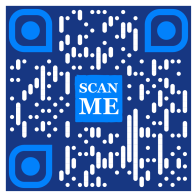
}'
curl -X POST https://me-qr.com/api/v2/qr/link/create \
-H "Content-Type: application/json" \
-H "X-AUTH-TOKEN: YOUR_API_TOKEN" \
-d '{
"qrFieldsData": {
"link": "https://example.com"
},
"format": "png",
"qrOptions": {
"patternColor": "#FFFFFF",
"patternBackground": "#173782",
"cornetsOuterColor": "#0281fb",
"cornetsInteriorColor": "#0281fb"
}
}'
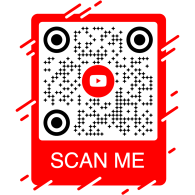
curl -X POST https://me-qr.com/api/v2/qr/link/create \
-H "Content-Type: application/json" \
-H "X-AUTH-TOKEN: YOUR_API_TOKEN" \
-d '{
"qrFieldsData": {
"link": "https://example.com"
},
"format": "png",
"qrOptions": {
"logotype": "youTubeLogotype",
"logotypeSize": 0.3,
"logotypeMargin": 5,
"logotypeHideBackground": true
},
"qrFrame": {
"name": "frame1",
"color": "ff0000",
"backgroundColor": "#ffffff",
"text": "Scan me!",
"textColor": "#FFFFFF"
}
}'
API QRコードとは、QRコードの一括作成とビジネスプロセスへのシームレスな統合を可能にする強力なツールであり、QRコード技術による自動化を実現します。このAPIは、業務の効率化、生産性の向上、そしてワークフローにQRコードを組み込むことを検討している企業にとって、堅牢なソリューションを提供する上で非常に役立ちます。
APIの機能を示す顕著な例として、/api/qr/create/エンドポイントが挙げられます。このエンドポイントを使用すると、プログラムによってQRコードを生成できます。
me-qrで利用可能なタイプの中から1つを選んでQRコードを生成できます。リクエストごとに新しいQRコードが生成されます。
パラメータなし
{
"token": "string",
"qrType": 1,
"qrFieldsData": {
"link": "https://example.com"
},
"entryId": null,
"title": "Qr Code",
"format": "png",
"designType": "base",
"qrFolderOptions": {
"folderName": null,
"subfolderName": null
},
"qrOptions": {
"size": 300,
"errorCorrectionLevel": "Q",
"pattern": "square",
"patternColor": "#000000",
"patternBackground": "#ffffff",
"cornetsOuter": "square",
"cornetsOuterColor": "#000000",
"cornetsInterior": "square",
"cornetsInteriorColor": "#000000",
"logotype": null,
"logotypeSize": 0.3,
"logotypeMargin": 0,
"logotypeHideBackground": true,
"gradientPattern": null,
"gradientCornetsOuter": null,
"gradientCornetsInterior": null,
"gradientBackground": null
},
"qrFrame": {
"name": "noFrame",
"color": "#000000",
"backgroundColor": "#ffffff",
"text": "",
"textSize": null,
"textColor": "#9C3AAF",
"textFont": "Roboto"
}
}
| コード | 説明 | リンク |
|---|---|---|
| default | — | リンクなし |
Me-QR Generator APIは、QRコード生成を包括的に制御でき、特定のニーズに合わせてQRコードをカスタマイズするためのさまざまな機能を提供します。
カスタムQRコードAPIでサポートされている国の一覧を取得します。
利用可能な国の一覧を取得します。
| 名前 | 説明 |
|---|---|
|
country
string
(query)
|
国名で検索してください。 |
| コード | 説明 | リンク |
|---|---|---|
| 200 | 応答成功 application/json
[
{
"id": 0,
"name": "string"
}
]
|
リンクなし |
このエンドポイントを使用すると、利用可能な国の一覧を取得でき、地理的な好みに基づいてローカライズやカスタマイズを容易に行うことができます。
QRコードの詳細設定を行うには、対応都市の一覧をご覧ください。
利用可能な都市のリストを取得します。
| 名前 | 説明 |
|---|---|
|
country
string
(query)
|
国名で検索してください。 |
| コード | 説明 | リンク |
|---|---|---|
| 200 | 応答成功 application/json
[
{
"id": 0,
"name": "string"
}
]
|
リンクなし |
この機能を使用すると、特定の都市を選択できるため、地域限定のキャンペーンや情報発信におけるQRコードの有効性を高めることができます。
QRコードに時間情報を含めるために、サポートされているタイムゾーンのリストを入手してください。
利用可能なタイムゾーンの一覧を取得します。
| 名前 | 説明 |
|---|---|
|
timezone
string
(query)
|
タイムゾーン名で検索します。 |
| コード | 説明 | リンク |
|---|---|---|
| 200 | 応答成功 application/json
[
{
"id": 0,
"name": "string"
}
]
|
リンクなし |
この機能により、QRコードの内容を特定の時間データと連携させることができ、関連性と適時性を確保できます。
QRコードのテキストとコンテンツのカスタマイズに対応している言語の一覧をご覧ください。
利用可能な言語の一覧を取得します。
| 名前 | 説明 |
|---|---|
|
language
string
(query)
|
言語名で検索してください。 |
| コード | 説明 | リンク |
|---|---|---|
| 200 | 応答成功 application/json
[
{
"id": 0,
"name": "string"
}
]
|
リンクなし |
この機能を利用することで、多様な言語の好みに対応でき、多言語環境においてQRコードをよりアクセスしやすく、使いやすくすることができます。
これらの機能によってもたらされる柔軟性により、特定の地域、都市、タイムゾーン、言語に合わせた動的なQRコードAPIを作成することが可能になり、QRコードを用いたコミュニケーションおよびインタラクション戦略の効果を高めることができます。
当社のQRコード生成APIは、さまざまなニーズや機能に対応するため、多様な種類のQRコード生成機能を提供しています。これらの種類について詳しく見ていきましょう。
無料のQRコードAPIは、そのシームレスで効率的な性質から、決済分野で非常に有用であることが証明されています。取引を簡素化し、セキュリティを強化し、QRコードによる月額支払いを迅速化します。以下に、その使用方法を示す簡単なコード例を示します。
無料のQRコードAPIは、企業や個人が取引を効率化できるため、決済分野で非常に有用です。決済URLをQRコードに埋め込むことで、顧客はスマートフォンでコードをスキャンするだけで、スムーズに取引を完了できます。
{
"qrFieldsData": {
"link"*: "https://example.com/pay"
}
}
| 分野 | タイプ | 必須 | 説明 |
|---|---|---|---|
| link | string($hostname) | required | 支払いページのURL |
QRコード生成APIを活用して、決済プロセスを革新し、取引をシームレスで効率的な体験へと変革しましょう。
QRコードAPIを生成して、決済プロセスを革新しましょう。安全で効率的な取引をアプリケーションにシームレスに統合できます。
QRコード決済APIの代表的な例として、PayPal QRコードが挙げられます。オンライン決済のリーダーとして知られるPayPalのAPI統合は、安全な取引を効率化します。以下に、その実装の基本的な例を示します。
PayPalのQRコードAPIを利用することで、PayPal決済リンクをQRコードにシームレスに統合できます。ユーザーはQRコードをスキャンするだけでPayPal決済ページに即座にアクセスできるため、企業と顧客双方にとって迅速かつ便利な取引が可能になります。
{
"qrFieldsData": {
"link"*: "https://paypal.me/username"
}
}
| 分野 | タイプ | 必須 | 説明 |
|---|---|---|---|
| link | string($hostname) | required | PayPal.meまたは支払いURL |
PayPalのQRコードAPIを活用することで、決済フローを簡素化・高速化し、ユーザーに最新のチェックアウト体験を提供できます。
Me-QRのPayPal QRコードAPIで、オンライン決済体験を向上させましょう。安全で効率的なPayPal取引を、アプリケーションに簡単に統合できます。
ロゴ付きQRコード生成APIは、その人気の高さから際立っています。この機能により、ユーザーはロゴ付きQRを提供することで、ロゴをQRコードのデザインに埋め込むことができます。これは、ブランド認知度とカスタマイズのための好ましい選択肢です。
Logo QRコードAPIを使えば、任意のURLにリンクするQRコードを生成できます。ブランドページ、ポートフォリオ、ランディングページなどに最適です。リンク先のURLを埋め込むことで、洗練されたスキャンしやすいユーザー体験を提供できます。
{
"qrFieldsData": {
"link"*: "https://example.com"
}
}
| 分野 | タイプ | 必須 | 説明 |
|---|---|---|---|
| link | string($hostname) | required | 宛先URL |
Logo QRコードAPIを使用すれば、あらゆる目的地に簡単にリンクさせることができ、ブランド認知度とQRコード技術の利便性を組み合わせることができます。
無料のQRコード生成APIを使って、スキャンされるすべてのQRコードにブランドを刻印しましょう。ブランド認知度を高め、ロゴを埋め込むことでQRコードを簡単にカスタマイズできます。
WhatsApp APIのQRコードは、メッセンジャーのQR APIの中でも際立った地位を占めています。このAPIを活用することで、WhatsAppへの迅速なアクセスが可能になり、シームレスなやり取りが実現します。そのため、メッセンジャーベースのQR機能の分野ではトップクラスの地位を確立しています。以下に例を示します。
WhatsAppのQRコードAPIを使用すると、あらかじめメッセージが入力された状態でWhatsAppの会話を開くQRコードを生成できます。電話番号とオプションのメッセージを入力するだけで、カスタマーサポート、マーケティングキャンペーン、即時エンゲージメントに最適です。
{
"qrFieldsData": {
"phone"*: "+1234567890",
"message"*: "Hello!"
}
}
| 分野 | タイプ | 必須 | 説明 |
|---|---|---|---|
| phone | string | required | 国際形式の受信者電話番号 |
| message | string | required | あらかじめ入力されたメッセージテキスト |
WhatsAppのQRコードAPIを統合することで、1回のスキャンで直接的な会話を促進し、エンゲージメントを高めることができます。
WhatsApp QRコードを使って、オーディエンスとシームレスにつながりましょう。スキャンするだけで会話に素早くアクセスでき、メッセージング体験が向上します。
QRコードAPI無料版は、多様なニーズに対応する包括的なQRコードAPIジェネレーターの種類を提供します。サポートされているQR APIの種類とそれぞれのコード例をご覧ください。
ユーザーを任意のURLに誘導するQRコードを作成します。
スキャンすると任意のURLにリダイレクトされるQRコードを作成します。
{
"qrFieldsData": {
"link": "https://example.com"
},
"title": "Qr Code",
"format": "png",
"designType": "base",
"qrFolderOptions": {
"folderName": null,
"subfolderName": null
},
"qrOptions": {
"size": 300,
"errorCorrectionLevel": "Q",
"pattern": "square",
"patternColor": "#000000",
"patternBackground": "#ffffff",
"cornetsOuter": "square",
"cornetsOuterColor": "#000000",
"cornetsInterior": "square",
"cornetsInteriorColor": "#000000",
"logotype": null,
"logotypeSize": 0.3,
"logotypeMargin": 0,
"logotypeHideBackground": true,
"gradientPattern": null,
"gradientCornetsOuter": null,
"gradientCornetsInterior": null,
"gradientBackground": null
},
"qrFrame": {
"name": "noFrame",
"color": "#000000",
"backgroundColor": "#ffffff",
"text": "",
"textSize": null,
"textColor": "#9C3AAF",
"textFont": "Roboto"
}
}
QRコードのデータとスタイルパラメータを変更します。
entryUIDpath IDまたは固有のエントリーキー(QRコード)
{
"qrFieldsData": {
"link": "https://example.com"
},
"title": "Qr Code",
"format": "png",
"designType": "base",
"qrFolderOptions": {
"folderName": null,
"subfolderName": null
},
"qrOptions": {
"size": 300,
"errorCorrectionLevel": "Q",
"pattern": "square",
"patternColor": "#000000",
"patternBackground": "#ffffff",
"cornetsOuter": "square",
"cornetsOuterColor": "#000000",
"cornetsInterior": "square",
"cornetsInteriorColor": "#000000",
"logotype": null,
"logotypeSize": 0.3,
"logotypeMargin": 0,
"logotypeHideBackground": true,
"gradientPattern": null,
"gradientCornetsOuter": null,
"gradientCornetsInterior": null,
"gradientBackground": null
},
"qrFrame": {
"name": "noFrame",
"color": "#000000",
"backgroundColor": "#ffffff",
"text": "",
"textSize": null,
"textColor": "#9C3AAF",
"textFont": "Roboto"
}
}
生成されたQRコードのデータやカスタマイズ設定、または画像自体を表示します。
entryUID path IDまたは固有のエントリーキー(QRコード)
format query 画像フォーマット。指定可能な値:png、svg、jpg、jpeg、json。デフォルト値:null
{
"qrFieldsData": {
"link": "https://example.com"
},
"title": "Qr Code",
"format": "png",
"designType": "base",
"qrFolderOptions": {
"folderName": null,
"subfolderName": null
},
"qrOptions": {
"size": 300,
"errorCorrectionLevel": "Q",
"pattern": "square",
"patternColor": "#000000",
"patternBackground": "#ffffff",
"cornetsOuter": "square",
"cornetsOuterColor": "#000000",
"cornetsInterior": "square",
"cornetsInteriorColor": "#000000",
"logotype": null,
"logotypeSize": 0.3,
"logotypeMargin": 0,
"logotypeHideBackground": true,
"gradientPattern": null,
"gradientCornetsOuter": null,
"gradientCornetsInterior": null,
"gradientBackground": null
},
"qrFrame": {
"name": "noFrame",
"color": "#000000",
"backgroundColor": "#ffffff",
"text": "",
"textSize": null,
"textColor": "#9C3AAF",
"textFont": "Roboto"
}
}
QRコードを使ってInstagramのプロフィールに接続しましょう。
Instagramのプロフィールまたは投稿に直接リンクするQRコードを生成します。
{
"qrFieldsData": {
"link": "https://www.instagram.com/username"
},
"title": "Qr Code",
"format": "png",
"designType": "base",
"qrFolderOptions": {
"folderName": null,
"subfolderName": null
},
"qrOptions": {
"size": 300,
"errorCorrectionLevel": "Q",
"pattern": "square",
"patternColor": "#000000",
"patternBackground": "#ffffff",
"cornetsOuter": "square",
"cornetsOuterColor": "#000000",
"cornetsInterior": "square",
"cornetsInteriorColor": "#000000",
"logotype": null,
"logotypeSize": 0.3,
"logotypeMargin": 0,
"logotypeHideBackground": true,
"gradientPattern": null,
"gradientCornetsOuter": null,
"gradientCornetsInterior": null,
"gradientBackground": null
},
"qrFrame": {
"name": "noFrame",
"color": "#000000",
"backgroundColor": "#ffffff",
"text": "",
"textSize": null,
"textColor": "#9C3AAF",
"textFont": "Roboto"
}
}
QRコードのデータとスタイルパラメータを変更します。
entryUIDpath IDまたは固有のエントリーキー(QRコード)
{
"qrFieldsData": {
"link": "https://www.instagram.com/username"
},
"title": "Qr Code",
"format": "png",
"designType": "base",
"qrFolderOptions": {
"folderName": null,
"subfolderName": null
},
"qrOptions": {
"size": 300,
"errorCorrectionLevel": "Q",
"pattern": "square",
"patternColor": "#000000",
"patternBackground": "#ffffff",
"cornetsOuter": "square",
"cornetsOuterColor": "#000000",
"cornetsInterior": "square",
"cornetsInteriorColor": "#000000",
"logotype": null,
"logotypeSize": 0.3,
"logotypeMargin": 0,
"logotypeHideBackground": true,
"gradientPattern": null,
"gradientCornetsOuter": null,
"gradientCornetsInterior": null,
"gradientBackground": null
},
"qrFrame": {
"name": "noFrame",
"color": "#000000",
"backgroundColor": "#ffffff",
"text": "",
"textSize": null,
"textColor": "#9C3AAF",
"textFont": "Roboto"
}
}
生成されたQRコードのデータやカスタマイズ設定、または画像自体を表示します。
entryUID path IDまたは固有のエントリーキー(QRコード)
format query 画像フォーマット。指定可能な値:png、svg、jpg、jpeg、json。デフォルト値:null
{
"qrFieldsData": {
"link": "https://www.instagram.com/username"
},
"title": "Qr Code",
"format": "png",
"designType": "base",
"qrFolderOptions": {
"folderName": null,
"subfolderName": null
},
"qrOptions": {
"size": 300,
"errorCorrectionLevel": "Q",
"pattern": "square",
"patternColor": "#000000",
"patternBackground": "#ffffff",
"cornetsOuter": "square",
"cornetsOuterColor": "#000000",
"cornetsInterior": "square",
"cornetsInteriorColor": "#000000",
"logotype": null,
"logotypeSize": 0.3,
"logotypeMargin": 0,
"logotypeHideBackground": true,
"gradientPattern": null,
"gradientCornetsOuter": null,
"gradientCornetsInterior": null,
"gradientBackground": null
},
"qrFrame": {
"name": "noFrame",
"color": "#000000",
"backgroundColor": "#ffffff",
"text": "",
"textSize": null,
"textColor": "#9C3AAF",
"textFont": "Roboto"
}
}
QRコードジェネレーターのREST APIを使用して、Facebookのプロフィールやページにリンクします。
Facebookのページ、グループ、またはプロフィールにリンクするQRコードを生成します。
{
"qrFieldsData": {
"link": "https://www.facebook.com/pagename"
},
"title": "Qr Code",
"format": "png",
"designType": "base",
"qrFolderOptions": {
"folderName": null,
"subfolderName": null
},
"qrOptions": {
"size": 300,
"errorCorrectionLevel": "Q",
"pattern": "square",
"patternColor": "#000000",
"patternBackground": "#ffffff",
"cornetsOuter": "square",
"cornetsOuterColor": "#000000",
"cornetsInterior": "square",
"cornetsInteriorColor": "#000000",
"logotype": null,
"logotypeSize": 0.3,
"logotypeMargin": 0,
"logotypeHideBackground": true,
"gradientPattern": null,
"gradientCornetsOuter": null,
"gradientCornetsInterior": null,
"gradientBackground": null
},
"qrFrame": {
"name": "noFrame",
"color": "#000000",
"backgroundColor": "#ffffff",
"text": "",
"textSize": null,
"textColor": "#9C3AAF",
"textFont": "Roboto"
}
}
QRコードのデータとスタイルパラメータを変更します。
entryUIDpath IDまたは固有のエントリーキー(QRコード)
{
"qrFieldsData": {
"link": "https://www.facebook.com/pagename"
},
"title": "Qr Code",
"format": "png",
"designType": "base",
"qrFolderOptions": {
"folderName": null,
"subfolderName": null
},
"qrOptions": {
"size": 300,
"errorCorrectionLevel": "Q",
"pattern": "square",
"patternColor": "#000000",
"patternBackground": "#ffffff",
"cornetsOuter": "square",
"cornetsOuterColor": "#000000",
"cornetsInterior": "square",
"cornetsInteriorColor": "#000000",
"logotype": null,
"logotypeSize": 0.3,
"logotypeMargin": 0,
"logotypeHideBackground": true,
"gradientPattern": null,
"gradientCornetsOuter": null,
"gradientCornetsInterior": null,
"gradientBackground": null
},
"qrFrame": {
"name": "noFrame",
"color": "#000000",
"backgroundColor": "#ffffff",
"text": "",
"textSize": null,
"textColor": "#9C3AAF",
"textFont": "Roboto"
}
}
生成されたQRコードのデータやカスタマイズ設定、または画像自体を表示します。
entryUID path IDまたは固有のエントリーキー(QRコード)
format query 画像フォーマット。指定可能な値:png、svg、jpg、jpeg、json。デフォルト値:null
{
"qrFieldsData": {
"link": "https://www.facebook.com/pagename"
},
"title": "Qr Code",
"format": "png",
"designType": "base",
"qrFolderOptions": {
"folderName": null,
"subfolderName": null
},
"qrOptions": {
"size": 300,
"errorCorrectionLevel": "Q",
"pattern": "square",
"patternColor": "#000000",
"patternBackground": "#ffffff",
"cornetsOuter": "square",
"cornetsOuterColor": "#000000",
"cornetsInterior": "square",
"cornetsInteriorColor": "#000000",
"logotype": null,
"logotypeSize": 0.3,
"logotypeMargin": 0,
"logotypeHideBackground": true,
"gradientPattern": null,
"gradientCornetsOuter": null,
"gradientCornetsInterior": null,
"gradientBackground": null
},
"qrFrame": {
"name": "noFrame",
"color": "#000000",
"backgroundColor": "#ffffff",
"text": "",
"textSize": null,
"textColor": "#9C3AAF",
"textFont": "Roboto"
}
}
QRコードを使ってTwitterのプロフィールやツイートにアクセスできます。
ユーザーをTwitter/Xのプロフィールまたはツイートに誘導するQRコードを作成します。
{
"qrFieldsData": {
"link": "https://twitter.com/username"
},
"title": "Qr Code",
"format": "png",
"designType": "base",
"qrFolderOptions": {
"folderName": null,
"subfolderName": null
},
"qrOptions": {
"size": 300,
"errorCorrectionLevel": "Q",
"pattern": "square",
"patternColor": "#000000",
"patternBackground": "#ffffff",
"cornetsOuter": "square",
"cornetsOuterColor": "#000000",
"cornetsInterior": "square",
"cornetsInteriorColor": "#000000",
"logotype": null,
"logotypeSize": 0.3,
"logotypeMargin": 0,
"logotypeHideBackground": true,
"gradientPattern": null,
"gradientCornetsOuter": null,
"gradientCornetsInterior": null,
"gradientBackground": null
},
"qrFrame": {
"name": "noFrame",
"color": "#000000",
"backgroundColor": "#ffffff",
"text": "",
"textSize": null,
"textColor": "#9C3AAF",
"textFont": "Roboto"
}
}
QRコードのデータとスタイルパラメータを変更します。
entryUIDpath IDまたは固有のエントリーキー(QRコード)
{
"qrFieldsData": {
"link": "https://twitter.com/username"
},
"title": "Qr Code",
"format": "png",
"designType": "base",
"qrFolderOptions": {
"folderName": null,
"subfolderName": null
},
"qrOptions": {
"size": 300,
"errorCorrectionLevel": "Q",
"pattern": "square",
"patternColor": "#000000",
"patternBackground": "#ffffff",
"cornetsOuter": "square",
"cornetsOuterColor": "#000000",
"cornetsInterior": "square",
"cornetsInteriorColor": "#000000",
"logotype": null,
"logotypeSize": 0.3,
"logotypeMargin": 0,
"logotypeHideBackground": true,
"gradientPattern": null,
"gradientCornetsOuter": null,
"gradientCornetsInterior": null,
"gradientBackground": null
},
"qrFrame": {
"name": "noFrame",
"color": "#000000",
"backgroundColor": "#ffffff",
"text": "",
"textSize": null,
"textColor": "#9C3AAF",
"textFont": "Roboto"
}
}
生成されたQRコードのデータやカスタマイズ設定、または画像自体を表示します。
entryUID path IDまたは固有のエントリーキー(QRコード)
format query 画像フォーマット。指定可能な値:png、svg、jpg、jpeg、json。デフォルト値:null
{
"qrFieldsData": {
"link": "https://twitter.com/username"
},
"title": "Qr Code",
"format": "png",
"designType": "base",
"qrFolderOptions": {
"folderName": null,
"subfolderName": null
},
"qrOptions": {
"size": 300,
"errorCorrectionLevel": "Q",
"pattern": "square",
"patternColor": "#000000",
"patternBackground": "#ffffff",
"cornetsOuter": "square",
"cornetsOuterColor": "#000000",
"cornetsInterior": "square",
"cornetsInteriorColor": "#000000",
"logotype": null,
"logotypeSize": 0.3,
"logotypeMargin": 0,
"logotypeHideBackground": true,
"gradientPattern": null,
"gradientCornetsOuter": null,
"gradientCornetsInterior": null,
"gradientBackground": null
},
"qrFrame": {
"name": "noFrame",
"color": "#000000",
"backgroundColor": "#ffffff",
"text": "",
"textSize": null,
"textColor": "#9C3AAF",
"textFont": "Roboto"
}
}
QRコードを使ってTikTokのプロフィールを探しましょう。
TikTokのプロフィールまたは動画にリンクするQRコードを生成します。
{
"qrFieldsData": {
"link": "https://www.tiktok.com/@username"
},
"title": "Qr Code",
"format": "png",
"designType": "base",
"qrFolderOptions": {
"folderName": null,
"subfolderName": null
},
"qrOptions": {
"size": 300,
"errorCorrectionLevel": "Q",
"pattern": "square",
"patternColor": "#000000",
"patternBackground": "#ffffff",
"cornetsOuter": "square",
"cornetsOuterColor": "#000000",
"cornetsInterior": "square",
"cornetsInteriorColor": "#000000",
"logotype": null,
"logotypeSize": 0.3,
"logotypeMargin": 0,
"logotypeHideBackground": true,
"gradientPattern": null,
"gradientCornetsOuter": null,
"gradientCornetsInterior": null,
"gradientBackground": null
},
"qrFrame": {
"name": "noFrame",
"color": "#000000",
"backgroundColor": "#ffffff",
"text": "",
"textSize": null,
"textColor": "#9C3AAF",
"textFont": "Roboto"
}
}
QRコードのデータとスタイルパラメータを変更します。
entryUIDpath IDまたは固有のエントリーキー(QRコード)
{
"qrFieldsData": {
"link": "https://www.tiktok.com/@username"
},
"title": "Qr Code",
"format": "png",
"designType": "base",
"qrFolderOptions": {
"folderName": null,
"subfolderName": null
},
"qrOptions": {
"size": 300,
"errorCorrectionLevel": "Q",
"pattern": "square",
"patternColor": "#000000",
"patternBackground": "#ffffff",
"cornetsOuter": "square",
"cornetsOuterColor": "#000000",
"cornetsInterior": "square",
"cornetsInteriorColor": "#000000",
"logotype": null,
"logotypeSize": 0.3,
"logotypeMargin": 0,
"logotypeHideBackground": true,
"gradientPattern": null,
"gradientCornetsOuter": null,
"gradientCornetsInterior": null,
"gradientBackground": null
},
"qrFrame": {
"name": "noFrame",
"color": "#000000",
"backgroundColor": "#ffffff",
"text": "",
"textSize": null,
"textColor": "#9C3AAF",
"textFont": "Roboto"
}
}
生成されたQRコードのデータやカスタマイズ設定、または画像自体を表示します。
entryUID path IDまたは固有のエントリーキー(QRコード)
format query 画像フォーマット。指定可能な値:png、svg、jpg、jpeg、json。デフォルト値:null
{
"qrFieldsData": {
"link": "https://www.tiktok.com/@username"
},
"title": "Qr Code",
"format": "png",
"designType": "base",
"qrFolderOptions": {
"folderName": null,
"subfolderName": null
},
"qrOptions": {
"size": 300,
"errorCorrectionLevel": "Q",
"pattern": "square",
"patternColor": "#000000",
"patternBackground": "#ffffff",
"cornetsOuter": "square",
"cornetsOuterColor": "#000000",
"cornetsInterior": "square",
"cornetsInteriorColor": "#000000",
"logotype": null,
"logotypeSize": 0.3,
"logotypeMargin": 0,
"logotypeHideBackground": true,
"gradientPattern": null,
"gradientCornetsOuter": null,
"gradientCornetsInterior": null,
"gradientBackground": null
},
"qrFrame": {
"name": "noFrame",
"color": "#000000",
"backgroundColor": "#ffffff",
"text": "",
"textSize": null,
"textColor": "#9C3AAF",
"textFont": "Roboto"
}
}
Snapchat QR を通じてプロフィールに接続します。
Snapchatプロフィールに直接リンクするQRコードを生成します。
{
"qrFieldsData": {
"link": "https://www.snapchat.com/add/username"
},
"title": "Qr Code",
"format": "png",
"designType": "base",
"qrFolderOptions": {
"folderName": null,
"subfolderName": null
},
"qrOptions": {
"size": 300,
"errorCorrectionLevel": "Q",
"pattern": "square",
"patternColor": "#000000",
"patternBackground": "#ffffff",
"cornetsOuter": "square",
"cornetsOuterColor": "#000000",
"cornetsInterior": "square",
"cornetsInteriorColor": "#000000",
"logotype": null,
"logotypeSize": 0.3,
"logotypeMargin": 0,
"logotypeHideBackground": true,
"gradientPattern": null,
"gradientCornetsOuter": null,
"gradientCornetsInterior": null,
"gradientBackground": null
},
"qrFrame": {
"name": "noFrame",
"color": "#000000",
"backgroundColor": "#ffffff",
"text": "",
"textSize": null,
"textColor": "#9C3AAF",
"textFont": "Roboto"
}
}
QRコードのデータとスタイルパラメータを変更します。
entryUIDpath IDまたは固有のエントリーキー(QRコード)
{
"qrFieldsData": {
"link": "https://www.snapchat.com/add/username"
},
"title": "Qr Code",
"format": "png",
"designType": "base",
"qrFolderOptions": {
"folderName": null,
"subfolderName": null
},
"qrOptions": {
"size": 300,
"errorCorrectionLevel": "Q",
"pattern": "square",
"patternColor": "#000000",
"patternBackground": "#ffffff",
"cornetsOuter": "square",
"cornetsOuterColor": "#000000",
"cornetsInterior": "square",
"cornetsInteriorColor": "#000000",
"logotype": null,
"logotypeSize": 0.3,
"logotypeMargin": 0,
"logotypeHideBackground": true,
"gradientPattern": null,
"gradientCornetsOuter": null,
"gradientCornetsInterior": null,
"gradientBackground": null
},
"qrFrame": {
"name": "noFrame",
"color": "#000000",
"backgroundColor": "#ffffff",
"text": "",
"textSize": null,
"textColor": "#9C3AAF",
"textFont": "Roboto"
}
}
生成されたQRコードのデータやカスタマイズ設定、または画像自体を表示します。
entryUID path IDまたは固有のエントリーキー(QRコード)
format query 画像フォーマット。指定可能な値:png、svg、jpg、jpeg、json。デフォルト値:null
{
"qrFieldsData": {
"link": "https://www.snapchat.com/add/username"
},
"title": "Qr Code",
"format": "png",
"designType": "base",
"qrFolderOptions": {
"folderName": null,
"subfolderName": null
},
"qrOptions": {
"size": 300,
"errorCorrectionLevel": "Q",
"pattern": "square",
"patternColor": "#000000",
"patternBackground": "#ffffff",
"cornetsOuter": "square",
"cornetsOuterColor": "#000000",
"cornetsInterior": "square",
"cornetsInteriorColor": "#000000",
"logotype": null,
"logotypeSize": 0.3,
"logotypeMargin": 0,
"logotypeHideBackground": true,
"gradientPattern": null,
"gradientCornetsOuter": null,
"gradientCornetsInterior": null,
"gradientBackground": null
},
"qrFrame": {
"name": "noFrame",
"color": "#000000",
"backgroundColor": "#ffffff",
"text": "",
"textSize": null,
"textColor": "#9C3AAF",
"textFont": "Roboto"
}
}
QRコードを使ってTelegramのチャンネルやグループに参加しましょう。
Telegramチャンネル、ボット、または連絡先にリンクするQRコードを作成します。
{
"qrFieldsData": {
"link": "https://t.me/username"
},
"title": "Qr Code",
"format": "png",
"designType": "base",
"qrFolderOptions": {
"folderName": null,
"subfolderName": null
},
"qrOptions": {
"size": 300,
"errorCorrectionLevel": "Q",
"pattern": "square",
"patternColor": "#000000",
"patternBackground": "#ffffff",
"cornetsOuter": "square",
"cornetsOuterColor": "#000000",
"cornetsInterior": "square",
"cornetsInteriorColor": "#000000",
"logotype": null,
"logotypeSize": 0.3,
"logotypeMargin": 0,
"logotypeHideBackground": true,
"gradientPattern": null,
"gradientCornetsOuter": null,
"gradientCornetsInterior": null,
"gradientBackground": null
},
"qrFrame": {
"name": "noFrame",
"color": "#000000",
"backgroundColor": "#ffffff",
"text": "",
"textSize": null,
"textColor": "#9C3AAF",
"textFont": "Roboto"
}
}
QRコードのデータとスタイルパラメータを変更します。
entryUIDpath IDまたは固有のエントリーキー(QRコード)
{
"qrFieldsData": {
"link": "https://t.me/username"
},
"title": "Qr Code",
"format": "png",
"designType": "base",
"qrFolderOptions": {
"folderName": null,
"subfolderName": null
},
"qrOptions": {
"size": 300,
"errorCorrectionLevel": "Q",
"pattern": "square",
"patternColor": "#000000",
"patternBackground": "#ffffff",
"cornetsOuter": "square",
"cornetsOuterColor": "#000000",
"cornetsInterior": "square",
"cornetsInteriorColor": "#000000",
"logotype": null,
"logotypeSize": 0.3,
"logotypeMargin": 0,
"logotypeHideBackground": true,
"gradientPattern": null,
"gradientCornetsOuter": null,
"gradientCornetsInterior": null,
"gradientBackground": null
},
"qrFrame": {
"name": "noFrame",
"color": "#000000",
"backgroundColor": "#ffffff",
"text": "",
"textSize": null,
"textColor": "#9C3AAF",
"textFont": "Roboto"
}
}
生成されたQRコードのデータやカスタマイズ設定、または画像自体を表示します。
entryUID path IDまたは固有のエントリーキー(QRコード)
format query 画像フォーマット。指定可能な値:png、svg、jpg、jpeg、json。デフォルト値:null
{
"qrFieldsData": {
"link": "https://t.me/username"
},
"title": "Qr Code",
"format": "png",
"designType": "base",
"qrFolderOptions": {
"folderName": null,
"subfolderName": null
},
"qrOptions": {
"size": 300,
"errorCorrectionLevel": "Q",
"pattern": "square",
"patternColor": "#000000",
"patternBackground": "#ffffff",
"cornetsOuter": "square",
"cornetsOuterColor": "#000000",
"cornetsInterior": "square",
"cornetsInteriorColor": "#000000",
"logotype": null,
"logotypeSize": 0.3,
"logotypeMargin": 0,
"logotypeHideBackground": true,
"gradientPattern": null,
"gradientCornetsOuter": null,
"gradientCornetsInterior": null,
"gradientBackground": null
},
"qrFrame": {
"name": "noFrame",
"color": "#000000",
"backgroundColor": "#ffffff",
"text": "",
"textSize": null,
"textColor": "#9C3AAF",
"textFont": "Roboto"
}
}
QRコードを使って、Spotifyの特定の楽曲、アルバム、アーティストにアクセスできます。
Spotifyの楽曲、アルバム、またはアーティストのページを開くQRコードを生成します。
{
"qrFieldsData": {
"link": "https://open.spotify.com/track/..."
},
"title": "Qr Code",
"format": "png",
"designType": "base",
"qrFolderOptions": {
"folderName": null,
"subfolderName": null
},
"qrOptions": {
"size": 300,
"errorCorrectionLevel": "Q",
"pattern": "square",
"patternColor": "#000000",
"patternBackground": "#ffffff",
"cornetsOuter": "square",
"cornetsOuterColor": "#000000",
"cornetsInterior": "square",
"cornetsInteriorColor": "#000000",
"logotype": null,
"logotypeSize": 0.3,
"logotypeMargin": 0,
"logotypeHideBackground": true,
"gradientPattern": null,
"gradientCornetsOuter": null,
"gradientCornetsInterior": null,
"gradientBackground": null
},
"qrFrame": {
"name": "noFrame",
"color": "#000000",
"backgroundColor": "#ffffff",
"text": "",
"textSize": null,
"textColor": "#9C3AAF",
"textFont": "Roboto"
}
}
QRコードのデータとスタイルパラメータを変更します。
entryUIDpath IDまたは固有のエントリーキー(QRコード)
{
"qrFieldsData": {
"link": "https://open.spotify.com/track/..."
},
"title": "Qr Code",
"format": "png",
"designType": "base",
"qrFolderOptions": {
"folderName": null,
"subfolderName": null
},
"qrOptions": {
"size": 300,
"errorCorrectionLevel": "Q",
"pattern": "square",
"patternColor": "#000000",
"patternBackground": "#ffffff",
"cornetsOuter": "square",
"cornetsOuterColor": "#000000",
"cornetsInterior": "square",
"cornetsInteriorColor": "#000000",
"logotype": null,
"logotypeSize": 0.3,
"logotypeMargin": 0,
"logotypeHideBackground": true,
"gradientPattern": null,
"gradientCornetsOuter": null,
"gradientCornetsInterior": null,
"gradientBackground": null
},
"qrFrame": {
"name": "noFrame",
"color": "#000000",
"backgroundColor": "#ffffff",
"text": "",
"textSize": null,
"textColor": "#9C3AAF",
"textFont": "Roboto"
}
}
生成されたQRコードのデータやカスタマイズ設定、または画像自体を表示します。
entryUID path IDまたは固有のエントリーキー(QRコード)
format query 画像フォーマット。指定可能な値:png、svg、jpg、jpeg、json。デフォルト値:null
{
"qrFieldsData": {
"link": "https://open.spotify.com/track/..."
},
"title": "Qr Code",
"format": "png",
"designType": "base",
"qrFolderOptions": {
"folderName": null,
"subfolderName": null
},
"qrOptions": {
"size": 300,
"errorCorrectionLevel": "Q",
"pattern": "square",
"patternColor": "#000000",
"patternBackground": "#ffffff",
"cornetsOuter": "square",
"cornetsOuterColor": "#000000",
"cornetsInterior": "square",
"cornetsInteriorColor": "#000000",
"logotype": null,
"logotypeSize": 0.3,
"logotypeMargin": 0,
"logotypeHideBackground": true,
"gradientPattern": null,
"gradientCornetsOuter": null,
"gradientCornetsInterior": null,
"gradientBackground": null
},
"qrFrame": {
"name": "noFrame",
"color": "#000000",
"backgroundColor": "#ffffff",
"text": "",
"textSize": null,
"textColor": "#9C3AAF",
"textFont": "Roboto"
}
}
QRコードを使ってYouTubeチャンネルや動画を視聴しましょう。
YouTubeチャンネルまたは動画へのリンクを含むQRコードを作成します。
{
"qrFieldsData": {
"link": "https://www.youtube.com/watch?v=dQw4w9WgXcQ"
},
"title": "Qr Code",
"format": "png",
"designType": "base",
"qrFolderOptions": {
"folderName": null,
"subfolderName": null
},
"qrOptions": {
"size": 300,
"errorCorrectionLevel": "Q",
"pattern": "square",
"patternColor": "#000000",
"patternBackground": "#ffffff",
"cornetsOuter": "square",
"cornetsOuterColor": "#000000",
"cornetsInterior": "square",
"cornetsInteriorColor": "#000000",
"logotype": null,
"logotypeSize": 0.3,
"logotypeMargin": 0,
"logotypeHideBackground": true,
"gradientPattern": null,
"gradientCornetsOuter": null,
"gradientCornetsInterior": null,
"gradientBackground": null
},
"qrFrame": {
"name": "noFrame",
"color": "#000000",
"backgroundColor": "#ffffff",
"text": "",
"textSize": null,
"textColor": "#9C3AAF",
"textFont": "Roboto"
}
}
QRコードのデータとスタイルパラメータを変更します。
entryUIDpath IDまたは固有のエントリーキー(QRコード)
{
"qrFieldsData": {
"link": "https://www.youtube.com/watch?v=dQw4w9WgXcQ"
},
"title": "Qr Code",
"format": "png",
"designType": "base",
"qrFolderOptions": {
"folderName": null,
"subfolderName": null
},
"qrOptions": {
"size": 300,
"errorCorrectionLevel": "Q",
"pattern": "square",
"patternColor": "#000000",
"patternBackground": "#ffffff",
"cornetsOuter": "square",
"cornetsOuterColor": "#000000",
"cornetsInterior": "square",
"cornetsInteriorColor": "#000000",
"logotype": null,
"logotypeSize": 0.3,
"logotypeMargin": 0,
"logotypeHideBackground": true,
"gradientPattern": null,
"gradientCornetsOuter": null,
"gradientCornetsInterior": null,
"gradientBackground": null
},
"qrFrame": {
"name": "noFrame",
"color": "#000000",
"backgroundColor": "#ffffff",
"text": "",
"textSize": null,
"textColor": "#9C3AAF",
"textFont": "Roboto"
}
}
生成されたQRコードのデータやカスタマイズ設定、または画像自体を表示します。
entryUID path IDまたは固有のエントリーキー(QRコード)
format query 画像フォーマット。指定可能な値:png、svg、jpg、jpeg、json。デフォルト値:null
{
"qrFieldsData": {
"link": "https://www.youtube.com/watch?v=dQw4w9WgXcQ"
},
"title": "Qr Code",
"format": "png",
"designType": "base",
"qrFolderOptions": {
"folderName": null,
"subfolderName": null
},
"qrOptions": {
"size": 300,
"errorCorrectionLevel": "Q",
"pattern": "square",
"patternColor": "#000000",
"patternBackground": "#ffffff",
"cornetsOuter": "square",
"cornetsOuterColor": "#000000",
"cornetsInterior": "square",
"cornetsInteriorColor": "#000000",
"logotype": null,
"logotypeSize": 0.3,
"logotypeMargin": 0,
"logotypeHideBackground": true,
"gradientPattern": null,
"gradientCornetsOuter": null,
"gradientCornetsInterior": null,
"gradientBackground": null
},
"qrFrame": {
"name": "noFrame",
"color": "#000000",
"backgroundColor": "#ffffff",
"text": "",
"textSize": null,
"textColor": "#9C3AAF",
"textFont": "Roboto"
}
}
動画が埋め込まれたQRコードを使って、モバイル端末で動画再生をお楽しみください。
任意のオンライン動画リソースにリンクするQRコードを生成します。
{
"qrFieldsData": {
"link": "https://example.com/video.mp4"
},
"title": "Qr Code",
"format": "png",
"designType": "base",
"qrFolderOptions": {
"folderName": null,
"subfolderName": null
},
"qrOptions": {
"size": 300,
"errorCorrectionLevel": "Q",
"pattern": "square",
"patternColor": "#000000",
"patternBackground": "#ffffff",
"cornetsOuter": "square",
"cornetsOuterColor": "#000000",
"cornetsInterior": "square",
"cornetsInteriorColor": "#000000",
"logotype": null,
"logotypeSize": 0.3,
"logotypeMargin": 0,
"logotypeHideBackground": true,
"gradientPattern": null,
"gradientCornetsOuter": null,
"gradientCornetsInterior": null,
"gradientBackground": null
},
"qrFrame": {
"name": "noFrame",
"color": "#000000",
"backgroundColor": "#ffffff",
"text": "",
"textSize": null,
"textColor": "#9C3AAF",
"textFont": "Roboto"
}
}
QRコードのデータとスタイルパラメータを変更します。
entryUIDpath IDまたは固有のエントリーキー(QRコード)
{
"qrFieldsData": {
"link": "https://example.com/video.mp4"
},
"title": "Qr Code",
"format": "png",
"designType": "base",
"qrFolderOptions": {
"folderName": null,
"subfolderName": null
},
"qrOptions": {
"size": 300,
"errorCorrectionLevel": "Q",
"pattern": "square",
"patternColor": "#000000",
"patternBackground": "#ffffff",
"cornetsOuter": "square",
"cornetsOuterColor": "#000000",
"cornetsInterior": "square",
"cornetsInteriorColor": "#000000",
"logotype": null,
"logotypeSize": 0.3,
"logotypeMargin": 0,
"logotypeHideBackground": true,
"gradientPattern": null,
"gradientCornetsOuter": null,
"gradientCornetsInterior": null,
"gradientBackground": null
},
"qrFrame": {
"name": "noFrame",
"color": "#000000",
"backgroundColor": "#ffffff",
"text": "",
"textSize": null,
"textColor": "#9C3AAF",
"textFont": "Roboto"
}
}
生成されたQRコードのデータやカスタマイズ設定、または画像自体を表示します。
entryUID path IDまたは固有のエントリーキー(QRコード)
format query 画像フォーマット。指定可能な値:png、svg、jpg、jpeg、json。デフォルト値:null
{
"qrFieldsData": {
"link": "https://example.com/video.mp4"
},
"title": "Qr Code",
"format": "png",
"designType": "base",
"qrFolderOptions": {
"folderName": null,
"subfolderName": null
},
"qrOptions": {
"size": 300,
"errorCorrectionLevel": "Q",
"pattern": "square",
"patternColor": "#000000",
"patternBackground": "#ffffff",
"cornetsOuter": "square",
"cornetsOuterColor": "#000000",
"cornetsInterior": "square",
"cornetsInteriorColor": "#000000",
"logotype": null,
"logotypeSize": 0.3,
"logotypeMargin": 0,
"logotypeHideBackground": true,
"gradientPattern": null,
"gradientCornetsOuter": null,
"gradientCornetsInterior": null,
"gradientBackground": null
},
"qrFrame": {
"name": "noFrame",
"color": "#000000",
"backgroundColor": "#ffffff",
"text": "",
"textSize": null,
"textColor": "#9C3AAF",
"textFont": "Roboto"
}
}
QRコードを使って、特定のEtsy商品を閲覧できます。
Etsyショップまたは商品ページへのリンクとなるQRコードを作成します。
{
"qrFieldsData": {
"link": "https://www.etsy.com/shop/storename"
},
"title": "Qr Code",
"format": "png",
"designType": "base",
"qrFolderOptions": {
"folderName": null,
"subfolderName": null
},
"qrOptions": {
"size": 300,
"errorCorrectionLevel": "Q",
"pattern": "square",
"patternColor": "#000000",
"patternBackground": "#ffffff",
"cornetsOuter": "square",
"cornetsOuterColor": "#000000",
"cornetsInterior": "square",
"cornetsInteriorColor": "#000000",
"logotype": null,
"logotypeSize": 0.3,
"logotypeMargin": 0,
"logotypeHideBackground": true,
"gradientPattern": null,
"gradientCornetsOuter": null,
"gradientCornetsInterior": null,
"gradientBackground": null
},
"qrFrame": {
"name": "noFrame",
"color": "#000000",
"backgroundColor": "#ffffff",
"text": "",
"textSize": null,
"textColor": "#9C3AAF",
"textFont": "Roboto"
}
}
QRコードのデータとスタイルパラメータを変更します。
entryUIDpath IDまたは固有のエントリーキー(QRコード)
{
"qrFieldsData": {
"link": "https://www.etsy.com/shop/storename"
},
"title": "Qr Code",
"format": "png",
"designType": "base",
"qrFolderOptions": {
"folderName": null,
"subfolderName": null
},
"qrOptions": {
"size": 300,
"errorCorrectionLevel": "Q",
"pattern": "square",
"patternColor": "#000000",
"patternBackground": "#ffffff",
"cornetsOuter": "square",
"cornetsOuterColor": "#000000",
"cornetsInterior": "square",
"cornetsInteriorColor": "#000000",
"logotype": null,
"logotypeSize": 0.3,
"logotypeMargin": 0,
"logotypeHideBackground": true,
"gradientPattern": null,
"gradientCornetsOuter": null,
"gradientCornetsInterior": null,
"gradientBackground": null
},
"qrFrame": {
"name": "noFrame",
"color": "#000000",
"backgroundColor": "#ffffff",
"text": "",
"textSize": null,
"textColor": "#9C3AAF",
"textFont": "Roboto"
}
}
生成されたQRコードのデータやカスタマイズ設定、または画像自体を表示します。
entryUID path IDまたは固有のエントリーキー(QRコード)
format query 画像フォーマット。指定可能な値:png、svg、jpg、jpeg、json。デフォルト値:null
{
"qrFieldsData": {
"link": "https://www.etsy.com/shop/storename"
},
"title": "Qr Code",
"format": "png",
"designType": "base",
"qrFolderOptions": {
"folderName": null,
"subfolderName": null
},
"qrOptions": {
"size": 300,
"errorCorrectionLevel": "Q",
"pattern": "square",
"patternColor": "#000000",
"patternBackground": "#ffffff",
"cornetsOuter": "square",
"cornetsOuterColor": "#000000",
"cornetsInterior": "square",
"cornetsInteriorColor": "#000000",
"logotype": null,
"logotypeSize": 0.3,
"logotypeMargin": 0,
"logotypeHideBackground": true,
"gradientPattern": null,
"gradientCornetsOuter": null,
"gradientCornetsInterior": null,
"gradientBackground": null
},
"qrFrame": {
"name": "noFrame",
"color": "#000000",
"backgroundColor": "#ffffff",
"text": "",
"textSize": null,
"textColor": "#9C3AAF",
"textFont": "Roboto"
}
}
ブランドイメージを高めるために、独自の形状やデザインのQRコードを生成しましょう。
カスタム形状のデザインで、任意のWebリソースにリンクするQRコードを生成します。
{
"qrFieldsData": {
"link": "https://example.com"
},
"title": "Qr Code",
"format": "png",
"designType": "base",
"qrFolderOptions": {
"folderName": null,
"subfolderName": null
},
"qrOptions": {
"size": 300,
"errorCorrectionLevel": "Q",
"pattern": "square",
"patternColor": "#000000",
"patternBackground": "#ffffff",
"cornetsOuter": "square",
"cornetsOuterColor": "#000000",
"cornetsInterior": "square",
"cornetsInteriorColor": "#000000",
"logotype": null,
"logotypeSize": 0.3,
"logotypeMargin": 0,
"logotypeHideBackground": true,
"gradientPattern": null,
"gradientCornetsOuter": null,
"gradientCornetsInterior": null,
"gradientBackground": null
},
"qrFrame": {
"name": "noFrame",
"color": "#000000",
"backgroundColor": "#ffffff",
"text": "",
"textSize": null,
"textColor": "#9C3AAF",
"textFont": "Roboto"
}
}
QRコードのデータとスタイルパラメータを変更します。
entryUIDpath IDまたは固有のエントリーキー(QRコード)
{
"qrFieldsData": {
"link": "https://example.com"
},
"title": "Qr Code",
"format": "png",
"designType": "base",
"qrFolderOptions": {
"folderName": null,
"subfolderName": null
},
"qrOptions": {
"size": 300,
"errorCorrectionLevel": "Q",
"pattern": "square",
"patternColor": "#000000",
"patternBackground": "#ffffff",
"cornetsOuter": "square",
"cornetsOuterColor": "#000000",
"cornetsInterior": "square",
"cornetsInteriorColor": "#000000",
"logotype": null,
"logotypeSize": 0.3,
"logotypeMargin": 0,
"logotypeHideBackground": true,
"gradientPattern": null,
"gradientCornetsOuter": null,
"gradientCornetsInterior": null,
"gradientBackground": null
},
"qrFrame": {
"name": "noFrame",
"color": "#000000",
"backgroundColor": "#ffffff",
"text": "",
"textSize": null,
"textColor": "#9C3AAF",
"textFont": "Roboto"
}
}
生成されたQRコードのデータやカスタマイズ設定、または画像自体を表示します。
entryUID path IDまたは固有のエントリーキー(QRコード)
format query 画像フォーマット。指定可能な値:png、svg、jpg、jpeg、json。デフォルト値:null
{
"qrFieldsData": {
"link": "https://example.com"
},
"title": "Qr Code",
"format": "png",
"designType": "base",
"qrFolderOptions": {
"folderName": null,
"subfolderName": null
},
"qrOptions": {
"size": 300,
"errorCorrectionLevel": "Q",
"pattern": "square",
"patternColor": "#000000",
"patternBackground": "#ffffff",
"cornetsOuter": "square",
"cornetsOuterColor": "#000000",
"cornetsInterior": "square",
"cornetsInteriorColor": "#000000",
"logotype": null,
"logotypeSize": 0.3,
"logotypeMargin": 0,
"logotypeHideBackground": true,
"gradientPattern": null,
"gradientCornetsOuter": null,
"gradientCornetsInterior": null,
"gradientBackground": null
},
"qrFrame": {
"name": "noFrame",
"color": "#000000",
"backgroundColor": "#ffffff",
"text": "",
"textSize": null,
"textColor": "#9C3AAF",
"textFont": "Roboto"
}
}
QRコードを使って、特定のGoogleスプレッドシートを直接開くことができます。
共有のGoogleスプレッドシートにリンクするQRコードを作成します。
{
"qrFieldsData": {
"link": "https://docs.google.com/spreadsheets/d/..."
},
"title": "Qr Code",
"format": "png",
"designType": "base",
"qrFolderOptions": {
"folderName": null,
"subfolderName": null
},
"qrOptions": {
"size": 300,
"errorCorrectionLevel": "Q",
"pattern": "square",
"patternColor": "#000000",
"patternBackground": "#ffffff",
"cornetsOuter": "square",
"cornetsOuterColor": "#000000",
"cornetsInterior": "square",
"cornetsInteriorColor": "#000000",
"logotype": null,
"logotypeSize": 0.3,
"logotypeMargin": 0,
"logotypeHideBackground": true,
"gradientPattern": null,
"gradientCornetsOuter": null,
"gradientCornetsInterior": null,
"gradientBackground": null
},
"qrFrame": {
"name": "noFrame",
"color": "#000000",
"backgroundColor": "#ffffff",
"text": "",
"textSize": null,
"textColor": "#9C3AAF",
"textFont": "Roboto"
}
}
QRコードのデータとスタイルパラメータを変更します。
entryUIDpath IDまたは固有のエントリーキー(QRコード)
{
"qrFieldsData": {
"link": "https://docs.google.com/spreadsheets/d/..."
},
"title": "Qr Code",
"format": "png",
"designType": "base",
"qrFolderOptions": {
"folderName": null,
"subfolderName": null
},
"qrOptions": {
"size": 300,
"errorCorrectionLevel": "Q",
"pattern": "square",
"patternColor": "#000000",
"patternBackground": "#ffffff",
"cornetsOuter": "square",
"cornetsOuterColor": "#000000",
"cornetsInterior": "square",
"cornetsInteriorColor": "#000000",
"logotype": null,
"logotypeSize": 0.3,
"logotypeMargin": 0,
"logotypeHideBackground": true,
"gradientPattern": null,
"gradientCornetsOuter": null,
"gradientCornetsInterior": null,
"gradientBackground": null
},
"qrFrame": {
"name": "noFrame",
"color": "#000000",
"backgroundColor": "#ffffff",
"text": "",
"textSize": null,
"textColor": "#9C3AAF",
"textFont": "Roboto"
}
}
生成されたQRコードのデータやカスタマイズ設定、または画像自体を表示します。
entryUID path IDまたは固有のエントリーキー(QRコード)
format query 画像フォーマット。指定可能な値:png、svg、jpg、jpeg、json。デフォルト値:null
{
"qrFieldsData": {
"link": "https://docs.google.com/spreadsheets/d/..."
},
"title": "Qr Code",
"format": "png",
"designType": "base",
"qrFolderOptions": {
"folderName": null,
"subfolderName": null
},
"qrOptions": {
"size": 300,
"errorCorrectionLevel": "Q",
"pattern": "square",
"patternColor": "#000000",
"patternBackground": "#ffffff",
"cornetsOuter": "square",
"cornetsOuterColor": "#000000",
"cornetsInterior": "square",
"cornetsInteriorColor": "#000000",
"logotype": null,
"logotypeSize": 0.3,
"logotypeMargin": 0,
"logotypeHideBackground": true,
"gradientPattern": null,
"gradientCornetsOuter": null,
"gradientCornetsInterior": null,
"gradientBackground": null
},
"qrFrame": {
"name": "noFrame",
"color": "#000000",
"backgroundColor": "#ffffff",
"text": "",
"textSize": null,
"textColor": "#9C3AAF",
"textFont": "Roboto"
}
}
QRコードを使って特定のGoogleドキュメントにアクセスできます。
共有されているGoogleドキュメントを開くQRコードを生成します。
{
"qrFieldsData": {
"link": "https://docs.google.com/document/d/..."
},
"title": "Qr Code",
"format": "png",
"designType": "base",
"qrFolderOptions": {
"folderName": null,
"subfolderName": null
},
"qrOptions": {
"size": 300,
"errorCorrectionLevel": "Q",
"pattern": "square",
"patternColor": "#000000",
"patternBackground": "#ffffff",
"cornetsOuter": "square",
"cornetsOuterColor": "#000000",
"cornetsInterior": "square",
"cornetsInteriorColor": "#000000",
"logotype": null,
"logotypeSize": 0.3,
"logotypeMargin": 0,
"logotypeHideBackground": true,
"gradientPattern": null,
"gradientCornetsOuter": null,
"gradientCornetsInterior": null,
"gradientBackground": null
},
"qrFrame": {
"name": "noFrame",
"color": "#000000",
"backgroundColor": "#ffffff",
"text": "",
"textSize": null,
"textColor": "#9C3AAF",
"textFont": "Roboto"
}
}
QRコードのデータとスタイルパラメータを変更します。
entryUIDpath IDまたは固有のエントリーキー(QRコード)
{
"qrFieldsData": {
"link": "https://docs.google.com/document/d/..."
},
"title": "Qr Code",
"format": "png",
"designType": "base",
"qrFolderOptions": {
"folderName": null,
"subfolderName": null
},
"qrOptions": {
"size": 300,
"errorCorrectionLevel": "Q",
"pattern": "square",
"patternColor": "#000000",
"patternBackground": "#ffffff",
"cornetsOuter": "square",
"cornetsOuterColor": "#000000",
"cornetsInterior": "square",
"cornetsInteriorColor": "#000000",
"logotype": null,
"logotypeSize": 0.3,
"logotypeMargin": 0,
"logotypeHideBackground": true,
"gradientPattern": null,
"gradientCornetsOuter": null,
"gradientCornetsInterior": null,
"gradientBackground": null
},
"qrFrame": {
"name": "noFrame",
"color": "#000000",
"backgroundColor": "#ffffff",
"text": "",
"textSize": null,
"textColor": "#9C3AAF",
"textFont": "Roboto"
}
}
生成されたQRコードのデータやカスタマイズ設定、または画像自体を表示します。
entryUID path IDまたは固有のエントリーキー(QRコード)
format query 画像フォーマット。指定可能な値:png、svg、jpg、jpeg、json。デフォルト値:null
{
"qrFieldsData": {
"link": "https://docs.google.com/document/d/..."
},
"title": "Qr Code",
"format": "png",
"designType": "base",
"qrFolderOptions": {
"folderName": null,
"subfolderName": null
},
"qrOptions": {
"size": 300,
"errorCorrectionLevel": "Q",
"pattern": "square",
"patternColor": "#000000",
"patternBackground": "#ffffff",
"cornetsOuter": "square",
"cornetsOuterColor": "#000000",
"cornetsInterior": "square",
"cornetsInteriorColor": "#000000",
"logotype": null,
"logotypeSize": 0.3,
"logotypeMargin": 0,
"logotypeHideBackground": true,
"gradientPattern": null,
"gradientCornetsOuter": null,
"gradientCornetsInterior": null,
"gradientBackground": null
},
"qrFrame": {
"name": "noFrame",
"color": "#000000",
"backgroundColor": "#ffffff",
"text": "",
"textSize": null,
"textColor": "#9C3AAF",
"textFont": "Roboto"
}
}
QRコードを使って、特定のGoogleフォームにアクセスし、アンケートやクイズに回答しましょう。
GoogleフォームのアンケートまたはクイズにリンクするQRコードを作成します。
{
"qrFieldsData": {
"link": "https://forms.google.com/..."
},
"title": "Qr Code",
"format": "png",
"designType": "base",
"qrFolderOptions": {
"folderName": null,
"subfolderName": null
},
"qrOptions": {
"size": 300,
"errorCorrectionLevel": "Q",
"pattern": "square",
"patternColor": "#000000",
"patternBackground": "#ffffff",
"cornetsOuter": "square",
"cornetsOuterColor": "#000000",
"cornetsInterior": "square",
"cornetsInteriorColor": "#000000",
"logotype": null,
"logotypeSize": 0.3,
"logotypeMargin": 0,
"logotypeHideBackground": true,
"gradientPattern": null,
"gradientCornetsOuter": null,
"gradientCornetsInterior": null,
"gradientBackground": null
},
"qrFrame": {
"name": "noFrame",
"color": "#000000",
"backgroundColor": "#ffffff",
"text": "",
"textSize": null,
"textColor": "#9C3AAF",
"textFont": "Roboto"
}
}
QRコードのデータとスタイルパラメータを変更します。
entryUIDpath IDまたは固有のエントリーキー(QRコード)
{
"qrFieldsData": {
"link": "https://forms.google.com/..."
},
"title": "Qr Code",
"format": "png",
"designType": "base",
"qrFolderOptions": {
"folderName": null,
"subfolderName": null
},
"qrOptions": {
"size": 300,
"errorCorrectionLevel": "Q",
"pattern": "square",
"patternColor": "#000000",
"patternBackground": "#ffffff",
"cornetsOuter": "square",
"cornetsOuterColor": "#000000",
"cornetsInterior": "square",
"cornetsInteriorColor": "#000000",
"logotype": null,
"logotypeSize": 0.3,
"logotypeMargin": 0,
"logotypeHideBackground": true,
"gradientPattern": null,
"gradientCornetsOuter": null,
"gradientCornetsInterior": null,
"gradientBackground": null
},
"qrFrame": {
"name": "noFrame",
"color": "#000000",
"backgroundColor": "#ffffff",
"text": "",
"textSize": null,
"textColor": "#9C3AAF",
"textFont": "Roboto"
}
}
生成されたQRコードのデータやカスタマイズ設定、または画像自体を表示します。
entryUID path IDまたは固有のエントリーキー(QRコード)
format query 画像フォーマット。指定可能な値:png、svg、jpg、jpeg、json。デフォルト値:null
{
"qrFieldsData": {
"link": "https://forms.google.com/..."
},
"title": "Qr Code",
"format": "png",
"designType": "base",
"qrFolderOptions": {
"folderName": null,
"subfolderName": null
},
"qrOptions": {
"size": 300,
"errorCorrectionLevel": "Q",
"pattern": "square",
"patternColor": "#000000",
"patternBackground": "#ffffff",
"cornetsOuter": "square",
"cornetsOuterColor": "#000000",
"cornetsInterior": "square",
"cornetsInteriorColor": "#000000",
"logotype": null,
"logotypeSize": 0.3,
"logotypeMargin": 0,
"logotypeHideBackground": true,
"gradientPattern": null,
"gradientCornetsOuter": null,
"gradientCornetsInterior": null,
"gradientBackground": null
},
"qrFrame": {
"name": "noFrame",
"color": "#000000",
"backgroundColor": "#ffffff",
"text": "",
"textSize": null,
"textColor": "#9C3AAF",
"textFont": "Roboto"
}
}
QRコードを使ってGoogleマイビジネスのレビューを共有しましょう。
顧客があなたのビジネスに関するGoogleレビューを投稿できるように誘導するQRコードを生成します。
{
"qrFieldsData": {
"link": "https://g.page/your-business/review"
},
"title": "Qr Code",
"format": "png",
"designType": "base",
"qrFolderOptions": {
"folderName": null,
"subfolderName": null
},
"qrOptions": {
"size": 300,
"errorCorrectionLevel": "Q",
"pattern": "square",
"patternColor": "#000000",
"patternBackground": "#ffffff",
"cornetsOuter": "square",
"cornetsOuterColor": "#000000",
"cornetsInterior": "square",
"cornetsInteriorColor": "#000000",
"logotype": null,
"logotypeSize": 0.3,
"logotypeMargin": 0,
"logotypeHideBackground": true,
"gradientPattern": null,
"gradientCornetsOuter": null,
"gradientCornetsInterior": null,
"gradientBackground": null
},
"qrFrame": {
"name": "noFrame",
"color": "#000000",
"backgroundColor": "#ffffff",
"text": "",
"textSize": null,
"textColor": "#9C3AAF",
"textFont": "Roboto"
}
}
QRコードのデータとスタイルパラメータを変更します。
entryUIDpath IDまたは固有のエントリーキー(QRコード)
{
"qrFieldsData": {
"link": "https://g.page/your-business/review"
},
"title": "Qr Code",
"format": "png",
"designType": "base",
"qrFolderOptions": {
"folderName": null,
"subfolderName": null
},
"qrOptions": {
"size": 300,
"errorCorrectionLevel": "Q",
"pattern": "square",
"patternColor": "#000000",
"patternBackground": "#ffffff",
"cornetsOuter": "square",
"cornetsOuterColor": "#000000",
"cornetsInterior": "square",
"cornetsInteriorColor": "#000000",
"logotype": null,
"logotypeSize": 0.3,
"logotypeMargin": 0,
"logotypeHideBackground": true,
"gradientPattern": null,
"gradientCornetsOuter": null,
"gradientCornetsInterior": null,
"gradientBackground": null
},
"qrFrame": {
"name": "noFrame",
"color": "#000000",
"backgroundColor": "#ffffff",
"text": "",
"textSize": null,
"textColor": "#9C3AAF",
"textFont": "Roboto"
}
}
生成されたQRコードのデータやカスタマイズ設定、または画像自体を表示します。
entryUID path IDまたは固有のエントリーキー(QRコード)
format query 画像フォーマット。指定可能な値:png、svg、jpg、jpeg、json。デフォルト値:null
{
"qrFieldsData": {
"link": "https://g.page/your-business/review"
},
"title": "Qr Code",
"format": "png",
"designType": "base",
"qrFolderOptions": {
"folderName": null,
"subfolderName": null
},
"qrOptions": {
"size": 300,
"errorCorrectionLevel": "Q",
"pattern": "square",
"patternColor": "#000000",
"patternBackground": "#ffffff",
"cornetsOuter": "square",
"cornetsOuterColor": "#000000",
"cornetsInterior": "square",
"cornetsInteriorColor": "#000000",
"logotype": null,
"logotypeSize": 0.3,
"logotypeMargin": 0,
"logotypeHideBackground": true,
"gradientPattern": null,
"gradientCornetsOuter": null,
"gradientCornetsInterior": null,
"gradientBackground": null
},
"qrFrame": {
"name": "noFrame",
"color": "#000000",
"backgroundColor": "#ffffff",
"text": "",
"textSize": null,
"textColor": "#9C3AAF",
"textFont": "Roboto"
}
}
QRコードを使用してMicrosoft Office 365ドキュメントへのリンクを作成します。
Microsoft Office 365ドキュメントまたはSharePointリソースにリンクするQRコードを作成します。
{
"qrFieldsData": {
"link": "https://office365.com/..."
},
"title": "Qr Code",
"format": "png",
"designType": "base",
"qrFolderOptions": {
"folderName": null,
"subfolderName": null
},
"qrOptions": {
"size": 300,
"errorCorrectionLevel": "Q",
"pattern": "square",
"patternColor": "#000000",
"patternBackground": "#ffffff",
"cornetsOuter": "square",
"cornetsOuterColor": "#000000",
"cornetsInterior": "square",
"cornetsInteriorColor": "#000000",
"logotype": null,
"logotypeSize": 0.3,
"logotypeMargin": 0,
"logotypeHideBackground": true,
"gradientPattern": null,
"gradientCornetsOuter": null,
"gradientCornetsInterior": null,
"gradientBackground": null
},
"qrFrame": {
"name": "noFrame",
"color": "#000000",
"backgroundColor": "#ffffff",
"text": "",
"textSize": null,
"textColor": "#9C3AAF",
"textFont": "Roboto"
}
}
QRコードのデータとスタイルパラメータを変更します。
entryUIDpath IDまたは固有のエントリーキー(QRコード)
{
"qrFieldsData": {
"link": "https://office365.com/..."
},
"title": "Qr Code",
"format": "png",
"designType": "base",
"qrFolderOptions": {
"folderName": null,
"subfolderName": null
},
"qrOptions": {
"size": 300,
"errorCorrectionLevel": "Q",
"pattern": "square",
"patternColor": "#000000",
"patternBackground": "#ffffff",
"cornetsOuter": "square",
"cornetsOuterColor": "#000000",
"cornetsInterior": "square",
"cornetsInteriorColor": "#000000",
"logotype": null,
"logotypeSize": 0.3,
"logotypeMargin": 0,
"logotypeHideBackground": true,
"gradientPattern": null,
"gradientCornetsOuter": null,
"gradientCornetsInterior": null,
"gradientBackground": null
},
"qrFrame": {
"name": "noFrame",
"color": "#000000",
"backgroundColor": "#ffffff",
"text": "",
"textSize": null,
"textColor": "#9C3AAF",
"textFont": "Roboto"
}
}
生成されたQRコードのデータやカスタマイズ設定、または画像自体を表示します。
entryUID path IDまたは固有のエントリーキー(QRコード)
format query 画像フォーマット。指定可能な値:png、svg、jpg、jpeg、json。デフォルト値:null
{
"qrFieldsData": {
"link": "https://office365.com/..."
},
"title": "Qr Code",
"format": "png",
"designType": "base",
"qrFolderOptions": {
"folderName": null,
"subfolderName": null
},
"qrOptions": {
"size": 300,
"errorCorrectionLevel": "Q",
"pattern": "square",
"patternColor": "#000000",
"patternBackground": "#ffffff",
"cornetsOuter": "square",
"cornetsOuterColor": "#000000",
"cornetsInterior": "square",
"cornetsInteriorColor": "#000000",
"logotype": null,
"logotypeSize": 0.3,
"logotypeMargin": 0,
"logotypeHideBackground": true,
"gradientPattern": null,
"gradientCornetsOuter": null,
"gradientCornetsInterior": null,
"gradientBackground": null
},
"qrFrame": {
"name": "noFrame",
"color": "#000000",
"backgroundColor": "#ffffff",
"text": "",
"textSize": null,
"textColor": "#9C3AAF",
"textFont": "Roboto"
}
}
QRコードをスキャンするとメールが起動し、ユーザーはアドレスを入力せずにメッセージを作成できる。
宛先、件名、メッセージ本文があらかじめ入力された状態でメールクライアントを開くQRコードを作成します。
{
"qrFieldsData": {
"emailTo": "user@example.com",
"subject": "Hello",
"body": "Your message here"
},
"title": "Qr Code",
"format": "png",
"designType": "base",
"qrFolderOptions": {
"folderName": null,
"subfolderName": null
},
"qrOptions": {
"size": 300,
"errorCorrectionLevel": "Q",
"pattern": "square",
"patternColor": "#000000",
"patternBackground": "#ffffff",
"cornetsOuter": "square",
"cornetsOuterColor": "#000000",
"cornetsInterior": "square",
"cornetsInteriorColor": "#000000",
"logotype": null,
"logotypeSize": 0.3,
"logotypeMargin": 0,
"logotypeHideBackground": true,
"gradientPattern": null,
"gradientCornetsOuter": null,
"gradientCornetsInterior": null,
"gradientBackground": null
},
"qrFrame": {
"name": "noFrame",
"color": "#000000",
"backgroundColor": "#ffffff",
"text": "",
"textSize": null,
"textColor": "#9C3AAF",
"textFont": "Roboto"
}
}
QRコードのデータとスタイルパラメータを変更します。
entryUIDpath IDまたは固有のエントリーキー(QRコード)
{
"qrFieldsData": {
"emailTo": "user@example.com",
"subject": "Hello",
"body": "Your message here"
},
"title": "Qr Code",
"format": "png",
"designType": "base",
"qrFolderOptions": {
"folderName": null,
"subfolderName": null
},
"qrOptions": {
"size": 300,
"errorCorrectionLevel": "Q",
"pattern": "square",
"patternColor": "#000000",
"patternBackground": "#ffffff",
"cornetsOuter": "square",
"cornetsOuterColor": "#000000",
"cornetsInterior": "square",
"cornetsInteriorColor": "#000000",
"logotype": null,
"logotypeSize": 0.3,
"logotypeMargin": 0,
"logotypeHideBackground": true,
"gradientPattern": null,
"gradientCornetsOuter": null,
"gradientCornetsInterior": null,
"gradientBackground": null
},
"qrFrame": {
"name": "noFrame",
"color": "#000000",
"backgroundColor": "#ffffff",
"text": "",
"textSize": null,
"textColor": "#9C3AAF",
"textFont": "Roboto"
}
}
生成されたQRコードのデータやカスタマイズ設定、または画像自体を表示します。
entryUID path IDまたは固有のエントリーキー(QRコード)
format query 画像フォーマット。指定可能な値:png、svg、jpg、jpeg、json。デフォルト値:null
{
"qrFieldsData": {
"emailTo": "user@example.com",
"subject": "Hello",
"body": "Your message here"
},
"title": "Qr Code",
"format": "png",
"designType": "base",
"qrFolderOptions": {
"folderName": null,
"subfolderName": null
},
"qrOptions": {
"size": 300,
"errorCorrectionLevel": "Q",
"pattern": "square",
"patternColor": "#000000",
"patternBackground": "#ffffff",
"cornetsOuter": "square",
"cornetsOuterColor": "#000000",
"cornetsInterior": "square",
"cornetsInteriorColor": "#000000",
"logotype": null,
"logotypeSize": 0.3,
"logotypeMargin": 0,
"logotypeHideBackground": true,
"gradientPattern": null,
"gradientCornetsOuter": null,
"gradientCornetsInterior": null,
"gradientBackground": null
},
"qrFrame": {
"name": "noFrame",
"color": "#000000",
"backgroundColor": "#ffffff",
"text": "",
"textSize": null,
"textColor": "#9C3AAF",
"textFont": "Roboto"
}
}
電話番号にリンクされたQRコードを使用して、電話番号に直接ダイヤルできます。
スキャンすると自動的に電話番号に発信するQRコードを生成する。
{
"qrFieldsData": {
"phoneTo": "+1234567890"
},
"title": "Qr Code",
"format": "png",
"designType": "base",
"qrFolderOptions": {
"folderName": null,
"subfolderName": null
},
"qrOptions": {
"size": 300,
"errorCorrectionLevel": "Q",
"pattern": "square",
"patternColor": "#000000",
"patternBackground": "#ffffff",
"cornetsOuter": "square",
"cornetsOuterColor": "#000000",
"cornetsInterior": "square",
"cornetsInteriorColor": "#000000",
"logotype": null,
"logotypeSize": 0.3,
"logotypeMargin": 0,
"logotypeHideBackground": true,
"gradientPattern": null,
"gradientCornetsOuter": null,
"gradientCornetsInterior": null,
"gradientBackground": null
},
"qrFrame": {
"name": "noFrame",
"color": "#000000",
"backgroundColor": "#ffffff",
"text": "",
"textSize": null,
"textColor": "#9C3AAF",
"textFont": "Roboto"
}
}
QRコードのデータとスタイルパラメータを変更します。
entryUIDpath IDまたは固有のエントリーキー(QRコード)
{
"qrFieldsData": {
"phoneTo": "+1234567890"
},
"title": "Qr Code",
"format": "png",
"designType": "base",
"qrFolderOptions": {
"folderName": null,
"subfolderName": null
},
"qrOptions": {
"size": 300,
"errorCorrectionLevel": "Q",
"pattern": "square",
"patternColor": "#000000",
"patternBackground": "#ffffff",
"cornetsOuter": "square",
"cornetsOuterColor": "#000000",
"cornetsInterior": "square",
"cornetsInteriorColor": "#000000",
"logotype": null,
"logotypeSize": 0.3,
"logotypeMargin": 0,
"logotypeHideBackground": true,
"gradientPattern": null,
"gradientCornetsOuter": null,
"gradientCornetsInterior": null,
"gradientBackground": null
},
"qrFrame": {
"name": "noFrame",
"color": "#000000",
"backgroundColor": "#ffffff",
"text": "",
"textSize": null,
"textColor": "#9C3AAF",
"textFont": "Roboto"
}
}
生成されたQRコードのデータやカスタマイズ設定、または画像自体を表示します。
entryUID path IDまたは固有のエントリーキー(QRコード)
format query 画像フォーマット。指定可能な値:png、svg、jpg、jpeg、json。デフォルト値:null
{
"qrFieldsData": {
"phoneTo": "+1234567890"
},
"title": "Qr Code",
"format": "png",
"designType": "base",
"qrFolderOptions": {
"folderName": null,
"subfolderName": null
},
"qrOptions": {
"size": 300,
"errorCorrectionLevel": "Q",
"pattern": "square",
"patternColor": "#000000",
"patternBackground": "#ffffff",
"cornetsOuter": "square",
"cornetsOuterColor": "#000000",
"cornetsInterior": "square",
"cornetsInteriorColor": "#000000",
"logotype": null,
"logotypeSize": 0.3,
"logotypeMargin": 0,
"logotypeHideBackground": true,
"gradientPattern": null,
"gradientCornetsOuter": null,
"gradientCornetsInterior": null,
"gradientBackground": null
},
"qrFrame": {
"name": "noFrame",
"color": "#000000",
"backgroundColor": "#ffffff",
"text": "",
"textSize": null,
"textColor": "#9C3AAF",
"textFont": "Roboto"
}
}
Wi-FiネットワークのSSID、パスワード、セキュリティの種類を含むQRコードを生成します。
ユーザーを自動的にWi-Fiネットワークに接続できるQRコードを作成します。
{
"qrFieldsData": {
"ssid": "NetworkName",
"encryption": "wpa/wpa2",
"password": "secret123"
},
"title": "Qr Code",
"format": "png",
"designType": "base",
"qrFolderOptions": {
"folderName": null,
"subfolderName": null
},
"qrOptions": {
"size": 300,
"errorCorrectionLevel": "Q",
"pattern": "square",
"patternColor": "#000000",
"patternBackground": "#ffffff",
"cornetsOuter": "square",
"cornetsOuterColor": "#000000",
"cornetsInterior": "square",
"cornetsInteriorColor": "#000000",
"logotype": null,
"logotypeSize": 0.3,
"logotypeMargin": 0,
"logotypeHideBackground": true,
"gradientPattern": null,
"gradientCornetsOuter": null,
"gradientCornetsInterior": null,
"gradientBackground": null
},
"qrFrame": {
"name": "noFrame",
"color": "#000000",
"backgroundColor": "#ffffff",
"text": "",
"textSize": null,
"textColor": "#9C3AAF",
"textFont": "Roboto"
}
}
QRコードのデータとスタイルパラメータを変更します。
entryUIDpath IDまたは固有のエントリーキー(QRコード)
{
"qrFieldsData": {
"ssid": "NetworkName",
"encryption": "wpa/wpa2",
"password": "secret123"
},
"title": "Qr Code",
"format": "png",
"designType": "base",
"qrFolderOptions": {
"folderName": null,
"subfolderName": null
},
"qrOptions": {
"size": 300,
"errorCorrectionLevel": "Q",
"pattern": "square",
"patternColor": "#000000",
"patternBackground": "#ffffff",
"cornetsOuter": "square",
"cornetsOuterColor": "#000000",
"cornetsInterior": "square",
"cornetsInteriorColor": "#000000",
"logotype": null,
"logotypeSize": 0.3,
"logotypeMargin": 0,
"logotypeHideBackground": true,
"gradientPattern": null,
"gradientCornetsOuter": null,
"gradientCornetsInterior": null,
"gradientBackground": null
},
"qrFrame": {
"name": "noFrame",
"color": "#000000",
"backgroundColor": "#ffffff",
"text": "",
"textSize": null,
"textColor": "#9C3AAF",
"textFont": "Roboto"
}
}
生成されたQRコードのデータやカスタマイズ設定、または画像自体を表示します。
entryUID path IDまたは固有のエントリーキー(QRコード)
format query 画像フォーマット。指定可能な値:png、svg、jpg、jpeg、json。デフォルト値:null
{
"qrFieldsData": {
"ssid": "NetworkName",
"encryption": "wpa/wpa2",
"password": "secret123"
},
"title": "Qr Code",
"format": "png",
"designType": "base",
"qrFolderOptions": {
"folderName": null,
"subfolderName": null
},
"qrOptions": {
"size": 300,
"errorCorrectionLevel": "Q",
"pattern": "square",
"patternColor": "#000000",
"patternBackground": "#ffffff",
"cornetsOuter": "square",
"cornetsOuterColor": "#000000",
"cornetsInterior": "square",
"cornetsInteriorColor": "#000000",
"logotype": null,
"logotypeSize": 0.3,
"logotypeMargin": 0,
"logotypeHideBackground": true,
"gradientPattern": null,
"gradientCornetsOuter": null,
"gradientCornetsInterior": null,
"gradientBackground": null
},
"qrFrame": {
"name": "noFrame",
"color": "#000000",
"backgroundColor": "#ffffff",
"text": "",
"textSize": null,
"textColor": "#9C3AAF",
"textFont": "Roboto"
}
}
プレーンテキストを含むQRコードを使用して、メッセージや情報を共有します。
スキャンするとプレーンテキストまたはHTMLコンテンツが表示されるQRコードを生成します。
{
"qrFieldsData": {
"text": "Your custom text here"
},
"title": "Qr Code",
"format": "png",
"designType": "base",
"qrFolderOptions": {
"folderName": null,
"subfolderName": null
},
"qrOptions": {
"size": 300,
"errorCorrectionLevel": "Q",
"pattern": "square",
"patternColor": "#000000",
"patternBackground": "#ffffff",
"cornetsOuter": "square",
"cornetsOuterColor": "#000000",
"cornetsInterior": "square",
"cornetsInteriorColor": "#000000",
"logotype": null,
"logotypeSize": 0.3,
"logotypeMargin": 0,
"logotypeHideBackground": true,
"gradientPattern": null,
"gradientCornetsOuter": null,
"gradientCornetsInterior": null,
"gradientBackground": null
},
"qrFrame": {
"name": "noFrame",
"color": "#000000",
"backgroundColor": "#ffffff",
"text": "",
"textSize": null,
"textColor": "#9C3AAF",
"textFont": "Roboto"
}
}
QRコードのデータとスタイルパラメータを変更します。
entryUIDpath IDまたは固有のエントリーキー(QRコード)
{
"qrFieldsData": {
"text": "Your custom text here"
},
"title": "Qr Code",
"format": "png",
"designType": "base",
"qrFolderOptions": {
"folderName": null,
"subfolderName": null
},
"qrOptions": {
"size": 300,
"errorCorrectionLevel": "Q",
"pattern": "square",
"patternColor": "#000000",
"patternBackground": "#ffffff",
"cornetsOuter": "square",
"cornetsOuterColor": "#000000",
"cornetsInterior": "square",
"cornetsInteriorColor": "#000000",
"logotype": null,
"logotypeSize": 0.3,
"logotypeMargin": 0,
"logotypeHideBackground": true,
"gradientPattern": null,
"gradientCornetsOuter": null,
"gradientCornetsInterior": null,
"gradientBackground": null
},
"qrFrame": {
"name": "noFrame",
"color": "#000000",
"backgroundColor": "#ffffff",
"text": "",
"textSize": null,
"textColor": "#9C3AAF",
"textFont": "Roboto"
}
}
生成されたQRコードのデータやカスタマイズ設定、または画像自体を表示します。
entryUID path IDまたは固有のエントリーキー(QRコード)
format query 画像フォーマット。指定可能な値:png、svg、jpg、jpeg、json。デフォルト値:null
{
"qrFieldsData": {
"text": "Your custom text here"
},
"title": "Qr Code",
"format": "png",
"designType": "base",
"qrFolderOptions": {
"folderName": null,
"subfolderName": null
},
"qrOptions": {
"size": 300,
"errorCorrectionLevel": "Q",
"pattern": "square",
"patternColor": "#000000",
"patternBackground": "#ffffff",
"cornetsOuter": "square",
"cornetsOuterColor": "#000000",
"cornetsInterior": "square",
"cornetsInteriorColor": "#000000",
"logotype": null,
"logotypeSize": 0.3,
"logotypeMargin": 0,
"logotypeHideBackground": true,
"gradientPattern": null,
"gradientCornetsOuter": null,
"gradientCornetsInterior": null,
"gradientBackground": null
},
"qrFrame": {
"name": "noFrame",
"color": "#000000",
"backgroundColor": "#ffffff",
"text": "",
"textSize": null,
"textColor": "#9C3AAF",
"textFont": "Roboto"
}
}
QRコード用APIを介して、住所、ランドマーク、名所などの特定の場所にアクセスできます。
Googleマップで特定の場所を開くQRコードを作成します。
{
"qrFieldsData": {
"latitude": "48.8566",
"longitude": "2.3522"
},
"title": "Qr Code",
"format": "png",
"designType": "base",
"qrFolderOptions": {
"folderName": null,
"subfolderName": null
},
"qrOptions": {
"size": 300,
"errorCorrectionLevel": "Q",
"pattern": "square",
"patternColor": "#000000",
"patternBackground": "#ffffff",
"cornetsOuter": "square",
"cornetsOuterColor": "#000000",
"cornetsInterior": "square",
"cornetsInteriorColor": "#000000",
"logotype": null,
"logotypeSize": 0.3,
"logotypeMargin": 0,
"logotypeHideBackground": true,
"gradientPattern": null,
"gradientCornetsOuter": null,
"gradientCornetsInterior": null,
"gradientBackground": null
},
"qrFrame": {
"name": "noFrame",
"color": "#000000",
"backgroundColor": "#ffffff",
"text": "",
"textSize": null,
"textColor": "#9C3AAF",
"textFont": "Roboto"
}
}
QRコードのデータとスタイルパラメータを変更します。
entryUIDpath IDまたは固有のエントリーキー(QRコード)
{
"qrFieldsData": {
"latitude": "48.8566",
"longitude": "2.3522"
},
"title": "Qr Code",
"format": "png",
"designType": "base",
"qrFolderOptions": {
"folderName": null,
"subfolderName": null
},
"qrOptions": {
"size": 300,
"errorCorrectionLevel": "Q",
"pattern": "square",
"patternColor": "#000000",
"patternBackground": "#ffffff",
"cornetsOuter": "square",
"cornetsOuterColor": "#000000",
"cornetsInterior": "square",
"cornetsInteriorColor": "#000000",
"logotype": null,
"logotypeSize": 0.3,
"logotypeMargin": 0,
"logotypeHideBackground": true,
"gradientPattern": null,
"gradientCornetsOuter": null,
"gradientCornetsInterior": null,
"gradientBackground": null
},
"qrFrame": {
"name": "noFrame",
"color": "#000000",
"backgroundColor": "#ffffff",
"text": "",
"textSize": null,
"textColor": "#9C3AAF",
"textFont": "Roboto"
}
}
生成されたQRコードのデータやカスタマイズ設定、または画像自体を表示します。
entryUID path IDまたは固有のエントリーキー(QRコード)
format query 画像フォーマット。指定可能な値:png、svg、jpg、jpeg、json。デフォルト値:null
{
"qrFieldsData": {
"latitude": "48.8566",
"longitude": "2.3522"
},
"title": "Qr Code",
"format": "png",
"designType": "base",
"qrFolderOptions": {
"folderName": null,
"subfolderName": null
},
"qrOptions": {
"size": 300,
"errorCorrectionLevel": "Q",
"pattern": "square",
"patternColor": "#000000",
"patternBackground": "#ffffff",
"cornetsOuter": "square",
"cornetsOuterColor": "#000000",
"cornetsInterior": "square",
"cornetsInteriorColor": "#000000",
"logotype": null,
"logotypeSize": 0.3,
"logotypeMargin": 0,
"logotypeHideBackground": true,
"gradientPattern": null,
"gradientCornetsOuter": null,
"gradientCornetsInterior": null,
"gradientBackground": null
},
"qrFrame": {
"name": "noFrame",
"color": "#000000",
"backgroundColor": "#ffffff",
"text": "",
"textSize": null,
"textColor": "#9C3AAF",
"textFont": "Roboto"
}
}
App Storeアプリは、それぞれのQRコードをスキャンすることで直接インストールできます。
ユーザーのデバイスに基づいて、App StoreまたはGoogle PlayにリダイレクトするスマートQRコードを生成します。
{
"qrFieldsData": {
"iosLink": "https://apps.apple.com/app/...",
"androidLink": "https://play.google.com/store/apps/..."
},
"title": "Qr Code",
"format": "png",
"designType": "base",
"qrFolderOptions": {
"folderName": null,
"subfolderName": null
},
"qrOptions": {
"size": 300,
"errorCorrectionLevel": "Q",
"pattern": "square",
"patternColor": "#000000",
"patternBackground": "#ffffff",
"cornetsOuter": "square",
"cornetsOuterColor": "#000000",
"cornetsInterior": "square",
"cornetsInteriorColor": "#000000",
"logotype": null,
"logotypeSize": 0.3,
"logotypeMargin": 0,
"logotypeHideBackground": true,
"gradientPattern": null,
"gradientCornetsOuter": null,
"gradientCornetsInterior": null,
"gradientBackground": null
},
"qrFrame": {
"name": "noFrame",
"color": "#000000",
"backgroundColor": "#ffffff",
"text": "",
"textSize": null,
"textColor": "#9C3AAF",
"textFont": "Roboto"
}
}
QRコードのデータとスタイルパラメータを変更します。
entryUIDpath IDまたは固有のエントリーキー(QRコード)
{
"qrFieldsData": {
"iosLink": "https://apps.apple.com/app/...",
"androidLink": "https://play.google.com/store/apps/..."
},
"title": "Qr Code",
"format": "png",
"designType": "base",
"qrFolderOptions": {
"folderName": null,
"subfolderName": null
},
"qrOptions": {
"size": 300,
"errorCorrectionLevel": "Q",
"pattern": "square",
"patternColor": "#000000",
"patternBackground": "#ffffff",
"cornetsOuter": "square",
"cornetsOuterColor": "#000000",
"cornetsInterior": "square",
"cornetsInteriorColor": "#000000",
"logotype": null,
"logotypeSize": 0.3,
"logotypeMargin": 0,
"logotypeHideBackground": true,
"gradientPattern": null,
"gradientCornetsOuter": null,
"gradientCornetsInterior": null,
"gradientBackground": null
},
"qrFrame": {
"name": "noFrame",
"color": "#000000",
"backgroundColor": "#ffffff",
"text": "",
"textSize": null,
"textColor": "#9C3AAF",
"textFont": "Roboto"
}
}
生成されたQRコードのデータやカスタマイズ設定、または画像自体を表示します。
entryUID path IDまたは固有のエントリーキー(QRコード)
format query 画像フォーマット。指定可能な値:png、svg、jpg、jpeg、json。デフォルト値:null
{
"qrFieldsData": {
"iosLink": "https://apps.apple.com/app/...",
"androidLink": "https://play.google.com/store/apps/..."
},
"title": "Qr Code",
"format": "png",
"designType": "base",
"qrFolderOptions": {
"folderName": null,
"subfolderName": null
},
"qrOptions": {
"size": 300,
"errorCorrectionLevel": "Q",
"pattern": "square",
"patternColor": "#000000",
"patternBackground": "#ffffff",
"cornetsOuter": "square",
"cornetsOuterColor": "#000000",
"cornetsInterior": "square",
"cornetsInteriorColor": "#000000",
"logotype": null,
"logotypeSize": 0.3,
"logotypeMargin": 0,
"logotypeHideBackground": true,
"gradientPattern": null,
"gradientCornetsOuter": null,
"gradientCornetsInterior": null,
"gradientBackground": null
},
"qrFrame": {
"name": "noFrame",
"color": "#000000",
"backgroundColor": "#ffffff",
"text": "",
"textSize": null,
"textColor": "#9C3AAF",
"textFont": "Roboto"
}
}
VCard形式のQRコードを使用して、連絡先情報をシームレスに共有できます。
デジタル名刺のQRコードを作成しましょう。ユーザーはあなたの連絡先情報を直接スマートフォンに保存できます。
{
"qrFieldsData": {
"name": "John",
"lastName": "Doe",
"organization": "Acme Corp",
"position": "CEO",
"phones": [{ "phone": "+1234567890", "type": "mobile" }],
"emails": [{ "email": "john@example.com" }],
"websites": [{ "url": "https://example.com" }]
},
"title": "Qr Code",
"format": "png",
"designType": "base",
"qrFolderOptions": {
"folderName": null,
"subfolderName": null
},
"qrOptions": {
"size": 300,
"errorCorrectionLevel": "Q",
"pattern": "square",
"patternColor": "#000000",
"patternBackground": "#ffffff",
"cornetsOuter": "square",
"cornetsOuterColor": "#000000",
"cornetsInterior": "square",
"cornetsInteriorColor": "#000000",
"logotype": null,
"logotypeSize": 0.3,
"logotypeMargin": 0,
"logotypeHideBackground": true,
"gradientPattern": null,
"gradientCornetsOuter": null,
"gradientCornetsInterior": null,
"gradientBackground": null
},
"qrFrame": {
"name": "noFrame",
"color": "#000000",
"backgroundColor": "#ffffff",
"text": "",
"textSize": null,
"textColor": "#9C3AAF",
"textFont": "Roboto"
}
}
QRコードのデータとスタイルパラメータを変更します。
entryUIDpath IDまたは固有のエントリーキー(QRコード)
{
"qrFieldsData": {
"name": "John",
"lastName": "Doe",
"organization": "Acme Corp",
"position": "CEO",
"phones": [{ "phone": "+1234567890", "type": "mobile" }],
"emails": [{ "email": "john@example.com" }],
"websites": [{ "url": "https://example.com" }]
},
"title": "Qr Code",
"format": "png",
"designType": "base",
"qrFolderOptions": {
"folderName": null,
"subfolderName": null
},
"qrOptions": {
"size": 300,
"errorCorrectionLevel": "Q",
"pattern": "square",
"patternColor": "#000000",
"patternBackground": "#ffffff",
"cornetsOuter": "square",
"cornetsOuterColor": "#000000",
"cornetsInterior": "square",
"cornetsInteriorColor": "#000000",
"logotype": null,
"logotypeSize": 0.3,
"logotypeMargin": 0,
"logotypeHideBackground": true,
"gradientPattern": null,
"gradientCornetsOuter": null,
"gradientCornetsInterior": null,
"gradientBackground": null
},
"qrFrame": {
"name": "noFrame",
"color": "#000000",
"backgroundColor": "#ffffff",
"text": "",
"textSize": null,
"textColor": "#9C3AAF",
"textFont": "Roboto"
}
}
生成されたQRコードのデータやカスタマイズ設定、または画像自体を表示します。
entryUID path IDまたは固有のエントリーキー(QRコード)
format query 画像フォーマット。指定可能な値:png、svg、jpg、jpeg、json。デフォルト値:null
{
"qrFieldsData": {
"name": "John",
"lastName": "Doe",
"organization": "Acme Corp",
"position": "CEO",
"phones": [{ "phone": "+1234567890", "type": "mobile" }],
"emails": [{ "email": "john@example.com" }],
"websites": [{ "url": "https://example.com" }]
},
"title": "Qr Code",
"format": "png",
"designType": "base",
"qrFolderOptions": {
"folderName": null,
"subfolderName": null
},
"qrOptions": {
"size": 300,
"errorCorrectionLevel": "Q",
"pattern": "square",
"patternColor": "#000000",
"patternBackground": "#ffffff",
"cornetsOuter": "square",
"cornetsOuterColor": "#000000",
"cornetsInterior": "square",
"cornetsInteriorColor": "#000000",
"logotype": null,
"logotypeSize": 0.3,
"logotypeMargin": 0,
"logotypeHideBackground": true,
"gradientPattern": null,
"gradientCornetsOuter": null,
"gradientCornetsInterior": null,
"gradientBackground": null
},
"qrFrame": {
"name": "noFrame",
"color": "#000000",
"backgroundColor": "#ffffff",
"text": "",
"textSize": null,
"textColor": "#9C3AAF",
"textFont": "Roboto"
}
}
画像を埋め込んだQRコードを使用して、モバイルデバイス上で画像を直接閲覧できます。
画像ギャラリーを開くQRコードを生成します。1~20枚の画像をbase64形式でアップロードするか、URLを指定してください。
{
"qrFieldsData": {
"images": [
{
"file": "https://example.com/photo.jpg",
"fileName": "photo.jpg"
}
]
},
"title": "Qr Code",
"format": "png",
"designType": "base",
"qrFolderOptions": {
"folderName": null,
"subfolderName": null
},
"qrOptions": {
"size": 300,
"errorCorrectionLevel": "Q",
"pattern": "square",
"patternColor": "#000000",
"patternBackground": "#ffffff",
"cornetsOuter": "square",
"cornetsOuterColor": "#000000",
"cornetsInterior": "square",
"cornetsInteriorColor": "#000000",
"logotype": null,
"logotypeSize": 0.3,
"logotypeMargin": 0,
"logotypeHideBackground": true,
"gradientPattern": null,
"gradientCornetsOuter": null,
"gradientCornetsInterior": null,
"gradientBackground": null
},
"qrFrame": {
"name": "noFrame",
"color": "#000000",
"backgroundColor": "#ffffff",
"text": "",
"textSize": null,
"textColor": "#9C3AAF",
"textFont": "Roboto"
}
}
QRコードのデータとスタイルパラメータを変更します。
entryUIDpath IDまたは固有のエントリーキー(QRコード)
{
"qrFieldsData": {
"images": [
{
"file": "https://example.com/photo.jpg",
"fileName": "photo.jpg"
}
]
},
"title": "Qr Code",
"format": "png",
"designType": "base",
"qrFolderOptions": {
"folderName": null,
"subfolderName": null
},
"qrOptions": {
"size": 300,
"errorCorrectionLevel": "Q",
"pattern": "square",
"patternColor": "#000000",
"patternBackground": "#ffffff",
"cornetsOuter": "square",
"cornetsOuterColor": "#000000",
"cornetsInterior": "square",
"cornetsInteriorColor": "#000000",
"logotype": null,
"logotypeSize": 0.3,
"logotypeMargin": 0,
"logotypeHideBackground": true,
"gradientPattern": null,
"gradientCornetsOuter": null,
"gradientCornetsInterior": null,
"gradientBackground": null
},
"qrFrame": {
"name": "noFrame",
"color": "#000000",
"backgroundColor": "#ffffff",
"text": "",
"textSize": null,
"textColor": "#9C3AAF",
"textFont": "Roboto"
}
}
生成されたQRコードのデータやカスタマイズ設定、または画像自体を表示します。
entryUID path IDまたは固有のエントリーキー(QRコード)
format query 画像フォーマット。指定可能な値:png、svg、jpg、jpeg、json。デフォルト値:null
{
"qrFieldsData": {
"images": [
{
"file": "https://example.com/photo.jpg",
"fileName": "photo.jpg"
}
]
},
"title": "Qr Code",
"format": "png",
"designType": "base",
"qrFolderOptions": {
"folderName": null,
"subfolderName": null
},
"qrOptions": {
"size": 300,
"errorCorrectionLevel": "Q",
"pattern": "square",
"patternColor": "#000000",
"patternBackground": "#ffffff",
"cornetsOuter": "square",
"cornetsOuterColor": "#000000",
"cornetsInterior": "square",
"cornetsInteriorColor": "#000000",
"logotype": null,
"logotypeSize": 0.3,
"logotypeMargin": 0,
"logotypeHideBackground": true,
"gradientPattern": null,
"gradientCornetsOuter": null,
"gradientCornetsInterior": null,
"gradientBackground": null
},
"qrFrame": {
"name": "noFrame",
"color": "#000000",
"backgroundColor": "#ffffff",
"text": "",
"textSize": null,
"textColor": "#9C3AAF",
"textFont": "Roboto"
}
}
様々なウェブサイトにリンクするQRコードをスキャンすることで、複数のURLに一度のスキャンでアクセスできます。
複数のカスタムリンクとソーシャルボタンを備えた、ブランドロゴ入りのランディングページを開くQRコードを作成します。
{
"qrFieldsData": {
"title": "My Links",
"description": "All my important links",
"backgroundColor": "#2F6BFD",
"links": [{ "title": "My Website", "url": "https://example.com" }],
"socials": []
},
"title": "Qr Code",
"format": "png",
"designType": "base",
"qrFolderOptions": {
"folderName": null,
"subfolderName": null
},
"qrOptions": {
"size": 300,
"errorCorrectionLevel": "Q",
"pattern": "square",
"patternColor": "#000000",
"patternBackground": "#ffffff",
"cornetsOuter": "square",
"cornetsOuterColor": "#000000",
"cornetsInterior": "square",
"cornetsInteriorColor": "#000000",
"logotype": null,
"logotypeSize": 0.3,
"logotypeMargin": 0,
"logotypeHideBackground": true,
"gradientPattern": null,
"gradientCornetsOuter": null,
"gradientCornetsInterior": null,
"gradientBackground": null
},
"qrFrame": {
"name": "noFrame",
"color": "#000000",
"backgroundColor": "#ffffff",
"text": "",
"textSize": null,
"textColor": "#9C3AAF",
"textFont": "Roboto"
}
}
QRコードのデータとスタイルパラメータを変更します。
entryUIDpath IDまたは固有のエントリーキー(QRコード)
{
"qrFieldsData": {
"title": "My Links",
"description": "All my important links",
"backgroundColor": "#2F6BFD",
"links": [{ "title": "My Website", "url": "https://example.com" }],
"socials": []
},
"title": "Qr Code",
"format": "png",
"designType": "base",
"qrFolderOptions": {
"folderName": null,
"subfolderName": null
},
"qrOptions": {
"size": 300,
"errorCorrectionLevel": "Q",
"pattern": "square",
"patternColor": "#000000",
"patternBackground": "#ffffff",
"cornetsOuter": "square",
"cornetsOuterColor": "#000000",
"cornetsInterior": "square",
"cornetsInteriorColor": "#000000",
"logotype": null,
"logotypeSize": 0.3,
"logotypeMargin": 0,
"logotypeHideBackground": true,
"gradientPattern": null,
"gradientCornetsOuter": null,
"gradientCornetsInterior": null,
"gradientBackground": null
},
"qrFrame": {
"name": "noFrame",
"color": "#000000",
"backgroundColor": "#ffffff",
"text": "",
"textSize": null,
"textColor": "#9C3AAF",
"textFont": "Roboto"
}
}
生成されたQRコードのデータやカスタマイズ設定、または画像自体を表示します。
entryUID path IDまたは固有のエントリーキー(QRコード)
format query 画像フォーマット。指定可能な値:png、svg、jpg、jpeg、json。デフォルト値:null
{
"qrFieldsData": {
"title": "My Links",
"description": "All my important links",
"backgroundColor": "#2F6BFD",
"links": [{ "title": "My Website", "url": "https://example.com" }],
"socials": []
},
"title": "Qr Code",
"format": "png",
"designType": "base",
"qrFolderOptions": {
"folderName": null,
"subfolderName": null
},
"qrOptions": {
"size": 300,
"errorCorrectionLevel": "Q",
"pattern": "square",
"patternColor": "#000000",
"patternBackground": "#ffffff",
"cornetsOuter": "square",
"cornetsOuterColor": "#000000",
"cornetsInterior": "square",
"cornetsInteriorColor": "#000000",
"logotype": null,
"logotypeSize": 0.3,
"logotypeMargin": 0,
"logotypeHideBackground": true,
"gradientPattern": null,
"gradientCornetsOuter": null,
"gradientCornetsInterior": null,
"gradientBackground": null
},
"qrFrame": {
"name": "noFrame",
"color": "#000000",
"backgroundColor": "#ffffff",
"text": "",
"textSize": null,
"textColor": "#9C3AAF",
"textFont": "Roboto"
}
}
ダウンロードリンクをQRコードに埋め込むことで、あらゆる形式のファイルを共有し、モバイル端末からすぐにアクセスできるようにします。
ダウンロード可能なファイルへのリンクとなるQRコードを生成します。base64形式または直接URLで指定してください。
{
"qrFieldsData": {
"file": "https://example.com/document.pdf",
"fileName": "document.pdf"
},
"title": "Qr Code",
"format": "png",
"designType": "base",
"qrFolderOptions": {
"folderName": null,
"subfolderName": null
},
"qrOptions": {
"size": 300,
"errorCorrectionLevel": "Q",
"pattern": "square",
"patternColor": "#000000",
"patternBackground": "#ffffff",
"cornetsOuter": "square",
"cornetsOuterColor": "#000000",
"cornetsInterior": "square",
"cornetsInteriorColor": "#000000",
"logotype": null,
"logotypeSize": 0.3,
"logotypeMargin": 0,
"logotypeHideBackground": true,
"gradientPattern": null,
"gradientCornetsOuter": null,
"gradientCornetsInterior": null,
"gradientBackground": null
},
"qrFrame": {
"name": "noFrame",
"color": "#000000",
"backgroundColor": "#ffffff",
"text": "",
"textSize": null,
"textColor": "#9C3AAF",
"textFont": "Roboto"
}
}
QRコードのデータとスタイルパラメータを変更します。
entryUIDpath IDまたは固有のエントリーキー(QRコード)
{
"qrFieldsData": {
"file": "https://example.com/document.pdf",
"fileName": "document.pdf"
},
"title": "Qr Code",
"format": "png",
"designType": "base",
"qrFolderOptions": {
"folderName": null,
"subfolderName": null
},
"qrOptions": {
"size": 300,
"errorCorrectionLevel": "Q",
"pattern": "square",
"patternColor": "#000000",
"patternBackground": "#ffffff",
"cornetsOuter": "square",
"cornetsOuterColor": "#000000",
"cornetsInterior": "square",
"cornetsInteriorColor": "#000000",
"logotype": null,
"logotypeSize": 0.3,
"logotypeMargin": 0,
"logotypeHideBackground": true,
"gradientPattern": null,
"gradientCornetsOuter": null,
"gradientCornetsInterior": null,
"gradientBackground": null
},
"qrFrame": {
"name": "noFrame",
"color": "#000000",
"backgroundColor": "#ffffff",
"text": "",
"textSize": null,
"textColor": "#9C3AAF",
"textFont": "Roboto"
}
}
生成されたQRコードのデータやカスタマイズ設定、または画像自体を表示します。
entryUID path IDまたは固有のエントリーキー(QRコード)
format query 画像フォーマット。指定可能な値:png、svg、jpg、jpeg、json。デフォルト値:null
{
"qrFieldsData": {
"file": "https://example.com/document.pdf",
"fileName": "document.pdf"
},
"title": "Qr Code",
"format": "png",
"designType": "base",
"qrFolderOptions": {
"folderName": null,
"subfolderName": null
},
"qrOptions": {
"size": 300,
"errorCorrectionLevel": "Q",
"pattern": "square",
"patternColor": "#000000",
"patternBackground": "#ffffff",
"cornetsOuter": "square",
"cornetsOuterColor": "#000000",
"cornetsInterior": "square",
"cornetsInteriorColor": "#000000",
"logotype": null,
"logotypeSize": 0.3,
"logotypeMargin": 0,
"logotypeHideBackground": true,
"gradientPattern": null,
"gradientCornetsOuter": null,
"gradientCornetsInterior": null,
"gradientBackground": null
},
"qrFrame": {
"name": "noFrame",
"color": "#000000",
"backgroundColor": "#ffffff",
"text": "",
"textSize": null,
"textColor": "#9C3AAF",
"textFont": "Roboto"
}
}
PDF文書をQRコードに埋め込むことで、モバイル端末から簡単にアクセスできるようになります。
スキャンするとブラウザでPDFドキュメントが開くQRコードを作成してください。
{
"qrFieldsData": {
"file": "https://example.com/document.pdf",
"fileName": "document.pdf"
},
"title": "Qr Code",
"format": "png",
"designType": "base",
"qrFolderOptions": {
"folderName": null,
"subfolderName": null
},
"qrOptions": {
"size": 300,
"errorCorrectionLevel": "Q",
"pattern": "square",
"patternColor": "#000000",
"patternBackground": "#ffffff",
"cornetsOuter": "square",
"cornetsOuterColor": "#000000",
"cornetsInterior": "square",
"cornetsInteriorColor": "#000000",
"logotype": null,
"logotypeSize": 0.3,
"logotypeMargin": 0,
"logotypeHideBackground": true,
"gradientPattern": null,
"gradientCornetsOuter": null,
"gradientCornetsInterior": null,
"gradientBackground": null
},
"qrFrame": {
"name": "noFrame",
"color": "#000000",
"backgroundColor": "#ffffff",
"text": "",
"textSize": null,
"textColor": "#9C3AAF",
"textFont": "Roboto"
}
}
QRコードのデータとスタイルパラメータを変更します。
entryUIDpath IDまたは固有のエントリーキー(QRコード)
{
"qrFieldsData": {
"file": "https://example.com/document.pdf",
"fileName": "document.pdf"
},
"title": "Qr Code",
"format": "png",
"designType": "base",
"qrFolderOptions": {
"folderName": null,
"subfolderName": null
},
"qrOptions": {
"size": 300,
"errorCorrectionLevel": "Q",
"pattern": "square",
"patternColor": "#000000",
"patternBackground": "#ffffff",
"cornetsOuter": "square",
"cornetsOuterColor": "#000000",
"cornetsInterior": "square",
"cornetsInteriorColor": "#000000",
"logotype": null,
"logotypeSize": 0.3,
"logotypeMargin": 0,
"logotypeHideBackground": true,
"gradientPattern": null,
"gradientCornetsOuter": null,
"gradientCornetsInterior": null,
"gradientBackground": null
},
"qrFrame": {
"name": "noFrame",
"color": "#000000",
"backgroundColor": "#ffffff",
"text": "",
"textSize": null,
"textColor": "#9C3AAF",
"textFont": "Roboto"
}
}
生成されたQRコードのデータやカスタマイズ設定、または画像自体を表示します。
entryUID path IDまたは固有のエントリーキー(QRコード)
format query 画像フォーマット。指定可能な値:png、svg、jpg、jpeg、json。デフォルト値:null
{
"qrFieldsData": {
"file": "https://example.com/document.pdf",
"fileName": "document.pdf"
},
"title": "Qr Code",
"format": "png",
"designType": "base",
"qrFolderOptions": {
"folderName": null,
"subfolderName": null
},
"qrOptions": {
"size": 300,
"errorCorrectionLevel": "Q",
"pattern": "square",
"patternColor": "#000000",
"patternBackground": "#ffffff",
"cornetsOuter": "square",
"cornetsOuterColor": "#000000",
"cornetsInterior": "square",
"cornetsInteriorColor": "#000000",
"logotype": null,
"logotypeSize": 0.3,
"logotypeMargin": 0,
"logotypeHideBackground": true,
"gradientPattern": null,
"gradientCornetsOuter": null,
"gradientCornetsInterior": null,
"gradientBackground": null
},
"qrFrame": {
"name": "noFrame",
"color": "#000000",
"backgroundColor": "#ffffff",
"text": "",
"textSize": null,
"textColor": "#9C3AAF",
"textFont": "Roboto"
}
}
音声ファイルが埋め込まれたQRコードを使用して、モバイルデバイスで音声再生をお楽しみください。
音声ファイルを再生するQRコードを生成します。音楽、ポッドキャスト、音声メッセージなどに最適です。
{
"qrFieldsData": {
"file": "https://example.com/audio.mp3",
"fileName": "audio.mp3"
},
"title": "Qr Code",
"format": "png",
"designType": "base",
"qrFolderOptions": {
"folderName": null,
"subfolderName": null
},
"qrOptions": {
"size": 300,
"errorCorrectionLevel": "Q",
"pattern": "square",
"patternColor": "#000000",
"patternBackground": "#ffffff",
"cornetsOuter": "square",
"cornetsOuterColor": "#000000",
"cornetsInterior": "square",
"cornetsInteriorColor": "#000000",
"logotype": null,
"logotypeSize": 0.3,
"logotypeMargin": 0,
"logotypeHideBackground": true,
"gradientPattern": null,
"gradientCornetsOuter": null,
"gradientCornetsInterior": null,
"gradientBackground": null
},
"qrFrame": {
"name": "noFrame",
"color": "#000000",
"backgroundColor": "#ffffff",
"text": "",
"textSize": null,
"textColor": "#9C3AAF",
"textFont": "Roboto"
}
}
QRコードのデータとスタイルパラメータを変更します。
entryUIDpath IDまたは固有のエントリーキー(QRコード)
{
"qrFieldsData": {
"file": "https://example.com/audio.mp3",
"fileName": "audio.mp3"
},
"title": "Qr Code",
"format": "png",
"designType": "base",
"qrFolderOptions": {
"folderName": null,
"subfolderName": null
},
"qrOptions": {
"size": 300,
"errorCorrectionLevel": "Q",
"pattern": "square",
"patternColor": "#000000",
"patternBackground": "#ffffff",
"cornetsOuter": "square",
"cornetsOuterColor": "#000000",
"cornetsInterior": "square",
"cornetsInteriorColor": "#000000",
"logotype": null,
"logotypeSize": 0.3,
"logotypeMargin": 0,
"logotypeHideBackground": true,
"gradientPattern": null,
"gradientCornetsOuter": null,
"gradientCornetsInterior": null,
"gradientBackground": null
},
"qrFrame": {
"name": "noFrame",
"color": "#000000",
"backgroundColor": "#ffffff",
"text": "",
"textSize": null,
"textColor": "#9C3AAF",
"textFont": "Roboto"
}
}
生成されたQRコードのデータやカスタマイズ設定、または画像自体を表示します。
entryUID path IDまたは固有のエントリーキー(QRコード)
format query 画像フォーマット。指定可能な値:png、svg、jpg、jpeg、json。デフォルト値:null
{
"qrFieldsData": {
"file": "https://example.com/audio.mp3",
"fileName": "audio.mp3"
},
"title": "Qr Code",
"format": "png",
"designType": "base",
"qrFolderOptions": {
"folderName": null,
"subfolderName": null
},
"qrOptions": {
"size": 300,
"errorCorrectionLevel": "Q",
"pattern": "square",
"patternColor": "#000000",
"patternBackground": "#ffffff",
"cornetsOuter": "square",
"cornetsOuterColor": "#000000",
"cornetsInterior": "square",
"cornetsInteriorColor": "#000000",
"logotype": null,
"logotypeSize": 0.3,
"logotypeMargin": 0,
"logotypeHideBackground": true,
"gradientPattern": null,
"gradientCornetsOuter": null,
"gradientCornetsInterior": null,
"gradientBackground": null
},
"qrFrame": {
"name": "noFrame",
"color": "#000000",
"backgroundColor": "#ffffff",
"text": "",
"textSize": null,
"textColor": "#9C3AAF",
"textFont": "Roboto"
}
}
QRコードを埋め込んだプレゼンテーションを使えば、PowerPointプレゼンテーションを簡単に発表できます。
スキャンするとPowerPointプレゼンテーションが開くかダウンロードされるQRコードを作成してください。
{
"qrFieldsData": {
"file": "https://example.com/presentation.pptx",
"fileName": "presentation.pptx"
},
"title": "Qr Code",
"format": "png",
"designType": "base",
"qrFolderOptions": {
"folderName": null,
"subfolderName": null
},
"qrOptions": {
"size": 300,
"errorCorrectionLevel": "Q",
"pattern": "square",
"patternColor": "#000000",
"patternBackground": "#ffffff",
"cornetsOuter": "square",
"cornetsOuterColor": "#000000",
"cornetsInterior": "square",
"cornetsInteriorColor": "#000000",
"logotype": null,
"logotypeSize": 0.3,
"logotypeMargin": 0,
"logotypeHideBackground": true,
"gradientPattern": null,
"gradientCornetsOuter": null,
"gradientCornetsInterior": null,
"gradientBackground": null
},
"qrFrame": {
"name": "noFrame",
"color": "#000000",
"backgroundColor": "#ffffff",
"text": "",
"textSize": null,
"textColor": "#9C3AAF",
"textFont": "Roboto"
}
}
QRコードのデータとスタイルパラメータを変更します。
entryUIDpath IDまたは固有のエントリーキー(QRコード)
{
"qrFieldsData": {
"file": "https://example.com/presentation.pptx",
"fileName": "presentation.pptx"
},
"title": "Qr Code",
"format": "png",
"designType": "base",
"qrFolderOptions": {
"folderName": null,
"subfolderName": null
},
"qrOptions": {
"size": 300,
"errorCorrectionLevel": "Q",
"pattern": "square",
"patternColor": "#000000",
"patternBackground": "#ffffff",
"cornetsOuter": "square",
"cornetsOuterColor": "#000000",
"cornetsInterior": "square",
"cornetsInteriorColor": "#000000",
"logotype": null,
"logotypeSize": 0.3,
"logotypeMargin": 0,
"logotypeHideBackground": true,
"gradientPattern": null,
"gradientCornetsOuter": null,
"gradientCornetsInterior": null,
"gradientBackground": null
},
"qrFrame": {
"name": "noFrame",
"color": "#000000",
"backgroundColor": "#ffffff",
"text": "",
"textSize": null,
"textColor": "#9C3AAF",
"textFont": "Roboto"
}
}
生成されたQRコードのデータやカスタマイズ設定、または画像自体を表示します。
entryUID path IDまたは固有のエントリーキー(QRコード)
format query 画像フォーマット。指定可能な値:png、svg、jpg、jpeg、json。デフォルト値:null
{
"qrFieldsData": {
"file": "https://example.com/presentation.pptx",
"fileName": "presentation.pptx"
},
"title": "Qr Code",
"format": "png",
"designType": "base",
"qrFolderOptions": {
"folderName": null,
"subfolderName": null
},
"qrOptions": {
"size": 300,
"errorCorrectionLevel": "Q",
"pattern": "square",
"patternColor": "#000000",
"patternBackground": "#ffffff",
"cornetsOuter": "square",
"cornetsOuterColor": "#000000",
"cornetsInterior": "square",
"cornetsInteriorColor": "#000000",
"logotype": null,
"logotypeSize": 0.3,
"logotypeMargin": 0,
"logotypeHideBackground": true,
"gradientPattern": null,
"gradientCornetsOuter": null,
"gradientCornetsInterior": null,
"gradientBackground": null
},
"qrFrame": {
"name": "noFrame",
"color": "#000000",
"backgroundColor": "#ffffff",
"text": "",
"textSize": null,
"textColor": "#9C3AAF",
"textFont": "Roboto"
}
}
Covid検査QRコードを使用して、PCR検査結果を簡単に共有および確認できます。
パスワード保護と有効期限付きの、健康証明書またはコンプライアンス証明書用のQRコードを生成します。
{
"qrFieldsData": {
"file": "https://example.com/certificate.pdf",
"fileName": "certificate.pdf",
"expireDate": "2025-12-31",
"password": "secret"
},
"title": "Qr Code",
"format": "png",
"designType": "base",
"qrFolderOptions": {
"folderName": null,
"subfolderName": null
},
"qrOptions": {
"size": 300,
"errorCorrectionLevel": "Q",
"pattern": "square",
"patternColor": "#000000",
"patternBackground": "#ffffff",
"cornetsOuter": "square",
"cornetsOuterColor": "#000000",
"cornetsInterior": "square",
"cornetsInteriorColor": "#000000",
"logotype": null,
"logotypeSize": 0.3,
"logotypeMargin": 0,
"logotypeHideBackground": true,
"gradientPattern": null,
"gradientCornetsOuter": null,
"gradientCornetsInterior": null,
"gradientBackground": null
},
"qrFrame": {
"name": "noFrame",
"color": "#000000",
"backgroundColor": "#ffffff",
"text": "",
"textSize": null,
"textColor": "#9C3AAF",
"textFont": "Roboto"
}
}
QRコードのデータとスタイルパラメータを変更します。
entryUIDpath IDまたは固有のエントリーキー(QRコード)
{
"qrFieldsData": {
"file": "https://example.com/certificate.pdf",
"fileName": "certificate.pdf",
"expireDate": "2025-12-31",
"password": "secret"
},
"title": "Qr Code",
"format": "png",
"designType": "base",
"qrFolderOptions": {
"folderName": null,
"subfolderName": null
},
"qrOptions": {
"size": 300,
"errorCorrectionLevel": "Q",
"pattern": "square",
"patternColor": "#000000",
"patternBackground": "#ffffff",
"cornetsOuter": "square",
"cornetsOuterColor": "#000000",
"cornetsInterior": "square",
"cornetsInteriorColor": "#000000",
"logotype": null,
"logotypeSize": 0.3,
"logotypeMargin": 0,
"logotypeHideBackground": true,
"gradientPattern": null,
"gradientCornetsOuter": null,
"gradientCornetsInterior": null,
"gradientBackground": null
},
"qrFrame": {
"name": "noFrame",
"color": "#000000",
"backgroundColor": "#ffffff",
"text": "",
"textSize": null,
"textColor": "#9C3AAF",
"textFont": "Roboto"
}
}
生成されたQRコードのデータやカスタマイズ設定、または画像自体を表示します。
entryUID path IDまたは固有のエントリーキー(QRコード)
format query 画像フォーマット。指定可能な値:png、svg、jpg、jpeg、json。デフォルト値:null
{
"qrFieldsData": {
"file": "https://example.com/certificate.pdf",
"fileName": "certificate.pdf",
"expireDate": "2025-12-31",
"password": "secret"
},
"title": "Qr Code",
"format": "png",
"designType": "base",
"qrFolderOptions": {
"folderName": null,
"subfolderName": null
},
"qrOptions": {
"size": 300,
"errorCorrectionLevel": "Q",
"pattern": "square",
"patternColor": "#000000",
"patternBackground": "#ffffff",
"cornetsOuter": "square",
"cornetsOuterColor": "#000000",
"cornetsInterior": "square",
"cornetsInteriorColor": "#000000",
"logotype": null,
"logotypeSize": 0.3,
"logotypeMargin": 0,
"logotypeHideBackground": true,
"gradientPattern": null,
"gradientCornetsOuter": null,
"gradientCornetsInterior": null,
"gradientBackground": null
},
"qrFrame": {
"name": "noFrame",
"color": "#000000",
"backgroundColor": "#ffffff",
"text": "",
"textSize": null,
"textColor": "#9C3AAF",
"textFont": "Roboto"
}
}
オンラインQRコード生成APIは、さまざまなニーズに対応するため、多種多様なQRコードAPIタイプを提供しています。ウェブサイトへのユーザー誘導、連絡先情報の共有、特定の場所へのアクセス、ソーシャルメディアプロフィールとの連携など、幅広い用途に対応可能です。
API QRコードジェネレーターを使えば、QRコード作成をまったく新しいレベルに引き上げることができます。この画期的なツールは、QRコード生成プロセスを簡素化し、効率化します。プレミアムプランでのみ利用可能なこの特別な機能により、開発者や企業はQRコード作成をアプリケーションやワークフローにシームレスに統合し、効率と生産性を向上させることができます。
ME-QR APIは既存のシステムと簡単に統合でき、QRコードの生成を自動化し、アプリケーション、ウェブサイト、ワークフローにQRコードを簡単に埋め込むことができます。これにより、手動でのQRコード作成が不要になり、貴重な時間と労力を節約できるだけでなく、すべてのプラットフォームで一貫したブランディングと機能性を確保できます。
ME-QR APIはAndroid、iOS、Windowsといった複数のプラットフォームに対応しているため、どこからでもQRコードを作成し、デジタル資産にシームレスに統合できます。
QRコードWeb APIのパワーを活用して、QRコード作成能力を向上させましょう。プレミアムプランが提供する比類のない効率性と生産性を体験してください。今すぐご登録いただき、QRコード生成タスクの自動化を始めましょう!
まず、Me-QRでアカウントを作成する必要があります。登録後、アカウントダッシュボードに移動して、固有のAPIキーを生成してください。このキーをHTTPリクエストのAuthorizationヘッダーに使用して、API呼び出しを認証します。
当社のAPIは、高性能かつプロフェッショナルな用途向けに設計されたプレミアム機能です。APIエンドポイントにアクセスし、ワークフローに統合するには、当社のプレミアムプランのいずれかにご加入いただく必要があります。
はい、すべてのユーザーの安定性を確保するため、レート制限を実施しています。具体的な制限値は、ご利用のプレミアムプランによって異なります。スタンダードプランでは通常、1分あたり最大50件のリクエストが可能ですが、エンタープライズプランではより高い制限が設けられています。
もちろんです。このAPIは自動化のために特別に設計されています。プログラムで複数のリクエストを送信することで、チケット、在庫管理、パーソナライズされたマーケティングキャンペーン用の数千もの固有のQRコードを数分で生成できます。
はい。API経由で生成されるすべてのダイナミックQRコードには、自動的に分析トラッキング機能が含まれています。スキャンデータ(場所、デバイスの種類、時間)は、当社のウェブダッシュボードまたは専用の分析APIエンドポイントを使用して取得できます。
サブスクリプションの有効期限が切れると、APIキーは無効になり、新しいコードを生成できなくなります。ただし、以前に作成されたダイナミックコードは、お客様の既存プランの条件を満たしている限り、引き続き有効です。