Pandhuan Penting: Kepiye Cara Mindhai Kode QR nganggo iPhone & iOS?
Kanggo nggawe kode QR kanggo pranala, video utawa gambar - klik tombol ing ngisor iki.

- Apa kuwi Kode QR?
- Apa sebabé kudu mindhai kode QR nganggo iPhone?
- Nyiapake Mindhai Kode QR ing iPhone
- Kepiye carane mindhai QR ing iPhone nggunakake aplikasi Kamera?
- Kepiye carane mindhai kode QR ing iPhone nggunakake pemindai kode QR Pusat Kontrol?
- Kepiye carane mindhai kode QR nganggo iPhone nggunakake aplikasi alternatif?
- Ngatasi Masalah Pemindaian Kode QR
Kode QR wis dadi barang sing umum digunakake ing endi-endi, wiwit saka kemasan produk nganti iklan, tiket acara, lan menu ing restoran. Kemampuane kanggo ngirim informasi kanthi cepet liwat pindai sing prasaja wis ndadekake alat sing ampuh kanggo konsumen lan bisnis. Kanthi iPhone, mindhai kode QR iki gampang banget, amarga integrasi fitur pindai kode QR ing iOS. Pandhuan iki bakal nuntun sampeyan liwat kabeh sing sampeyan kudu ngerti babagan mindhai kode QR nganggo iPhone, saengga proses kasebut gampang lan efisien.
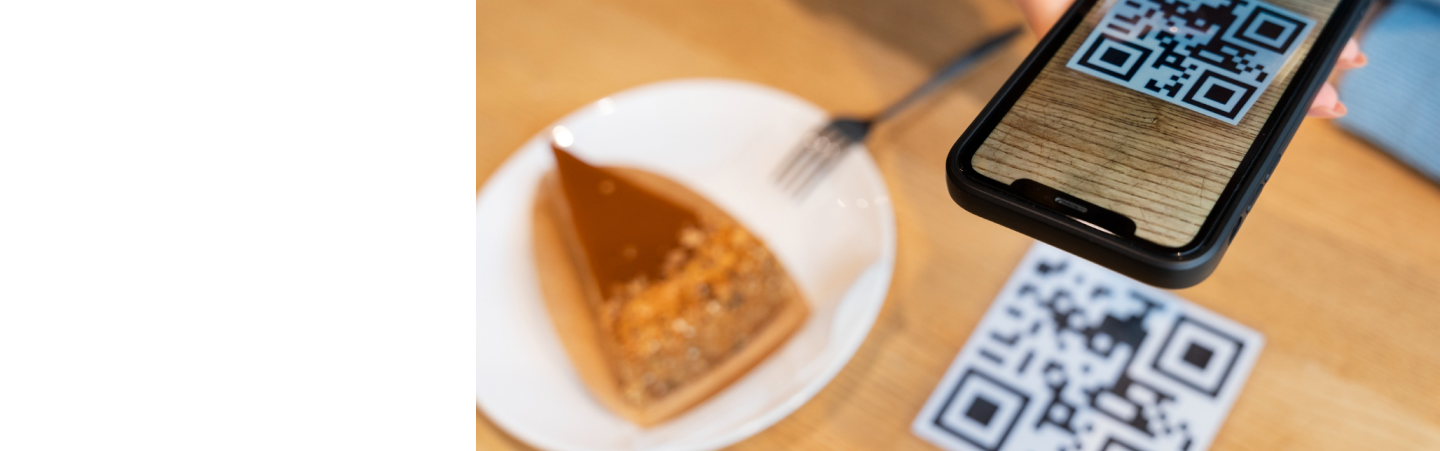
Apa kuwi Kode QR?
Kode QR (Quick Response) kuwi kode batang rong dimensi sing bisa nyimpen macem-macem data, kayata URL situs web, informasi kontak, utawa malah rincian pembayaran. Kode-kode iki umum digunakake ing macem-macem industri kanggo macem-macem tujuan, kalebu:
- Ritel lan Pemasaran :Kode QR ing produk nyedhiyakake akses cepet menyang informasi rinci, diskon, utawa materi promosi. Pengecer uga bisa nggunakake kode QR ing kampanye pemasaran kanggo nyambung menyang situs web promosi, nawakake kode diskon, utawa menehi informasi produk tambahan marang pelanggan.
- Acara lan Tiket : Tiket digital nganggo kode QR nggampangake lan cepet mlebu acara. Panitia acara bisa ngatur entri kanthi luwih efisien lan aman kanthi mindhai kode QR kanggo verifikasi tiket, saengga nyuda risiko tiket palsu.
- Restoran :Akeh restoran nggunakake kode QR kanggo nyambung menyang menu digital. Praktik iki dadi populer banget nalika pandemi COVID-19 kanggo nyuda kontak fisik lan ningkatake kebersihan. Pelanggan bisa mindhai kode QR kanggo ndeleng menu ing smartphone, pesen, lan kadhangkala malah mbayar.
- Pembayaran Tanpa Kontak : Kode QR kerep digunakake kanggo pilihan pembayaran sing aman lan tanpa kontak. Aplikasi pembayaran asring ngasilake kode QR sing bisa dipindai dening piranti panampa kanggo ngrampungake transaksi kanthi cepet lan aman.

Keluwesan lan gampange panggunaan kode QR wis ndadekake kode kasebut dadi bagean integral saka interaksi modern. Kemampuane kanggo nyimpen lan ngirim informasi kanthi cepet lan efisien wis nyebabake panggunaan sing nyebar ing macem-macem industri, nambah pengalaman pangguna lan nggampangake proses.
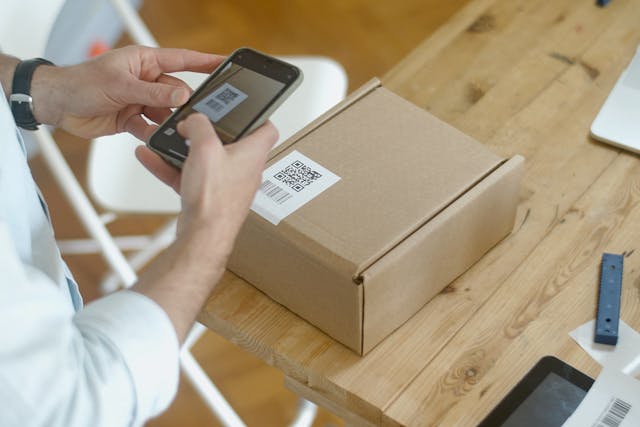
Kode QR uga umum digunakake ing bidang liyane, kayata logistik , ing ngendi bisa nglacak paket lan inventaris, lan ing pendidikan , ing ngendi kode kasebut nyambung menyang materi tambahan utawa konten interaktif. Aplikasi kode QR sing nyebar nyoroti pentinge ing lanskap digital saiki.

Apa sebabé kudu mindhai kode QR nganggo iPhone?
Pemindaian QR ing iPhone nawakake akeh keuntungan, saengga dadi cara sing disenengi kanggo akeh pangguna. Iki sawetara kaluwihan utama:
- Kepraktisan: Fitur mindhai kode QR sing wis ana ing njero ora perlu nggunakake aplikasi pihak katelu, saengga pengalaman dadi luwih lancar. Mung kanthi sawetara tutul, pangguna bisa ngakses informasi sing ana ing kode QR tanpa kudu ndownload piranti lunak tambahan.
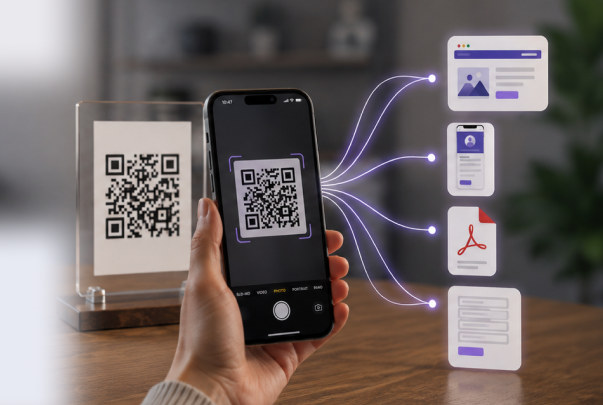
- Integrasi karo Aplikasi: Integrasi iOS karo macem-macem aplikasi njamin data sing dipindai bisa digunakake kanthi gampang, apa iku mbukak URL ing Safari, link pembayaran ing aplikasi keuangan, utawa informasi kontak sing ditambahake menyang buku alamat sampeyan. Integrasi sing jero iki nambah pengalaman pangguna kanthi nggampangake proses ngakses lan nggunakake informasi sing ana ing kode QR.
- Keamanan: Penekanan Apple marang keamanan tegese mindhai kode QR nganggo iPhone umume luwih aman, kanthi langkah-langkah kanggo nglindhungi saka kode jahat. Sistem operasi iPhone kalebu fitur keamanan bawaan sing mbantu ngenali lan mblokir kode QR sing mbebayani, menehi ketenangan pikiran kanggo pangguna.
Saliyané keuntungan-keuntungan iki, kamera iPhone sing berkualitas tinggi lan kemampuan pangolahan sing canggih ndadèkaké efektif banget kanggo mindhai kode QR kanthi cepet lan akurat, sanajan ing kahanan sing angel. IOS nawakake solusi sing bisa dipercaya lan efisien kanggo mindhai kode QR nganggo iPhone, apa sampeyan pangguna biasa utawa wong sing kerep mbutuhake.
Kauntungan-kaluwihan iki ndadekake iPhone piranti sing ideal kanggo mindhai kode QR ing macem-macem setelan, saka panggunaan biasa nganti panggunaan profesional.
Nyiapake Mindhai Kode QR ing iPhone
Sadurunge miwiti mindhai kode QR ing iPhone, ana sawetara langkah persiapan kanggo mesthekake kabeh bisa mlaku kanthi lancar. Njamin iPhone sampeyan wis siyap dipindai kalebu mriksa nganyari piranti lunak lan kenal karo fitur sing dibutuhake.
Njamin iPhone Sampeyan Anyar
Njaga piranti lunak iPhone sampeyan tetep dianyari iku penting banget amarga sawetara alasan:
- Kompatibilitas: Pembaruan iOS paling anyar njamin kompatibilitas karo fitur lan aplikasi anyar. Nalika teknologi kode QR berkembang, fungsi lan perbaikan anyar bisa uga dikenalake sing mbutuhake piranti lunak paling anyar.
- Keamanan: Pembaruan asring kalebu patch keamanan sing nglindhungi saka kerentanan. Njamin iPhone sampeyan mbukak versi piranti lunak paling anyar mbantu nglindhungi piranti sampeyan saka ancaman potensial.
- Performa: Pembaruan anyar bisa ningkatake kinerja lan stabilitas piranti sampeyan sakabèhé. Pembaruan iOS bisa ngoptimalake kinerja piranti sampeyan, saéngga pemindaian QR iPhone luwih cepet lan luwih dipercaya.
Kanggo nganyari iPhone sampeyan, tindakake langkah-langkah iki:
- Bukak Setelan > Umum > Nganyari Piranti Lunak.
- Priksa nganyari sing kasedhiya.
- Yen ana nganyari, tutul Undhuh lan Instal.
- Tindakake pandhuan ing layar kanggo ngrampungake nganyari.
Mriksa nganyari kanthi rutin njamin piranti sampeyan tetep paling anyar, menehi sampeyan pengalaman mindhai kode QR sing paling apik.
Nganyari piranti lunak iPhone ora mung njamin kompatibilitas karo fitur kode QR paling anyar, nanging uga nambah fungsi lan keamanan piranti sampeyan sakabèhé.
Ngakses Aplikasi Kamera
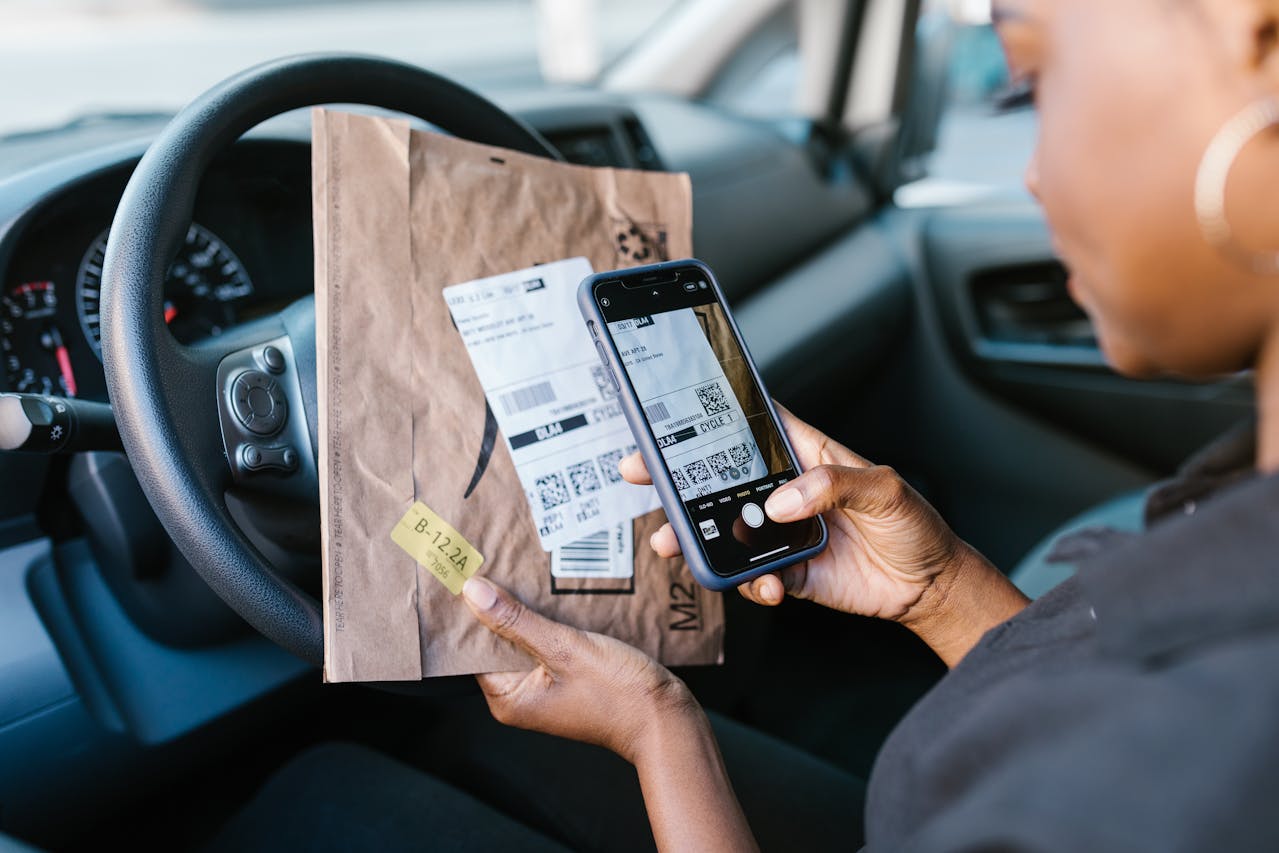
Aplikasi Kamera minangka alat utama kanggo mindhai kode QR ing iPhone. Kanggo mbukak aplikasi Kamera, sampeyan bisa ngetutake langkah-langkah prasaja iki:
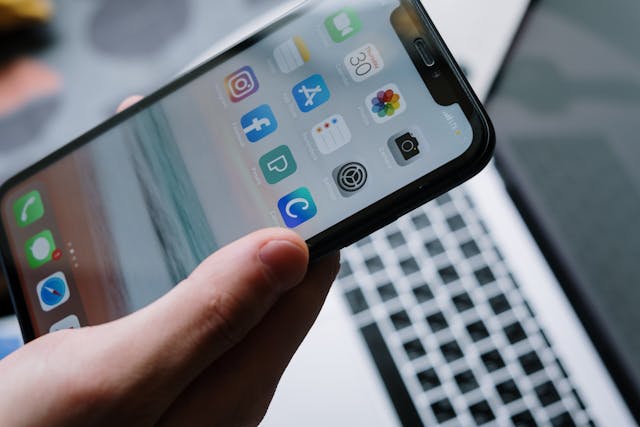
- Golekana lambang aplikasi Kamera ing Layar Ngarep utawa ing Pustaka Aplikasi. Lambang aplikasi Kamera biasane mèmper karo lensa kamera.
- Tutul lambang kanggo mbukak aplikasi kasebut.
Utawa, sampeyan bisa ngusap ngiwa ing layar Kunci kanggo ngakses aplikasi Kamera kanthi cepet. Trabasan iki migunani banget nalika sampeyan kudu mindhai kode QR tanpa mbukak kunci iPhone.
Kepiye carane mindhai QR ing iPhone nggunakake aplikasi Kamera?
Mindhai kode QR nganggo aplikasi Kamera iku proses sing gampang banget. Iki pandhuan rinci kanggo mbantu sampeyan mindhai kode QR kanthi efisien nggunakake aplikasi Kamera iPhone sampeyan.
Langkah Siji: Mbukak Aplikasi Kamera
Kanggo mindhai QR ing iPhone, sampeyan kudu mbukak aplikasi Kamera ing iPhone. Iki langkah-langkahe:
- Bukak kunci iPhone sampeyan.
- Goleki lan tutul lambang aplikasi Kamera ing layar Ngarep utawa ing Pustaka Aplikasi. Yen sampeyan luwih seneng cara sing luwih cepet, geser ngiwa ing layar Kunci kanggo mbukak aplikasi Kamera langsung.
Mbukak aplikasi Kamera minangka langkah awal kanggo mindhai kode QR. Njamin sampeyan bisa ngakses aplikasi kasebut kanthi cepet bakal ngirit wektu lan nggawe proses kasebut luwih efisien.
Langkah Kapindho: Nempatake Kode QR ing Pigura
Sawise aplikasi Kamera dibukak, tindakake langkah-langkah iki kanggo masang kode QR kanthi bener:
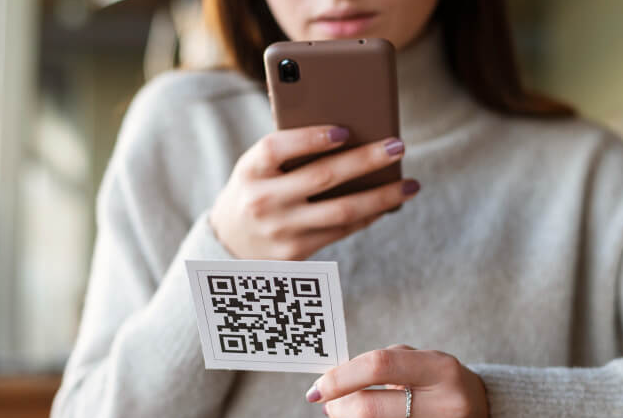
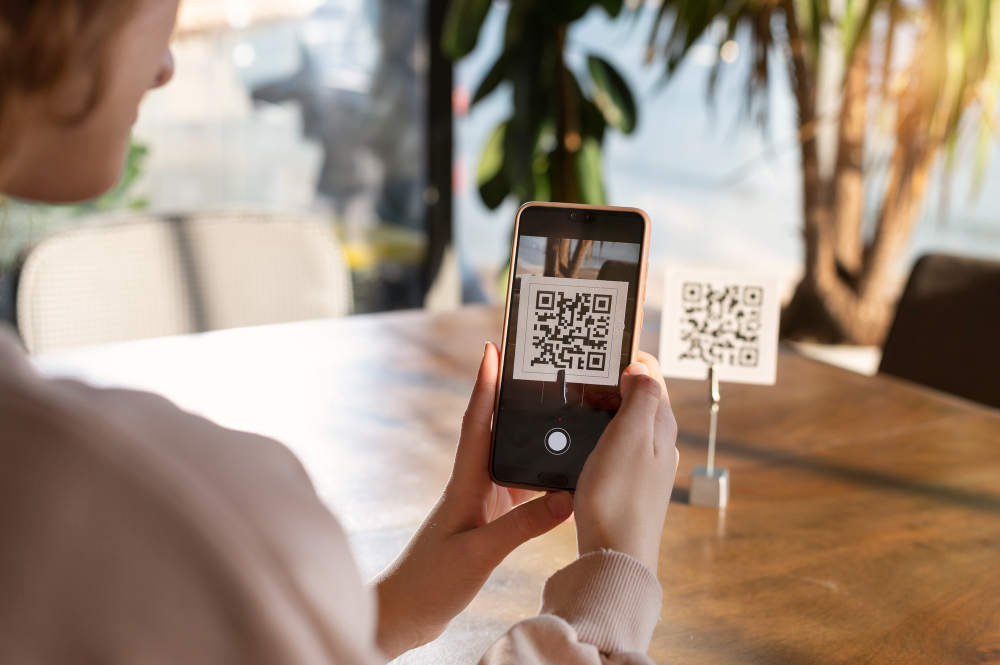
- Cekel iPhone sampeyan supaya kode QR katon ing njero pigura kamera. Priksa manawa kabeh kode QR katon lan ana ing tengah pigura.
- Kamera bakal kanthi otomatis ndeteksi kode QR lan nampilake spanduk kabar ing sisih ndhuwur layar. Proses iki biasane mung butuh sawetara detik.
Posisi kode QR sing bener ing njero pigura kamera njamin kode QR bisa dideteksi lan dipindai kanthi cepet, saengga sampeyan bisa ngakses informasi sing disematkan kanthi cepet.
Langkah Katelu: Interaksi karo Link Kode QR
Sawise kode QR dipindai, tindakake langkah-langkah iki kanggo sesambungan karo informasi kasebut:
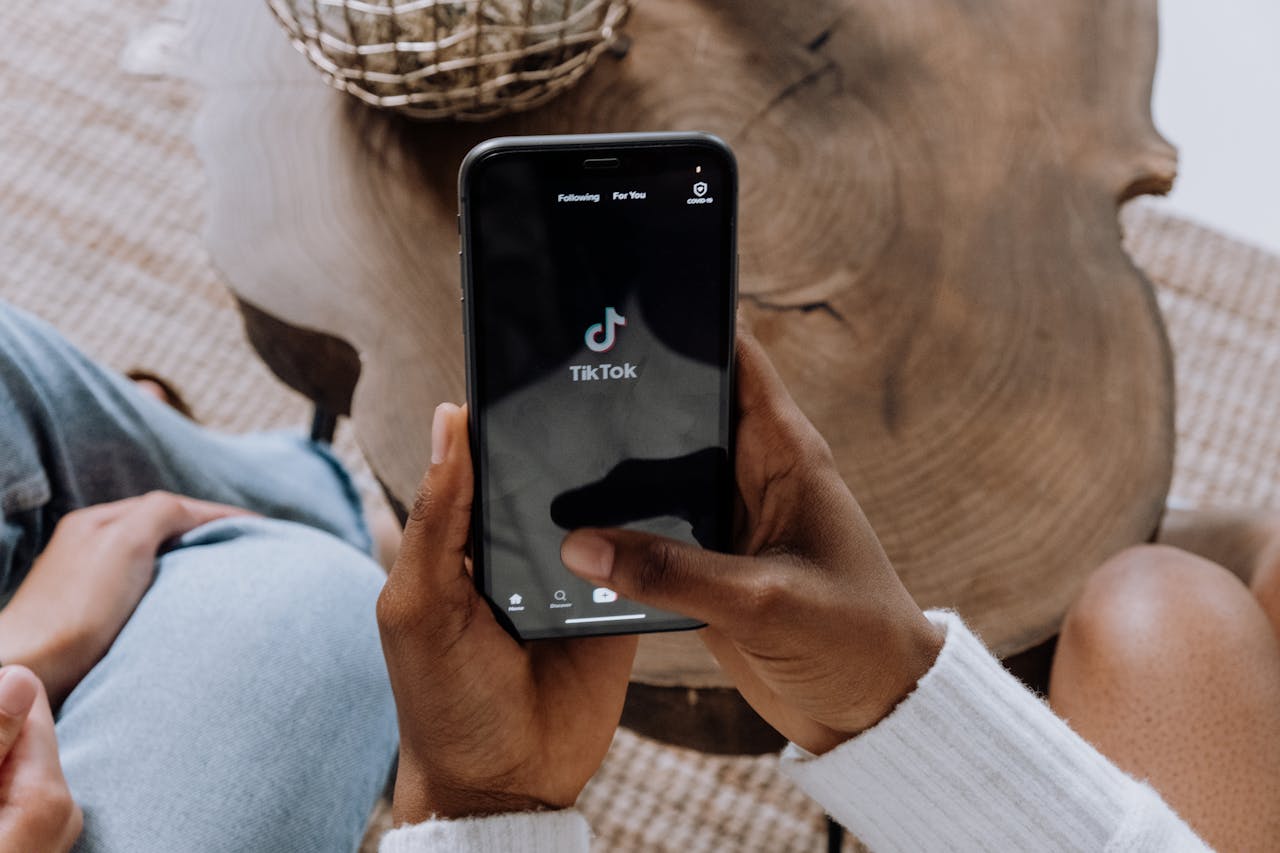
- Tutul spanduk kabar sing katon ing sisih ndhuwur layar kanggo mbukak pranala utawa informasi sing ana gandhengane karo kode QR. Gumantung saka jinis informasi kasebut, sampeyan bisa uga diarahake menyang TikTok , WhatsApp , utawa App Store .
- Tindakake pandhuan ing layar kanggo ngrampungake tumindak sing dikarepake. Contone, yen kode QR nyambung menyang LinkedIn , Safari bakal mbukak lan navigasi menyang URL sing ditemtokake.
Interaksi karo informasi sing dipindai biasane gampang, kanthi iPhone kanthi otomatis nuntun sampeyan ngliwati proses kasebut.
Sawise kode QR dipindai, sampeyan bisa kanthi gampang ngakses lan sesambungan karo informasi utawa pranala sing diwenehake, saengga kabeh proses dadi lancar lan gampang digunakake.
Kepiye carane mindhai kode QR ing iPhone nggunakake pemindai kode QR Pusat Kontrol?
Kanggo akses sing luwih cepet, sampeyan bisa nggunakake pemindai kode QR sing kasedhiya ing Pusat Kontrol. Cara iki nyedhiyakake cara alternatif kanggo mindhai kode QR ing iOS, tanpa kudu mbukak aplikasi Kamera.
Langkah Siji: Nambahake Pemindai Kode QR menyang Pusat Kontrol
Kanggo nambahake pemindai kode QR menyang Pusat Kontrol, tindakake langkah-langkah iki:
- Bukak Setelan ing iPhone sampeyan.
- Tutul Pusat Kontrol.
- Tutul Sesuaikan Kontrol.
- Golekana pamaca kode QR ing dhaptar lan tutul tombol + kanggo nambahake menyang Pusat Kontrol. Tindakan iki bakal nyelehake lambang pamindai kode QR ing Pusat Kontrol supaya gampang diakses.
Kanthi ngatur Pusat Kontrol supaya kalebu pemindai kode QR, sampeyan nambah kemampuan kanggo ngakses pemindai kanthi cepet, utamane ing kahanan nalika sampeyan kudu mindhai kode QR kanthi kerep.
Langkah Kapindho: Mindhai Kode QR liwat Pusat Kontrol
Sawise sampeyan nambahake pemindai kode QR menyang Pusat Kontrol, tindakake langkah-langkah iki kanggo mindhai kode QR:
- Gesek mudhun saka pojok tengen ndhuwur layar kanggo mbukak Pusat Kontrol (kanggo iPhone nganggo ID Wajah) utawa gesek munggah saka ngisor (kanggo iPhone nganggo tombol Ngarep).
- Tutul lambang Pamaca Kode QR.
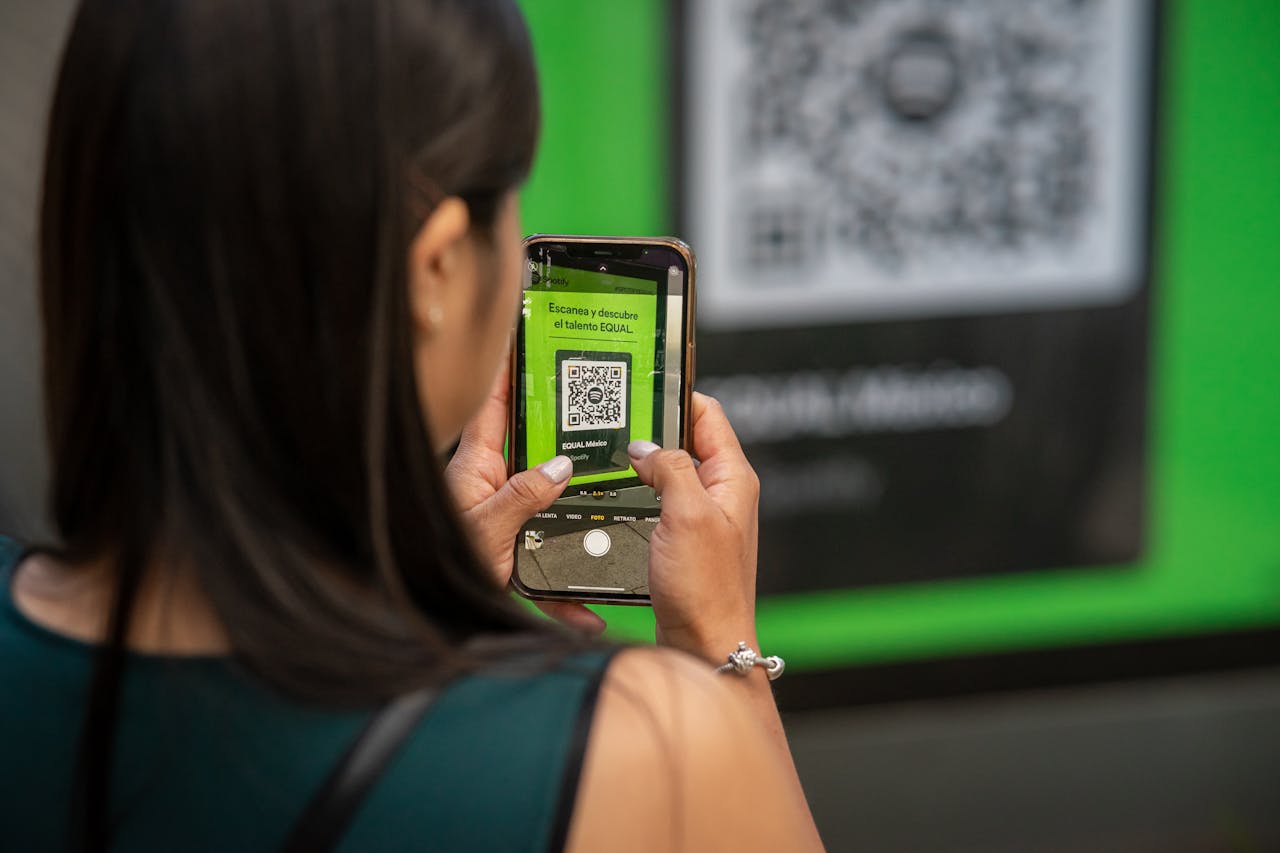
- Posisikake kode QR ing njero pigura kanggo mindhai. Pemindai kode QR ing Pusat Kontrol fungsine padha karo aplikasi Kamera, kanthi otomatis ndeteksi lan maca kode QR.
Nggunakake pamindai kode QR Pusat Kontrol minangka cara sing trep kanggo mindhai kode QR kanthi cepet tanpa kudu mbukak pirang-pirang aplikasi.
Kepiye carane mindhai kode QR nganggo iPhone nggunakake aplikasi alternatif?
Senajan pemindai kode QR bawaan ing iPhone iku efisien banget, ana aplikasi pihak katelu sing nawakake fitur lan fungsi tambahan. Aplikasi kasebut bisa nambah pengalaman mindhai kode QR sampeyan nganggo alat lan pilihan tambahan.
Langkah Siji: Njelajah Aplikasi Pemindai Kode QR sing Disaranake
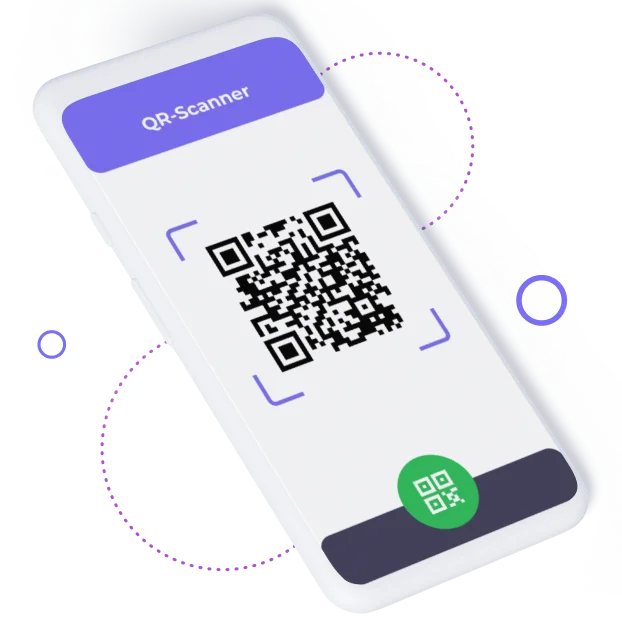
Salah sawijining aplikasi sing disaranake banget yaiku ME-QR Scanner . Aplikasi iki efektif banget kanggo mindhai kode QR sing digawe dening generator kode ME-QR . Aplikasi iki kasedhiya ing macem-macem platform lan nawakake antarmuka sing ramah pangguna lan kemampuan mindhai sing kuat.
Kanggo nggawe kode QR kanggo pranala, video utawa gambar - klik tombol ing ngisor iki.
Langkah Kapindho: Mbukak Fitur Pemindai Kode QR Pihak Katelu
Pemindai kode QR pihak katelu asring dilengkapi fitur tambahan sing bisa migunani. Iki sawetara fitur sing bisa migunani kanggo sampeyan:
- Pelacakan Riwayat: Cathet kabeh kode QR sing dipindai. Fitur iki ngidini sampeyan ndeleng maneh kode sing wis dipindai sadurunge, saengga gampang ngakses informasi maneh tanpa kudu mindai maneh.
- Pilihan sing Bisa Disesuaikan: Sawetara aplikasi nawakake luwih akeh setelan lan pilihan kustomisasi. Contone, sampeyan bisa nyetel sensitivitas pindai, ngaktifake utawa mateni jinis pangenalan data tartamtu, utawa milih tumindak tartamtu kanggo macem-macem jinis kode QR.
- Keamanan sing Ditingkatake: Fitur keamanan tambahan kanggo nglindhungi saka kode QR sing mbebayani. Aplikasi pihak katelu bisa uga kalebu langkah-langkah keamanan canggih kayata deteksi ancaman wektu nyata lan tandha peringatan kanggo kode sing bisa mbebayani.
Njelajah aplikasi pemindai kode QR pihak katelu bisa menehi sampeyan fungsi lan fleksibilitas tambahan, sing nambah pengalaman mindhai kode QR sampeyan sakabèhé.
Ngatasi Masalah Pemindaian Kode QR
Sanajan maca kode QR nganggo iPhone umume ora repot, sampeyan bisa uga nemoni sawetara masalah umum. Iki sawetara tips ngatasi masalah kanggo mbantu sampeyan ngrampungake masalah apa wae sing bisa diadhepi.
Kondisi Pencahayaan sing Ala
Pemindaian kode QR iPhone mbutuhake cahya sing cukup. Yen cahyane kurang, bisa mengaruhi proses pemindaian. Iki sawetara tips kanggo ningkatake kondisi cahya:
- Pindhah menyang papan sing padhang: Priksa manawa ana cahya sing cukup kanggo madhangi kode QR. Cahya alami utawa cahya njero ruangan sing padhang bisa ningkatake akurasi pemindaian kanthi signifikan.
- Gunakake senter: Tutul lambang senter ing aplikasi Kamera kanggo nambah visibilitas. Senter internal bisa mbantu madhangi kode QR, saengga luwih gampang dipindai ing kahanan kurang cahya.
Cahya sing tepat iku penting banget kanggo mindhai kode QR sing efektif. Kanthi njamin cahya sing cukup, sampeyan bisa ngindhari masalah sing ana gandhengane karo visibilitas sing kurang apik lan nambah pengalaman mindhai sakabèhé.
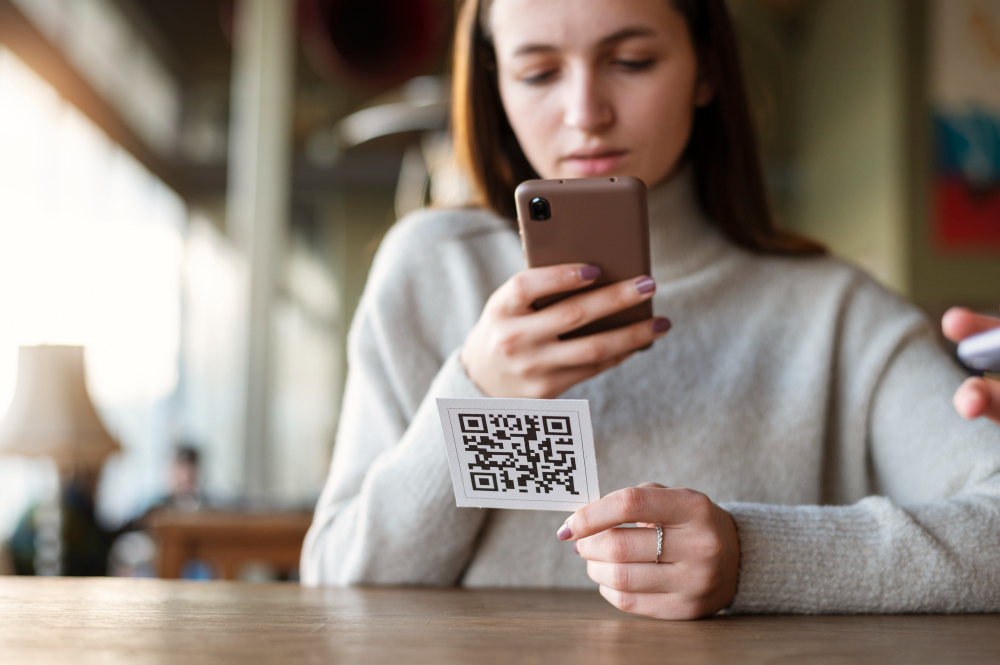
Kode QR sing burem utawa rusak
Kode QR sing burem utawa rusak bisa dadi angel dipindai. Iki sawetara tips kanggo ngatasi masalah kasebut:
- Priksa manawa lensa kamera sampeyan resik lan kode QR fokus. Usap lensa nganggo kain alus lan resik kanggo mbusak noda utawa rereged.
- Nyetel jarak: Pindahake iPhone luwih cedhak utawa luwih adoh kanggo mbantu kamera fokus. Kadhangkala, nyetel jarak antarane iPhone lan kode QR bisa mbantu entuk gambar sing luwih jelas.
Ngatasi masalah sing ana gandhengane karo kode QR sing burem utawa rusak kalebu mesthekake yen lensa kamera lan kode QR jelas lan fokus, saengga bisa mindhai kanthi sukses.
Masalah lan Pembaruan Piranti Lunak
Yen sampeyan nemoni masalah sing terus-terusan karo pemindaian kode QR ing iPhone, bisa uga amarga masalah sing ana gandhengane karo piranti lunak. Iki sawetara tips kanggo ngatasi masalah kasebut:
- Wiwiti maneh iPhone sampeyan: Wiwiti maneh sing prasaja bisa ngrampungake akeh masalah cilik. Kanggo miwiti maneh iPhone sampeyan, pencet terus tombol daya lan tombol volume (kanggo iPhone nganggo Face ID) utawa mung tombol daya (kanggo iPhone nganggo tombol Ngarep), banjur geser kanggo mateni.
- Nganyari iOS: Priksa manawa piranti lunak sampeyan wis paling anyar kanggo nyegah masalah kompatibilitas. Bukak Setelan > Umum > Nganyari Piranti Lunak kanggo mriksa lan nginstal nganyari sing kasedhiya.
Nganyari piranti lunak iPhone sampeyan njamin kompatibilitas karo fitur kode QR paling anyar lan mbantu ngrampungake masalah sing ana gandhengane karo piranti lunak sing bisa mengaruhi pemindaian.
Dudutan
Mindhai kode QR ing iOS iku cara sing prasaja lan efisien kanggo ngakses macem-macem informasi. Apa sampeyan nggunakake aplikasi Kamera sing wis ana utawa milih aplikasi pihak katelu, proses iki dirancang supaya cepet lan gampang digunakake. Kanthi mesthekake piranti sampeyan dianyari lan ngerti macem-macem cara lan tips ngatasi masalah, sampeyan bisa ngoptimalake fitur praktis iki. Kode QR minangka bagean integral saka kenyamanan modern, lan karo iPhone sampeyan, sampeyan duwe kabeh alat sing dibutuhake ing pucuk driji sampeyan.
Sakabèhé, kemampuan iPhone ndadèkaké pilihan sing apik banget kanggo mindhai kode QR, sing nyedhiyakaké pengalaman sing lancar, aman, lan efisien kanggo para pangguna.